Remove Duplicate Lines
Clean Any List in One Click
Remove duplicate lines from a list in one click, while your original order stays intact. First, paste your rows. Then copy the clean version, because every step runs inside this tab.
- FreePrice
- Not neededAccount
- KeptOrder
- NoneUploads
Duplicate Line Remover
Paste a list — every repeated row goes and your order stays
- Rows in
- 0
- Rows out
- 0
- Rows dropped
- 0
- Repeated values
- 0
Ready. Paste your list and the clean version appears beside it.
Jobs a Duplicate Line Remover Handles in Seconds
It reads your list, keeps the first copy of every line and drops the rest. So a list of five hundred email addresses with sixty repeats comes back as four hundred and forty unique rows.
The order survives. Many tools sort as they clean, which scrambles a list that carried meaning in its sequence. This one leaves your rows where you put them unless you ask for sorting.
Anyone who works with exported data needs this. Merge two spreadsheets, combine two keyword lists or stack three log files, and repeats arrive with them every single time.
The browser already knows how to hold unique values. MDN's page on the Set object describes the structure doing the work here.
Reasons to Remove Duplicate Lines Before You Use a List
Repeats distort every count that follows. A mailing list with duplicates sends the same message twice, and a keyword list with repeats makes a term look more popular than it truly is.

They also waste effort. Therefore cleaning a list first means every row you review afterwards is a row you have not already seen, which turns a long check into a short one.
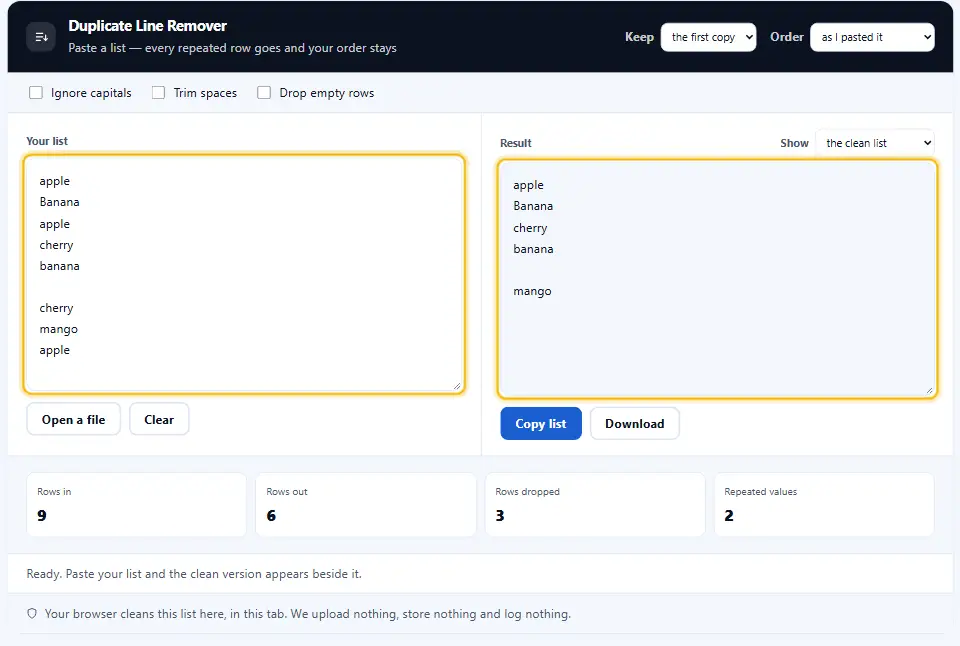
The Rules the Duplicate Line Remover Follows
Out of the box, it matches lines character for character. "Apple" and "apple" count as two different rows, and a trailing space makes another. That strictness is right when the text carries meaning in its shape.
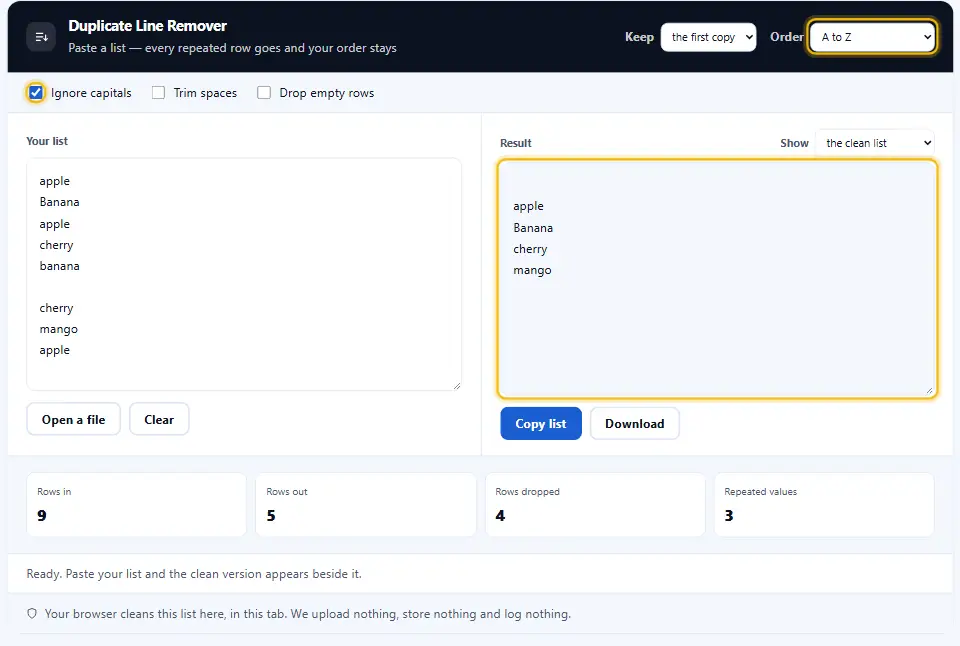
Two options relax it. Ignore capitals counts "A" and "a" as the same letter, while trim spaces removes the padding at each end before comparing. Together they catch the repeats that only look different.
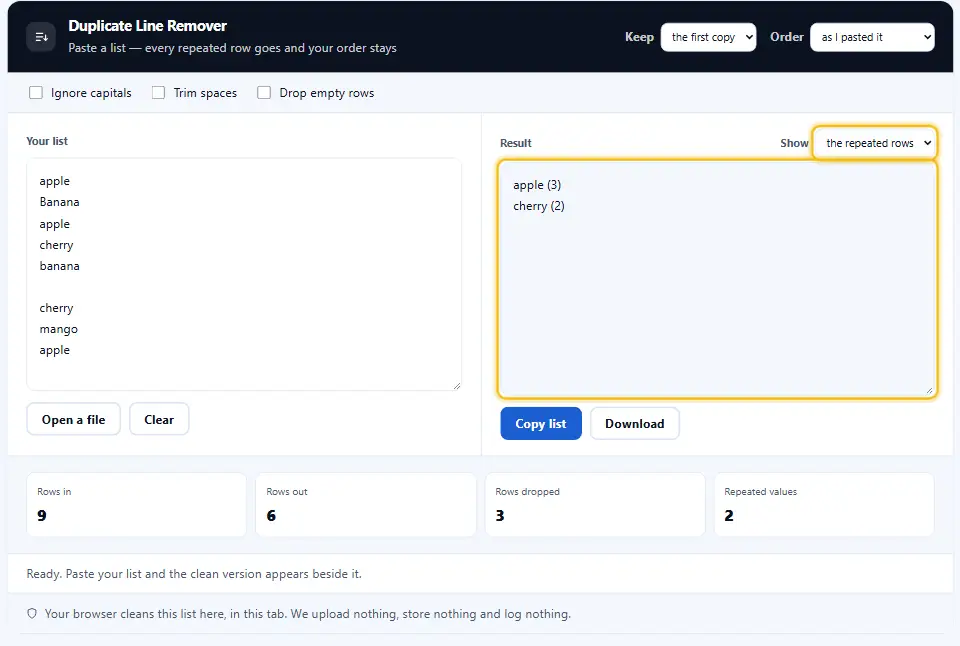
Keeping the First Copy or the Last
Most lists want the first copy, because it arrived first and often carries the original context. A log file sometimes wants the last, since the newest row holds the current state.
Four Steps to a List With No Repeats
No install, no waiting line, just paste the rows. This page compares your rows, so even a long list clears in seconds.
- 1
Paste your list
Drop in rows from a spreadsheet, an export or a text file. One line per row is all it needs.
- 2
Pick your rules
Choose whether case counts, whether spaces count, and whether to keep the first copy or the last.
- 3
Read the totals
The tool shows how many rows came in, how many survived and how many it dropped along the way.
- 4
Copy or download
One button copies the clean list, another saves a file. Meanwhile your rows go nowhere near a server.
A Duplicate Line Remover That Respects Your Order
Most tools sort your list as a side effect. This one changes nothing you did not ask it to change.
Order kept by default
Your rows stay where you put them. The list only gets sorted when you ask for it.
Case rules you set
Treat capitals as the same letter or as different ones. Email lists want the first, product codes often want the second.
Spaces handled
A trailing space makes two identical rows look different. Trim them before comparing and those repeats disappear.
First copy or last
Keep the earliest row for most lists, or the newest when a later line holds the current value.
Counts you can trust
Rows in, rows out and rows dropped all appear under the result, so the arithmetic always adds up.
Nothing leaves your tab
All the cleaning happens inside your browser. There is no request, no storage and no log, so customer lists stay yours.
Cleaning Lists Without Losing Data
These six habits keep a clean list honest.
- Keep the original file. Cleaning is one way. Therefore hold onto the source until you have checked the result properly.
- Trim spaces before comparing. Exports carry invisible padding. Trimming first catches repeats that otherwise slip straight through.
- Decide about case on purpose. Email addresses ignore case, though product codes rarely do. So pick the rule your data actually follows.
- Check the dropped count. If the tool removed far more rows than you expected, your comparison rule is looser than the data wants.
- Tidy the list once, as the final step. Merge every source first, then remove duplicate lines. Cleaning each file separately misses repeats across them.
- Sort only when order is meaningless. A ranked list loses its ranking the moment you sort it. Leave the order alone unless it carries nothing.
Mistakes That Lose Good Rows
Each one quietly removes something you wanted to keep.
Ignoring case on codes
Two product codes differing only in capitals are two products. Capital letters change the result more often than you might think.
Sorting a ranked list
Cleaning and sorting together destroys a ranking. Keep them separate and the order survives.
Cleaning before the merge
Repeats across two files survive when each file is cleaned alone. Combine everything first, then clean.
Duplicate Line Remover FAQ
Does the tool keep my original order?
Yes. Denwix switches that on for you. It walks your list from top to bottom, keeps the first copy of every line and drops the later ones. Your rows stay exactly where you put them unless you set the sort option yourself.
Can it ignore capital letters?
Turn on the ignore capitals option and "Apple" and "apple" count as one row. Leave it off and they count as two. Email lists usually want it on, while product codes and passwords almost always want it off.
What does the remover do with empty lines?
You choose. One option drops every empty row, which suits a list pasted out of a spreadsheet. Leave it off and blank lines follow the same rule as any other line, so the first one survives and the rest go.
How many rows can the Denwix remover clean in one go?
Hundreds of thousands without trouble, because the work happens in memory using a lookup that stays fast as the list grows. Past half a million rows it says so plainly, rather than freezing your tab.
Can I see which lines it removed?
The counts tell you how many rows arrived, how many survived and how many left. A separate view lists the repeated values themselves, so you can check the tool made the decision you expected before you copy anything.
Does my list ever leave this Denwix page?
No. Everything is processed on your own device, which means there is no request, no storage and no log. Customer lists, email exports and internal data never leave your machine.
More Denwix Tools Worth Opening Next
Every Denwix tool listed here runs locally, with no login and nothing uploaded.
Put two versions side by side and spot every edit between them.
Open tool →Tallies for words, letters, sentences and minutes of reading, refreshed on every keystroke.
Open tool →Swap your text between capitals, small letters, title style and sentence style with one click.
Open tool →
Clean your next list in seconds
Paste your rows, set the rules, and copy the result. Nothing travels anywhere and nothing sticks around.