Email Signature Generator
Twenty Clean HTML Templates for Gmail and Outlook
Type your details, choose a template, then copy what you get. This email signature generator adds a photo, a logo, social icons and a button, and it gives you code that Gmail accepts.
- FreePrice
- 20Templates
- Gmail and OutlookWorks in
- NoneSign-up
Email Signature Generator
Pick a template, fill in your details, paste it into Gmail
Photo and logo
Gmail needs a public https link for each picture. Choose a file to preview it here, then paste the link where you uploaded it.
Banner
A banner sits under your signature. Type a short line for a coloured banner, or add a picture link.
Social links
Button and note
- Characters
- 0
- Social links
- 0
- Template
- -
Type your name and the signature appears at once.
Each one shows your own details. Pick the one you like.
What the Signature Generator Builds for You
An email signature generator creates the contact block that closes each message you write. You type your name, your role and your links. The page then draws a neat signature and writes the code behind it.
That code is plain HTML. Because it uses simple tables and inline styles, Gmail, Outlook and Apple Mail all show it the same way.
You get twenty templates, a photo, a logo, social icons, a banner and an optional button. Everything updates as you type, so you see each change at once.
This page draws the signature on your own device, with no help from a server. Your name, number and links never leave it.
Build an HTML Email Signature in Minutes
Begin with your full name and your job title. After that, fill in whichever of phone, email and website you want to show. Every field is optional, so a line you leave empty simply disappears.

The preview sits right beside the form. When it looks right, press Copy for Gmail. Expect the entire task to last around two minutes.
Twenty Email Signature Templates
Every template shows your own details, so you can compare them side by side. Classic puts a photo on the left. Stacked keeps everything in one column. Banner adds a coloured header, and Dark gives a bold card. Split panel, Night and Gradient use bold colour blocks for a polished look.
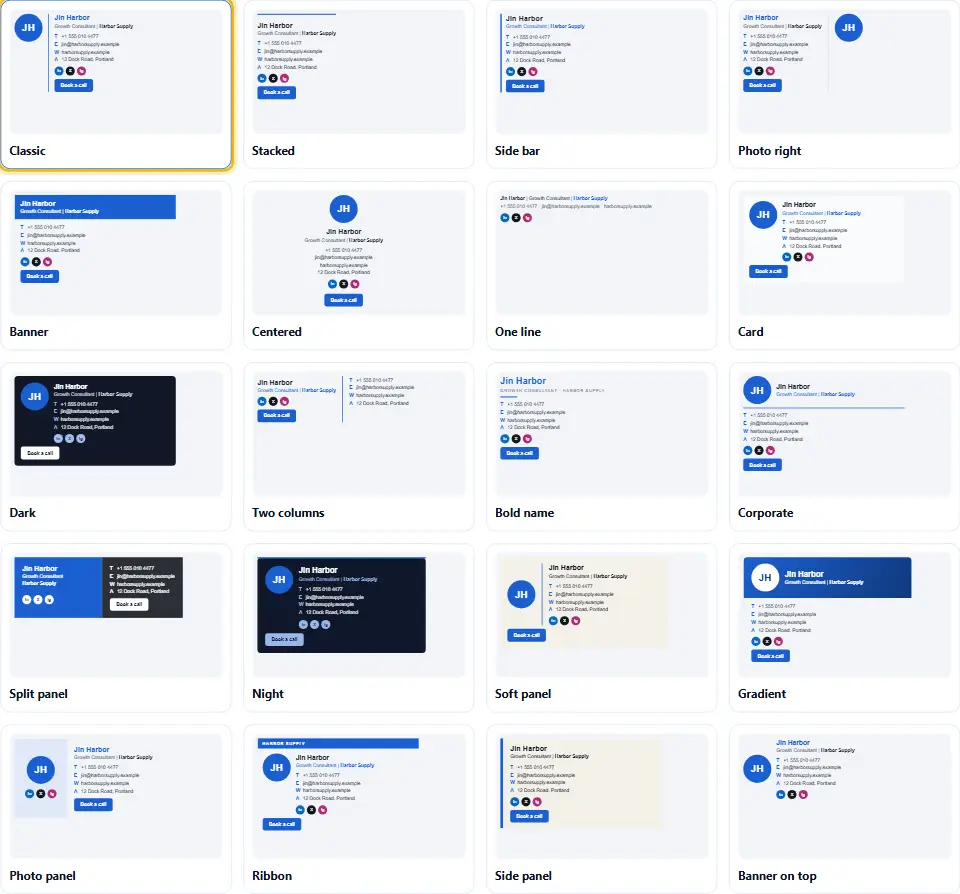
Others include a side bar, a centered layout, a one-line version, a card, two columns, a ribbon and a soft panel. Click one, and the preview changes at once.
Bring In Your Photo and Company Logo
Gmail needs a public link for every picture. So upload your photo to your website or an image host, and paste its address into Photo link. A logo follows the same rule.
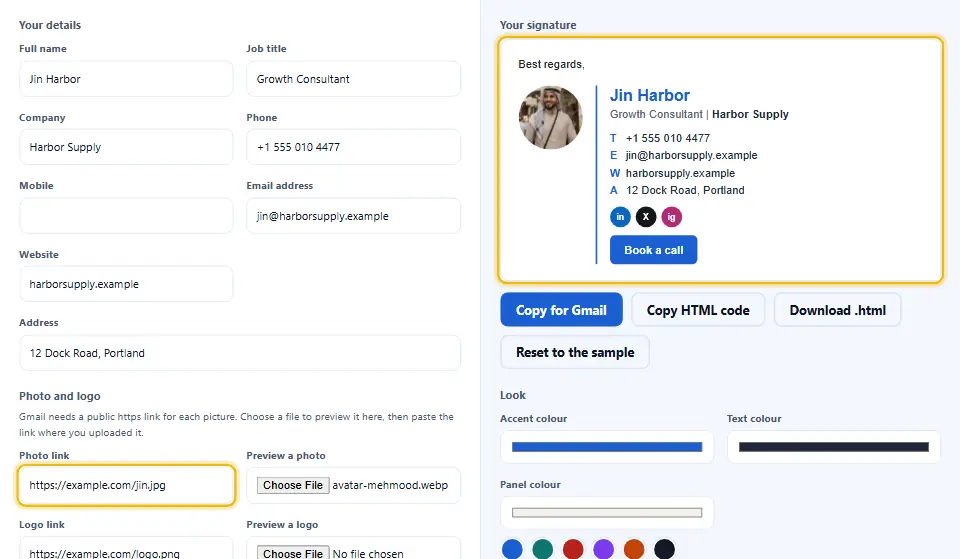
Prefer a look at the result before you commit? Choose a file under Preview a photo. It shows in the preview only. Without a link, the signature uses a round badge with your initials instead.
Why Gmail Needs Image Links
Gmail does not keep pictures that you embed inside the code. It fetches each one from a web address when the message opens. A link such as https://example.com/me.jpg is therefore the safe way.
Keep each picture small, under 200 KB, and use https. As a result, your signature loads fast and no warning appears.
Social Icons That Work in Email
Many generators use icon pictures hosted on their own servers. Those can break, and mail apps often block them. This one draws each icon as a small coloured badge made of plain text, such as in for LinkedIn.
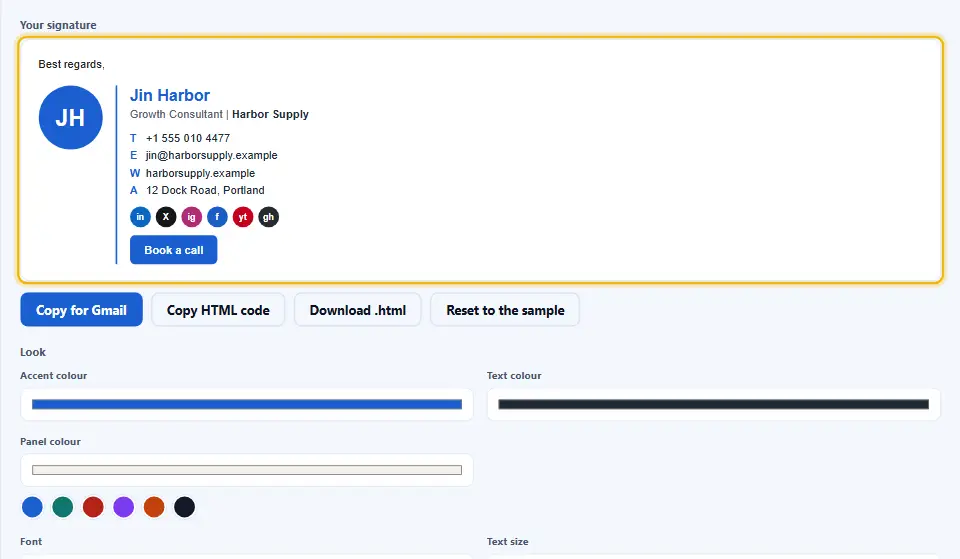
As a result, the icons need no hosting and no pictures at all. Pick round or square badges, brand colours or your accent colour, or switch to simple text links.
Choose an Accent Colour Your Readers Can Read
Pick an accent colour, and the tool uses it for links, dividers and badges. It also checks the colour against white. Text should reach a contrast of at least 4.5 to 1, a rule from the Web Content Accessibility Guidelines.
A pale colour fails that test, and the Quick checks list tells you so. Choose a darker shade, and your links stay easy to read for everyone.
Fonts and Sizes Mail Apps Trust
Email apps only draw fonts that the reader already has. So the font menu lists six safe choices, such as Arial, Verdana and Georgia. Each one comes with a fallback.
So keep the size between 13 and 15 pixels. Smaller text is hard to read on a phone, and larger text makes the signature louder than your message.
Add a Banner Under Your Signature
A banner turns your signature into a small advert. Type a short line, such as Free strategy call this week, and the tool draws a coloured banner from your accent colour. Add a link, and the whole banner becomes clickable.
Prefer a picture? Paste the link of a banner image instead. Keep it about 460 pixels wide and under 100 KB, so it loads fast. Then pick Banner on top if you want it above your name.
Add a Button and a Short Note
A button gives readers one clear next step, such as Book a call. Type the text and a link, and the tool builds a button that works in every mail app. Choose a filled, outline or pill style.
Meanwhile, the note box is for a short legal line or a tagline. Keep it brief. Long disclaimers push your contact details out of view.
Putting the Signature Into Your Gmail Settings
First, press Copy for Gmail. After that, open Gmail, press the gear icon and pick See all settings. Then, under General, scroll to Signature and press Create new. Name it, click in the box and paste.
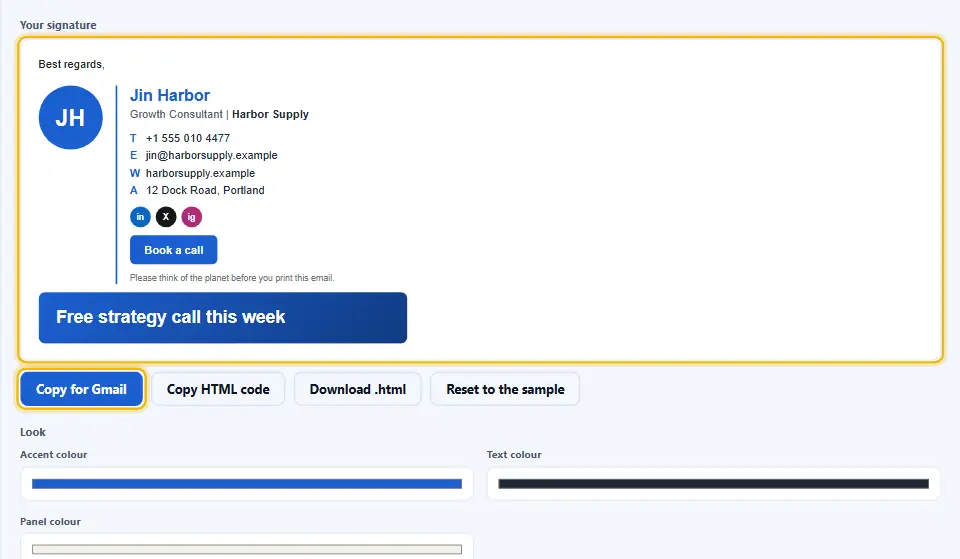
Finally, choose when the signature appears and press Save changes at the bottom. Google explains each step in Create a Gmail signature.
Copy for Gmail or Copy HTML Code
Copy for Gmail copies the finished, formatted signature. Paste it into the Gmail signature box and it looks like the preview. This is the one to use for Gmail.
However, Copy HTML code copies the raw code. Use it in tools that ask for HTML, such as many mail apps and website editors. The code can be saved as a file as well.
Outlook and Apple Mail
Outlook and Apple Mail both have a signature box in their settings. Paste the formatted signature there, the same way you did in Gmail. Because the code uses tables, it holds its shape in all of them.
The Gmail Signature Length Limit
Gmail signatures stop at about 10,000 characters. The Characters box shows your count, and the checks warn you when you come close. A short signature rarely gets near the limit.
If you do pass it, remove the note or a social link. Most readers will never notice they are gone.
What Gives a Signature a Professional Feel
Keep it short. For example, a name, a role, one phone number, one website and a few links are enough. Leave out quotes, long legal notices and oversized banners.
Use one accent colour. Also keep the width under 500 pixels. And add alt text to every picture, so people who cannot see images still get your name.
Why the Code Uses Tables
Email apps ignore most modern CSS. They do not support layouts built with flex or grid. Tables with inline styles are the one method that works everywhere, so every template here uses them.
How to Use the Email Signature Generator
A short video walks through every step. Then pick your language below, and turn on captions if you like.
Making Your Signature With Denwix
As you type, the preview redraws itself, so the page never needs a generate button.
- 1
Add your details
Name, role, phone, email, website and links.
- 2
Pick a template
Click one of twenty, then set colour and font.
- 3
Add pictures
Paste a photo and logo link, or use initials.
- 4
Copy into Gmail
Press Copy for Gmail, then paste in settings.
Built So the Signature Works Where It Matters
Many generators look good on their own page and break in an inbox. This one is made for the inbox.
Twenty templates
From a clean one-liner to a bold banner.
Text-only icons
Social badges that no mail app can block.
Contrast check
Flags any colour that is hard to read.
Real Gmail copy
One click copies the finished, formatted signature.
Length check
Keeps you under the Gmail limit.
Private
Your information never leaves this browser tab.
Tips for a Signature People Trust
Small habits that make a signature look professional.
- Keep it short. Five lines say everything people need.
- Use one colour. A single accent looks calm and sharp.
- Link, do not paste. Use links for pictures, never embedded data.
- Test on a phone. Send yourself an email and open it there.
- Add alt text. It appears whenever images are blocked.
- Update it yearly. Old numbers and roles cost you trust.
Six Mistakes in Email Signatures
Each one makes you look less careful than you are.
One huge image
Blocked images leave a blank gap.
Pale link colours
Light text on white is hard to read.
Too many icons
Three or four icons are enough.
Long legal text
It buries your contact details.
Using http images
Some mail apps block plain http.
Never testing
Mail yourself a copy before you roll it out.
Email Signature Generator Questions People Ask
What is the quickest way to build an email signature for Gmail?
Fill in your details, pick a template and press Copy for Gmail. Then open Gmail settings, go to Signature, press Create new and paste.
Does this Gmail signature generator cost anything?
Yes. It costs nothing, asks for no sign-up and stamps no watermark on the result.
What exactly is an HTML signature?
It is a signature written as HTML, so it can hold colours, links, a photo and a button instead of plain text.
Can I paste the HTML code straight into Gmail?
Gmail has no box for raw code. Use Copy for Gmail, which pastes the formatted signature. Use the HTML code in other tools.
What stops my photo from appearing?
Gmail needs a public https link to the picture. Upload it somewhere, paste the link into Photo link and copy again.
Can I use the result in Outlook too?
Yes. Paste the formatted signature into the Outlook signature box. The tables keep the layout in place.
Why are the social icons letters?
Letter badges need no hosted pictures. That means mail apps cannot block them, and they never break.
What is the length limit of a Gmail signature?
About 10,000 characters. The Characters box and the Quick checks show how close you are.
Are colours and fonts adjustable?
Yes. Pick any accent and text colour, and choose from six safe fonts and five sizes.
Does the signature show on phones?
Yes. Gmail on Android and iPhone shows it, as long as the pictures have public links.
Is there a way to keep my signature?
Save the finished signature as a small HTML file on your computer. Nothing is stored on this site, so keep the file if you want it later.
Are my details uploaded?
No. Your browser draws the signature itself, so nothing is sent away.
More Tools for Email Work
Handy next steps once your signature is ready.
See an HTML email on desktop and mobile before you send.
Open tool →Make dot and plus versions of one Gmail address.
Open tool →Turn your contact link into a code.
Open tool →
Shall We Build Your Email Signature Now?
Fill in your details and the signature appears at once. This email signature generator is free, needs no account and works in your browser.