HTML Email Previewer
See Your Email in Gmail on Desktop and Mobile
Paste your code into this HTML email previewer, and see the email as Gmail would draw it on a computer and on a phone. Then read what Gmail would change, before you press send.
- FreePrice
- Desktop and mobileViews
- Gmail's own CSS listRules
- NoneSign-up
HTML Email Previewer
See your email as Gmail shows it, on desktop and on a phone
- Size
- 0
- Images
- 0
- Links
- 0
Ready. Paste your HTML and the preview appears at once.
[Message clipped] View entire message
What an HTML Email Previewer Shows You
An HTML email previewer shows your email before anyone else sees it. You paste the code, and the page draws it the way Gmail would. Then you check it on a desktop and on a phone.
That saves real trouble. Gmail rewrites far more of an email than most people realise. It drops some tags, ignores some CSS and clips long messages. So a quick look now beats a broken email later.
This previewer follows the rules Google writes down for developers. It reads the same list of supported CSS properties that Google publishes. As a result, the checks come from the source and not from guesswork.
All of the work takes place inside your browser. Your email, with its names and its offers, never leaves this page.
See How an Email Will Look Before Anyone Gets It
Paste or open your HTML, and the preview appears at once. No button needs pressing. If you only want to look around, choose a sample and press Try a sample.

The preview lives in a box of its own. Your email's CSS cannot touch this page, and this page cannot touch your email. This keeps the preview truthful.
Previewing on Desktop and on a Phone
Desktop shows your email at 760 pixels wide, which is close to the width of a Gmail reading pane. Mobile shows it at 375 pixels, the width of a common phone.
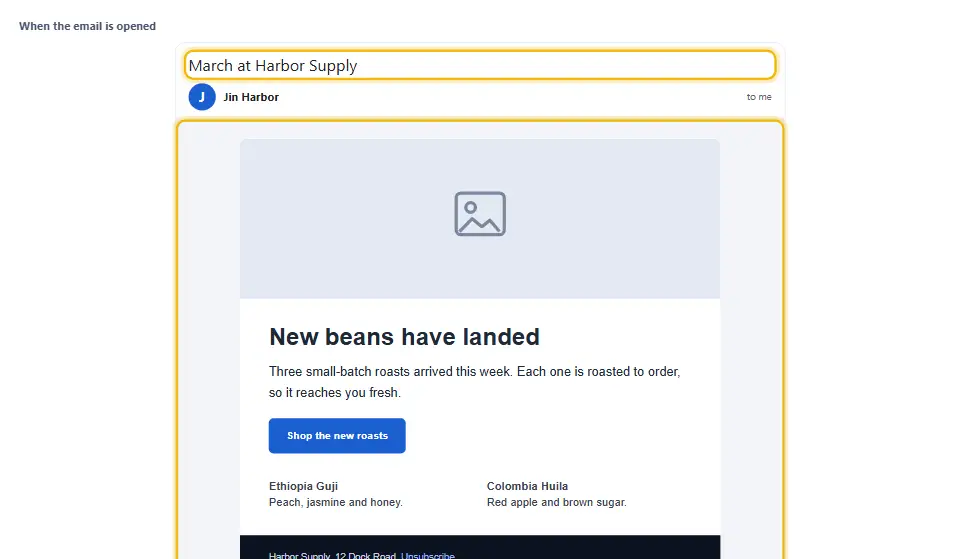
Media queries react to those widths. A rule for a screen up to 480 pixels wide switches on when you pick Mobile. So you can watch two columns stack into one.
How Gmail Reads Your CSS
Google keeps a page called CSS support in Gmail. It lists every property that Gmail supports. Gmail ignores anything else.
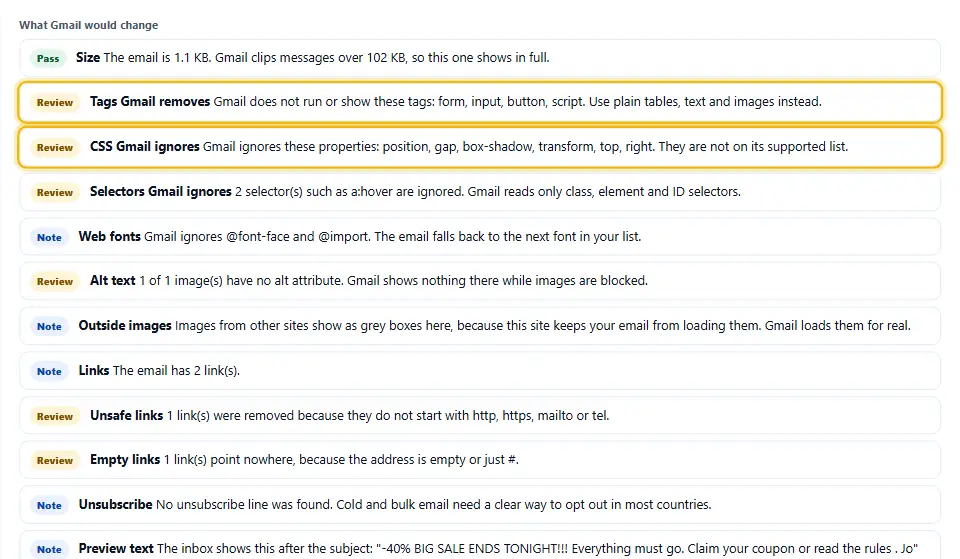
Set Rules to Gmail, and the previewer drops everything that the list leaves out. For example, box-shadow, position and flex layouts disappear. Set Rules to Plain browser, and it drops nothing, so you can compare the two.
Selectors and Media Queries in Gmail
Gmail reads class, element and ID selectors. It skips attribute selectors and pseudo classes such as :hover. For media queries, it supports width, orientation and resolution.
The previewer follows the same limits. A skipped selector shows up in the checks with an example, so you can find it fast.
How the Subject Line and Snippet Show in an Inbox
Type a subject and a from name, and the page draws an inbox row. It shows the name, the subject and the first words of the message. Those first words are the preview text.
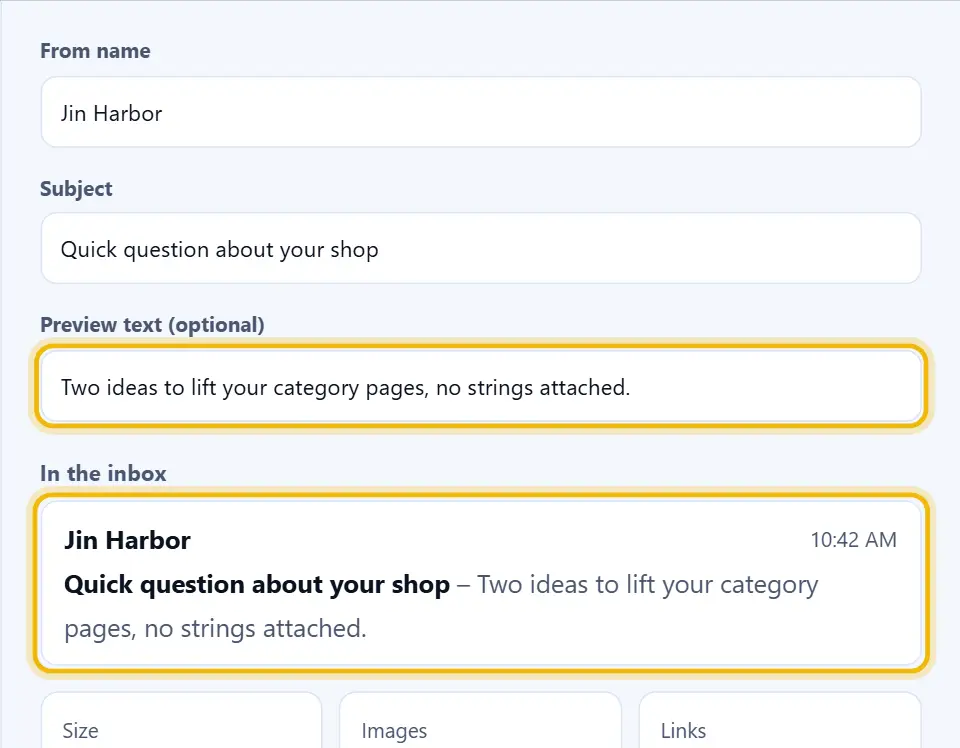
Many emails start with View in browser, which wastes the best line in the inbox. Instead, add a short hidden preheader, or type your own text into Preview text. The checks warn you when the email opens with a weak line.
A Dark Mode Preview
Many readers use Gmail in dark mode. The Look menu gives a rough dark view. It flips light colors to dark and puts images back the right way round.
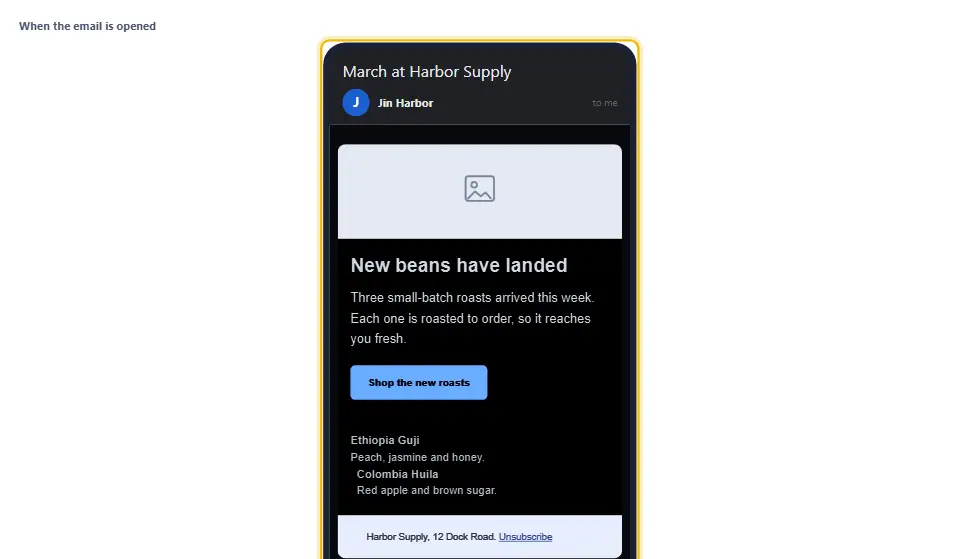
Gmail does not publish its own method, so treat this view as a warning light and not as a promise. Still, it quickly shows a dark logo that vanishes on a dark page.
Images in the Preview
Your browser stops this site from loading pictures from other sites. That is a security rule, and we keep it. So a remote image appears as a grey box of the right size.
The box still shows the layout. In addition, the checks tell you about missing alt text, missing widths and images embedded as base64, which Gmail does not show.
What Gmail Removes From Email
Gmail does not run scripts. It also drops frames, forms, video and SVG. It also strips event handlers such as onclick, and links that start with javascript:.
The previewer does the same, and it lists each removal. Therefore you learn about a broken button before your readers do.
Where Gmail Cuts Long Messages at 102 KB
Gmail clips a message that is larger than 102 KB. It hides the rest behind a link named View entire message. If your unsubscribe line sits at the bottom, readers may never see it.
The Size box shows your email in kilobytes. To shrink it, remove comments, repeat fewer inline styles and run the code through an HTML minifier.
Checks for Cold Email Templates
Cold outreach performs best when it reads like a short note from one person. So keep the design light: a few paragraphs, one link and a clear way to opt out.
The checks flag the usual trouble. They warn about emails that are mostly images, links that point nowhere and a missing unsubscribe line. In the United States, the CAN-SPAM compliance guide explains why that last one matters.
Open an HTML Email File Stored on Your Machine
Most email tools let you export the HTML of a template. Save it as a file, press Open a file, and the preview appears. Files up to 2 MB work, which is far more than Gmail will show anyway.
Click-Check Each Link Before the Send Button
Each dead link can lose you a reader. The checks count every link, and they warn about empty ones, plain http ones and unsafe ones. Links stay switched off in the preview, so a stray click never takes you away from your work.
Before you send, open each link once in your own browser. Then read the address in the status bar, and make sure it goes where the words say.
Compare Gmail Rules With a Plain Browser
Flip the Rules menu back and forth, and watch what changes. Each difference is something Gmail would take away from your readers. Fix those first, because they decide how your email looks in the inbox that most people use.
A Preview Is Not a Full Test
This previewer is not Gmail itself. It follows Gmail's written rules, but real Gmail has apps, accounts and updates of its own. Send yourself a test too.
Outlook and Apple Mail also behave differently. Tables and inline styles are the safest way to build one email for all of them.
Ways to Solve the Usual Email Problems
Use tables for layout, and set a width on every image. Put key styles inline. Add alt text to each image, and keep the main column near 600 pixels. Then preview again, on both screens.
Previewing an Email With Denwix
The preview redraws as you type, which removes the need for a preview button.
- 1
Paste your HTML
Paste the code, open a file or try a sample.
- 2
Pick a device
Switch between desktop and mobile, light and dark.
- 3
Read the checks
See what Gmail would drop, clip or ignore.
- 4
Fix and look again
Edit the code. The preview follows each change.
A Previewer Built on Gmail's Own Rules
Most previewers just show your code in a browser. This one shows what Gmail would keep.
Gmail CSS rules
Only properties on Google's list are drawn.
Desktop and mobile
Media queries react to the width you pick.
Inbox row
See the from name, subject and preview text.
Plain-English checks
Each warning says what is wrong and how to fix it.
Four samples
A cold email, a newsletter, a welcome and one with faults.
Private and safe
No scripts run, and nothing leaves this page.
Tips for Emails That Look Right in Gmail
Small habits that stop most layout trouble.
- Build with tables. They hold their shape in every mail app.
- Keep it near 600 pixels. It fits a reading pane and shrinks well.
- Set image widths. The layout then holds while pictures load.
- Write alt text. It shows when a mail app blocks the images.
- Add a preheader. Make the first line in the inbox count.
- Test on a phone. Most readers open email on one.
Six Mistakes in HTML Emails
Each one breaks the layout, or the trust, in a real inbox.
Using flex or grid
Gmail drops those rules. Use tables.
Sending one big image
Blocked images leave a blank page.
Hiding the unsubscribe link
It belongs in view, and above the clip.
Fixed 800 pixel width
Phones then have to scroll sideways.
Relying on web fonts
Gmail falls back to the next font you list.
Skipping the test send
A preview helps, but a real send proves it.
HTML Email Previewer Questions People Ask
How do I preview an HTML email in Gmail?
Paste your HTML into the box on this page. The previewer draws it the way Gmail would, on desktop or mobile, with no sign-up.
Is this HTML email preview online or in my browser?
No server takes part, because your own browser draws the preview. The page you are on does all the work, and your code is never uploaded.
Is the preview exactly what Gmail shows?
It comes very near, yet it is not a perfect copy. It follows Google's published CSS rules, while real Gmail has apps and updates of its own. Also mail yourself a real test.
Why does the email look different here from how my browser shows it?
Gmail ignores some CSS, such as box-shadow, position and flex. With Rules set to Gmail, the previewer ignores them too.
Why are my images grey boxes?
This site stops your browser from loading pictures from other sites. The boxes keep the layout, and Gmail loads the real images.
Does it work as an email template preview for newsletters?
Yes. Paste the template HTML and switch to Mobile to see how columns stack and how a media query reacts.
What is the 102 KB limit?
Gmail cuts off any message above 102 KB. It hides the rest behind a link, so keep the code small.
Is a dark mode preview possible?
Yes, with the Look menu. The view is an approximation, because Gmail does not publish how it recolors an email.
Does it run scripts in my email?
No. The previewer strips scripts, handlers and unsafe links first, the way Gmail strips them.
Can I load an HTML file instead of pasting?
Yes. Press Open a file and pick a .html or .htm file up to 2 MB.
Will it look at my subject line too?
Yes. It counts the characters and says when a phone would cut the subject short.
Is it safe to paste a real campaign?
Yes. The page stores and sends nothing, and closing the tab clears everything.
More Tools for Email Work
Handy next steps once your email looks right.
Build a clean HTML signature for Gmail and Outlook.
Open tool →Shrink your HTML to stay under the Gmail clip.
Open tool →Make dot and plus versions of one Gmail address.
Open tool →
Ready to See Your Email in Gmail?
Paste your code and the preview appears at once. This HTML email previewer is free, needs no account and works in your browser.