Excel Converter Online
Open, Convert And Build Workbooks
This Excel converter online opens an .xlsx file in your tab and turns it into JSON, CSV, XML or YAML. It also builds a real workbook from your data. Nothing leaves your device.
- FreePrice
- 9Formats
- NoneSign-up
- NoneUploads
Excel Converter
Open a workbook and convert it, or build one from your data
No file open yet.
- Rows
- 0
- Columns
- 0
- Size
- 0 B
- Sheets
- 0
- Rows
- 0
- Columns
- 0
Ready. Open an Excel file, or try the sample.
What An Excel Converter Online Can Do For You
A spreadsheet is easy for people to read. But code wants JSON, CSV or XML. So sooner or later you need to move data out of Excel, or back in again.
This tool does both. Drop in an .xlsx file and you see the sheet at once. Then pick a format and the converted text appears beside it. Copy it, or save it as a file.
Going the other way is just as simple. Paste JSON, CSV, XML, YAML or an HTML table. The tool builds a real workbook with typed cells. Then you download a file that Excel, Google Sheets and LibreOffice open without a fuss.
Everything happens in your browser. The workbook never travels to a server. That matters, because spreadsheets often hold customer lists, prices and payroll.
Think about a normal week. A client sends a price list as an Excel file. Your app needs JSON. Instead of writing a script, you drop the file here and copy the result. Later, your app exports a report as JSON. Your manager wants it in Excel. You paste it here and download the workbook. Both jobs take less than a minute.
Excel To JSON Converter Online
First, choose JSON and every row becomes an object. Then the first row of the sheet gives the keys. Numbers stay numbers, true and false stay booleans, and empty cells become null.

Also, you can pick a list of lists instead. That output keeps the grid shape and has no keys. So it suits charts and quick scripts.
This is the xlsx to json converter most people look for. It reads the real file, so you skip the save-as-CSV step and its encoding trouble.
For more detail, see: Ecma-376, the Office Open XML standard.
Excel Viewer Online Without Excel
You do not need Excel to look inside a workbook. Open the file and the sheet appears with column letters and row numbers, just like the real thing.
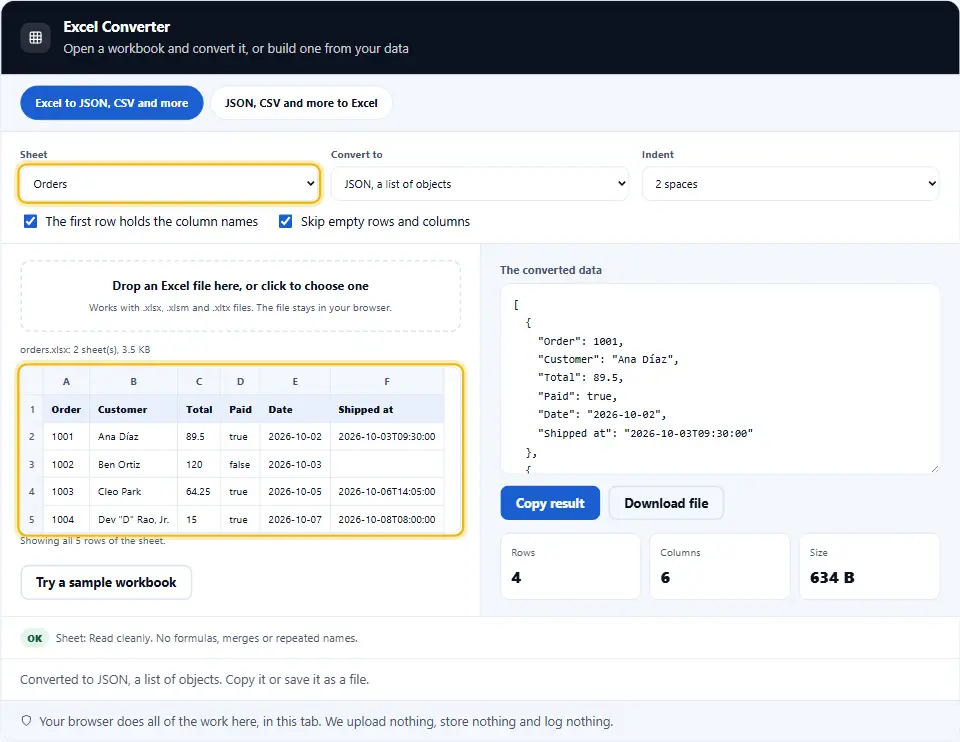
Next, pick another sheet from the list, and the view changes. Hidden sheets show up too, with a label. So nothing stays out of sight.
This excel viewer online reads values. It does not run macros, and it does not draw charts or pictures. That is why it is safe as well as limited.
Excel To CSV, XML, YAML And More
The same sheet can leave in nine shapes. JSON comes first, then CSV with commas, CSV with semicolons, and TSV. After that come XML, YAML, an HTML table and a Markdown table.

Semicolon CSV matters in much of Europe. There, Excel uses the comma as a decimal mark, so a comma file breaks. So the semicolon option solves it.
Besides that, the CSV writer guards against formula injection. A cell that starts with an equals sign gets a safe prefix. So a spreadsheet will not run it by surprise.
JSON, CSV And XML To Excel
Switch to the second mode to build a workbook. First, paste your data, or open a file. Then the tool detects the format for you.

JSON that holds several lists becomes several sheets. An HTML page with several tables does the same. Also, nested objects flatten into dotted column names, such as address.city.
Then you choose the extras. You can shade and freeze the header, add filter buttons and fit the column widths. Finally, you press download and get an .xlsx file.
Dates, Formulas And Big Numbers
Excel stores a date as a number. The tool reads the cell format, so a date comes out as clear ISO text, such as 2026-10-02. A time stays a time.
Next, formula cells show the result Excel saved. The tool never runs a formula. In the other direction, text that starts with an equals sign stays text. It never turns into a live formula.
Numbers with more than fifteen digits stay as text when you build a workbook. Excel keeps only fifteen, so this protects every digit of an order or card number.
Merged Cells And Hidden Sheets
A merged cell keeps its value in the top left corner. Then the other cells in the range stay empty. The notes under the table tell you how many merges the sheet has.
If a header name repeats, the tool adds a number, such as total_2. So no key ever overwrites another.
On this page
- The tool
- What An Excel Converter Online Can Do For You
- Using The Excel Converter Online, Step By Step
- What This Excel Converter Does Differently
- Habits For Moving Data Out Of Excel
- Common Excel Conversion Mistakes This Tool Prevents
- Excel Converter Questions People Ask
- Handy Companions For Spreadsheet Data
Keep going
Using The Excel Converter Online, Step By Step
Four steps take you from a workbook to the data you need.
- 1
Open your file
Drop an .xlsx file on the box, or click it to choose one. No file nearby? Try the sample workbook.
- 2
Pick a sheet
Choose a sheet from the list. Tell the tool if the first row holds the column names.
- 3
Choose a format
Pick JSON, CSV, XML, YAML, HTML or Markdown. The result updates at once.
- 4
Copy or download
Copy the text, or save it as a file with the right extension. To go the other way, switch to the build mode.
What This Excel Converter Does Differently
Many converters upload your file or stop at CSV. These are the extras.
Both directions
Open a workbook and convert it, or build one from JSON, CSV, XML, YAML or HTML.
Real cell types
Numbers, dates and booleans stay true to type, so nothing turns into plain text by mistake.
Nine output formats
JSON, CSV in two flavours, TSV, XML, YAML, an HTML table and a Markdown table.
Safe by design
No macros run, no formulas run, and a zip bomb check stops oversized files.
Several sheets
Convert all sheets into one JSON, XML or YAML file, or build a workbook with many sheets.
Nothing leaves your tab
Your browser does the work. We never see the file, and we keep nothing.
Habits For Moving Data Out Of Excel
A few small habits keep your data clean on the way out and on the way back.
- Keep one table per sheet. A header row on top and one record per row. Notes and totals above the table confuse every converter.
- Use clear column names. Short names without line breaks make good JSON keys. Avoid blank headers.
- Avoid merged cells. Merged ranges leave empty cells behind. Repeat the value in each cell instead.
- Store codes as text. ZIP codes and phone numbers lose their leading zeros as numbers. Format those columns as text first.
- Use real dates. A real date cell converts to clean ISO text. A date typed as words does not.
- Paste values, not formulas. If you need the numbers to stay fixed, paste as values. Then the file holds results only.
- Save as .xlsx. The old .xls type is a different format. Save a fresh .xlsx copy from Excel before you open it here.
- Check the encoding for CSV. Use UTF-8 so accents and other scripts survive. This tool always writes UTF-8.
- Test with a small sample. Convert ten rows first. If the shape looks right, convert the full file.
- Keep a copy of the original. The tool never changes your file, but a backup costs nothing.
- Mind sensitive data. Remove columns you do not need before you share the converted text.
Common Excel Conversion Mistakes This Tool Prevents
Each of these quietly damages data. The converter guards against them.
Saving as CSV first
A CSV save can drop accents, change dates and cut zeros. Reading the .xlsx directly avoids that.
Dates turning into numbers
Excel stores dates as serial numbers. The tool reads the cell format and writes real dates.
Lost leading zeros
Text keeps its zeros. Long numbers stay text when you build a workbook, so no digit disappears.
Formula injection
A cell that starts with = can run code in a spreadsheet. The CSV writer adds a safe prefix.
Duplicate column names
Two columns called total would overwrite each other in JSON. The tool numbers them.
Uploading private files
Many online converters send your file to a server. This one never does.
Excel Converter Questions People Ask
Is this Excel converter online free?
Yes. It costs nothing, needs no account and has no daily limit. It runs in your browser, so we have no server cost to pass on.
Is my file uploaded anywhere?
No. Your browser reads the file and writes the result. Nothing reaches this site, and we keep nothing. Closing the tab clears it all.
Which Excel files can I open?
Files in the .xlsx format, including .xlsm and .xltx. However, old .xls files use a different format. Open those in Excel, save as .xlsx, and try again.
Can it convert an Excel file to JSON?
Yes. Choose JSON and every row becomes an object, with the first row as keys. You can also pick a list of lists with no keys.
How do I convert several sheets at once?
Pick All sheets in the sheet list. JSON, XML and YAML then group each sheet under its own name. Other formats hold one table, so they show one sheet.
What happens to formulas?
You get the result Excel saved with the file. The tool does not run formulas, and it never copies the formula text.
How are dates handled?
The tool reads the cell format. A date cell comes out as ISO text, like 2026-10-02. A date with a time comes out as 2026-10-02T09:30:00.
Can I turn JSON into an Excel file?
Yes. Switch to the second mode, paste your JSON and press download. You get a real .xlsx file with typed cells.
Does it support CSV, XML, YAML and HTML tables?
Yes, in both directions. In build mode the tool detects the format for you, or you can choose it by hand.
Why did a long number become text?
Excel keeps only fifteen digits of a number. A longer value would lose its end, so the tool keeps it as text and protects every digit.
How big a file can I open?
Up to 40 MB. Very large sheets may read slowly on a phone. The table shows the first 100 rows, and the converted text holds them all.
Does it open password protected files?
No. Remove the password in Excel first and save a copy. The tool tells you when a file is locked.
Will charts and pictures come along?
No. The tool reads cell values only. Charts, pictures and macros stay in the original file.
Does it work on a phone?
Yes. The panels stack and the table scrolls sideways. For big files, a computer is still faster.
Handy Companions For Spreadsheet Data
Converting is one step. These three tools handle the steps around it.
CSV to JSON Converter
Turn a CSV export into clean, typed JSON.
Open tool →JSON to CSV Converter
Flatten nested JSON into a spreadsheet-ready file.
Open tool →JSON Viewer
Read JSON as a tree or a table, then edit it.
Open tool →
Ready To Convert A Workbook?
Drop in a file or paste your data. The converter is free, needs no account, and keeps every byte on your device.