Audio to Base64 Converter
Turn A Sound File Into Text
This audio to base64 converter reads your clip on your own device and gives you the base64 text or a ready data URI to copy. No account, no upload, and nothing saved on a server.
- FreePrice
- AnyFormats
- Text or URIOutput
- NoneUploads
Audio To Base64 Converter
Turn an audio file into a data URI or plain Base64
Your audio player shows here.
- Type
- —
- Length
- —
- Original size
- —
- Base64 size
- —
- Extra
- —
Ready. Choose an audio file or drop one here.
What An Audio to Base64 Converter Does
This audio to base64 converter turns a sound file into a block of text right in your browser. You drop an MP3, a WAV or another audio clip, and the tool reads the bytes on your device and writes them out as base64, which is a set of plain letters and digits that any text box can carry. Because everything runs locally, your clip never leaves the page, and no copy is kept anywhere else.
An audio to base64 converter turns a sound clip into plain text, and it works in a few simple steps. First, drop an audio clip or pick one from your device. Second, the tool encodes the whole file and shows the base64 text, its length, and the matching size. In addition, you can wrap the text as a data URI, so the string starts with a short header that names the audio type and can sit straight in a style sheet or a JSON field.
No account is needed, and there is no upload step, so a result is ready at once. Everything updates as you work, which means you see the encoded string before you copy it. When it looks right, one click copies the text or downloads it as a small file, ready to drop into a page, a request or a note.
An audio to base64 converter rewrites a sound clip as plain text, and this one does it in your browser. It suits anyone who needs to move a small sound clip through a text channel. In fact, developers embed a short chime in a web page, testers send a sample in a JSON payload, and writers keep a tiny clip inside a document. Because base64 uses only safe characters, the text travels through places that would break a raw audio clip.
One File, One Line Of Text
The picture below shows an audio clip on the left, then the base64 text the tool writes for it on the right, with the length and the matching size beside it.

This converter reads the audio byte by byte and rewrites each group as four plain characters. In fact, the base64 encoding rule is what turns raw bytes into text that survives any copy and paste. To turn the text back into a file, the Base64 Encode and Decode tool does the reverse step.
A Data URI Or Plain Base64
Pick the shape you need. A data URI carries the type in front, so a browser plays it straight away, while plain base64 is the bare text for a JSON field or a script. In addition, the HTML option wraps the data URI in an audio tag you can drop into a page.
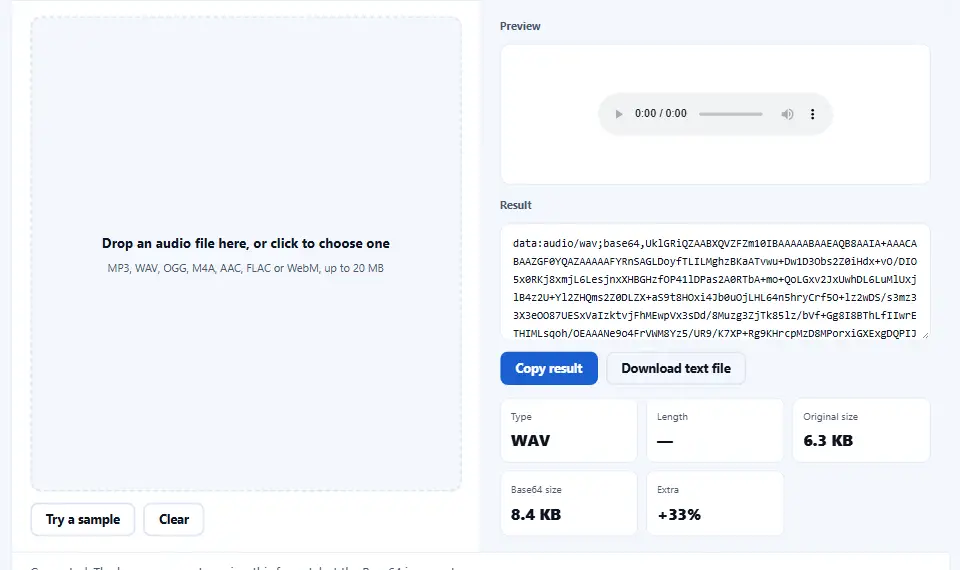
The size row shows the cost. Because three bytes become four characters, the base64 is about a third larger than the clip, and the tool reports both figures so the trade is clear before you copy.
How to Use the Audio to Base64 Converter
A short video walks through every step. Then pick your language below, and turn on captions if you like.
How to convert audio to base64
Six steps, and the audio never leaves the tab.
- 1
Drop your audio file
Drag an MP3, WAV, OGG, M4A or another audio clip onto the box, or pick one from your device. The tool reads it locally, so nothing is sent away.
- 2
Let the tool encode it
The tool reads the bytes and writes them as base64 text. Because the work runs on your device, a small file is done in a moment.
- 3
Read the length and the size
The tool shows how many characters the text holds and the matching byte size, so you can tell at a glance how big the string is.
- 4
Choose text or a data URI
Keep the plain base64 string to paste into a field, or switch on the data URI form when you need a ready source for a page or a style sheet.
- 5
Wrap or copy the text
Pick a line width so the string breaks into tidy lines, or keep it as one long run when a tool expects a single value.
- 6
Copy or download
Copy the text with one click, or download it as a small file. Nothing is sent to a server, so the data stays private.
Why convert audio to base64 in the browser
Three reasons a browser tool beats a command line for this job.
Move a sound file through text
Base64 exists to carry binary data through a channel that only accepts text. Because a JSON field, an HTML attribute and a URL can all hold ordinary characters, they cannot hold a raw audio clip, which is full of bytes that break the rules. In practice, base64 rewrites the audio as safe characters, so a short clip can ride inside a message, a config or a page where a binary blob could not go.
Your file stays private
This audio to base64 converter avoids the usual upload step. Many online encoders send your clip to a server and hand back a link. Here the work runs on your own device, so a private recording or a client sample stays private. Therefore a voice note or an unreleased sound can be encoded without any risk to the source file.
The output drops straight in
The output matters as much as the encode. Because the tool can wrap the text as a data URI, the result is a value you paste into an HTML source, a CSS rule or a JSON field with no extra step. As a result, you move one line of text instead of a separate file, and the reader needs nothing else to find it.
How base64 handles a sound file
Three things decide the result, and each one is worth knowing before you encode.
- Base64 grows the data by about a third Base64 rewrites every three bytes as four characters, so the text is roughly a third larger than the audio it came from. Because the trade is size for safety, the format is best for a short clip, not a long track. Therefore check the audio size first, since a large song turns into a string too big to paste anywhere.
- The text carries the type in a data URI A plain base64 string says nothing about the audio it holds. Because the bytes for an MP3 and a WAV look alike once encoded, a reader needs the type. In addition, a data URI adds a short header such as data:audio/mpeg;base64, so a browser knows the format. In short, use the data URI form when the text must play or load on its own.
- Encoding is lossless and reversible Base64 changes only how the bytes are written, never the bytes themselves. Because the encode maps each group to four characters, the decode maps them back with no loss. As a result, the audio you decode is byte for byte the audio you started with, and the sound is exactly the same.
Common audio to base64 mistakes to avoid
Each of these wastes time or breaks the audio, which is what makes it easy to miss.
Encoding a whole song
A three-minute track becomes a string far too long to paste. In practice, keep base64 for a short clip, and serve a long file from a URL instead.
Forgetting the type in the header
A bare string gives a reader no hint of the format. Because a browser needs the type to play the sound, add the data URI prefix before you paste it.
Mixing the line breaks into a value
Some tools want one unbroken string, others accept wrapped lines. Because a stray space or newline can break a decoder, match the wrapping to the place you paste it.
Copying only part of the text
A truncated string will not rebuild the clip. Because the text is long, copy the whole run, or download it as an audio clip, so no character is lost at the edge.
Expecting the text to be smaller
Base64 is not compression. Because it grows the data by about a third, the text is larger than the audio. In practice, compress the audio first if the size is the point.
Leaving a huge clip inline
A long clip makes a long data URI, and a page that inlines several can feel slow. Because the browser parses every character, keep a big sound in a real file and link to it instead.
Audio to base64 frequently asked questions
Does the converter upload my audio clip?
No. In fact, the whole job runs in your browser. Your file therefore never reaches a server, because the tool reads the bytes on your device to encode them.
What is base64?
Base64 is a way to write binary data as plain text, using a set of letters, digits and two symbols. Because the characters are safe to copy, the text travels through places that would break a raw file, which is why the web uses it so much.
Which audio formats can I convert?
Any file works, because base64 does not care about the format. Because the tool reads raw bytes, an MP3, a WAV, an OGG, an M4A or a FLAC all encode the same way, and the data URI carries the type for the reader.
How much bigger does the audio get?
About a third larger. Because base64 turns every three bytes into four characters, the text is longer than the file. In practice, a short clip stays small enough to paste, while a long track grows far too big.
Can I turn the base64 back into a file?
Yes, with the matching tool. This page encodes; because base64 is reversible, you paste the string into the <a href="/base64-encode-decode/">Base64 Encode and Decode</a> tool to get the exact bytes back. After that, you save it as the audio file again, with the same sound.
What is a data URI?
A data URI is the base64 text with a short header that names the file type, such as data:audio/mpeg;base64,. Because the header tells a browser what the bytes are, the value can sit straight in a page and load with no separate file.
Can I use the data URI in HTML?
Yes. Because the header names the type, you paste the value into a src attribute or a style rule, and the sound plays without a second request. However, keep it for a short clip, since the long string adds weight to every page load.
Is base64 the same as compression?
No. Because base64 only changes how the bytes are written, the data gets larger, not smaller. Therefore compress the audio on its own when you need a smaller file, and use base64 only to move it through text.
Is the audio to base64 converter free?
Yes, completely. In fact, there is no account, no trial and no watermark. Because the work runs in your browser, there is no server cost, so every feature stays free.
Does it work offline?
Yes. Once the page has loaded, every encode happens locally. You can therefore turn off the connection and the tool keeps working, because it never contacts a server.
Can I wrap the text into lines?
Yes. Because some tools expect a single run and others accept wrapped lines, you choose the width. In practice, paste the wrapped form into a document, and the unwrapped form into a field that wants one value.
Does the tool store my file?
No. Nothing is saved on a server or in local storage, so no copy survives the session. So when you close the tab, the file is gone. Therefore copy or download the text before you leave the page.
Can I convert a recording from my phone?
Yes. Because the page adapts to a small screen, you can encode on a phone or tablet. However, a recording is often large, so a phone suits a short clip or a voice note rather than a long file.
Is the sound quality changed?
No. Because base64 only changes the way the bytes are written, the file decodes to the exact same audio. Unlike a re-encode, nothing is thrown away, so the sound stays as it was.
Can I embed the audio straight into a page?
Yes, for a short clip. Because the data URI holds the whole file as text, an audio tag can play it with no second request. However, a large value slows the page, so a long track is better served from a file.
Why does my string look different from another tool?
It depends on the line breaks, not the bytes. Because some tools add wrapped lines and a few use a different alphabet for URLs, the text can look different while decoding to the same file.
Can I encode a file with no extension?
Yes. Because the tool reads the bytes and not the name, a file with no extension encodes the same way. In practice, set the right type in the data URI by hand, since the tool cannot guess it from an empty name.
Does the tool add a watermark to the audio?
No. The output is the exact base64 of the file you gave it. In fact, nothing is added or branded, because base64 is lossless and the tool only rewrites the bytes.
Is there a size limit?
It depends on your device, not on a server. Because the file is held in memory to encode it, a very large file can slow the tab or run out of space. In practice, keep the file to a few megabytes for a smooth run.
What is the data URI format for?
The data URI is the base64 with a short header such as data:audio/wav;base64, in front. Because a browser reads it directly, you paste the whole data URI and get the file back. After that, save it and play it to check the result.
Does the tool track me or read my audio?
No. In fact, your file is never sent anywhere, and no analytics script reads it. The encoding therefore happens on your device, because nothing about the file leaves the page.
More tools for files and text
A few pages the same job usually leads to.
Encode an image as a data URI for a page.
Open tool →Turn base64 text back into the original bytes.
Open tool →Checksum a file to prove it arrived unchanged.
Open tool →Find the right type for the data URI header.
Open tool →Tidy a JSON payload before you paste the string.
Open tool →
Encode your first clip now
Open the audio to base64 converter, drop a file and watch the text appear. Switch on the data URI form if you need a ready source, then copy the result with one click. Nothing leaves your device.