AVIF to JPG Converter
For Forms That Say No
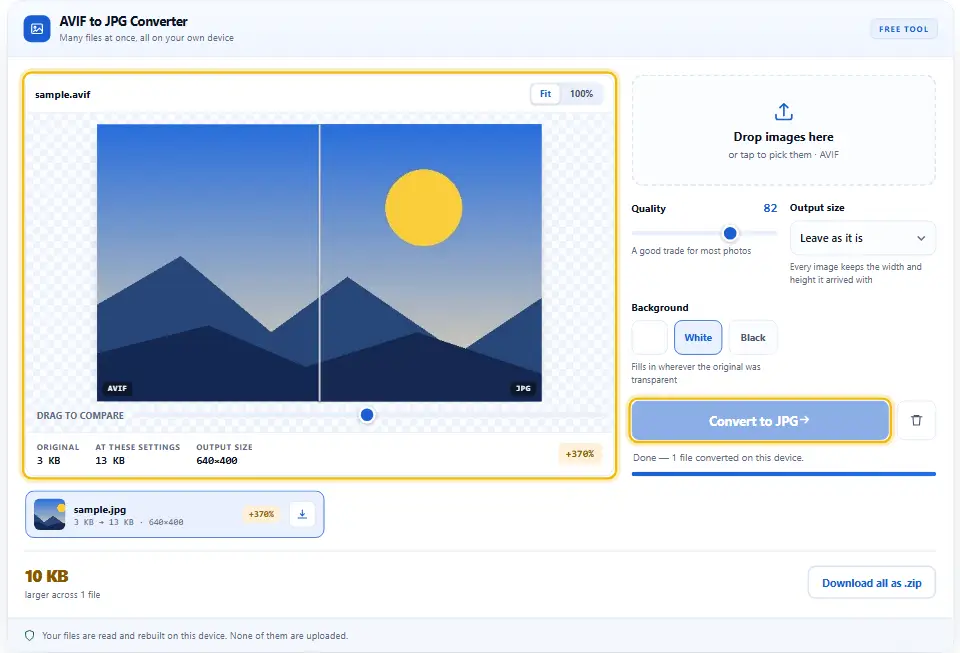
This AVIF to JPG converter turns a modern file into one that every upload form already accepts, and it is fast. No more forms that say no. Pick a quality, pick what fills any see-through pixels, then convert. The work happens on your own device, so nothing travels anywhere.
- FreePrice
- NoneUploads
- EverywhereAccepted
- Up to 100Batch
Change your AVIF files into JPG on this page
Set the quality you want, then start the conversion. The result is an ordinary photo file that an upload form, a print shop or a fifteen-year-old photo editor will take without arguing.
AVIF to JPG Converter
Many files at once, all on your own device
No images picked yet.
When An AVIF To JPG Converter Saves The Day
You try to attach a photo, and the form refuses it. The picture is fine, yet the website has never heard of AVIF.
JPEG has the opposite problem, and it is a happy one. Everything takes a JPEG, because everything has taken one for thirty years.
So this page rewrites the file on your own machine. Your browser reads the AVIF, and it writes the JPEG straight back out.
Knowing the strengths of each format therefore pays off. MDN's guide to image file types sets out the trade-offs plainly.
Why Upload Forms Reject AVIF
Most upload forms check the file type against a fixed list. Somebody typed that list years ago, and nobody has touched it since.

AVIF arrived in 2019, well after those lists went in. Therefore the server rejects it long before a human ever sees the photo.
Print shops and job boards behave the same way. So a swap to JPEG saves an argument with a support desk.
Why AVIF Was Smaller In The First Place
JPEG chops a photo into fixed blocks of eight pixels square. AVIF picks its block size instead, from tiny up to sixty-four.
Big calm areas take one huge block, while busy corners get small ones. Then it guesses each block from its neighbours, across dozens of angles.
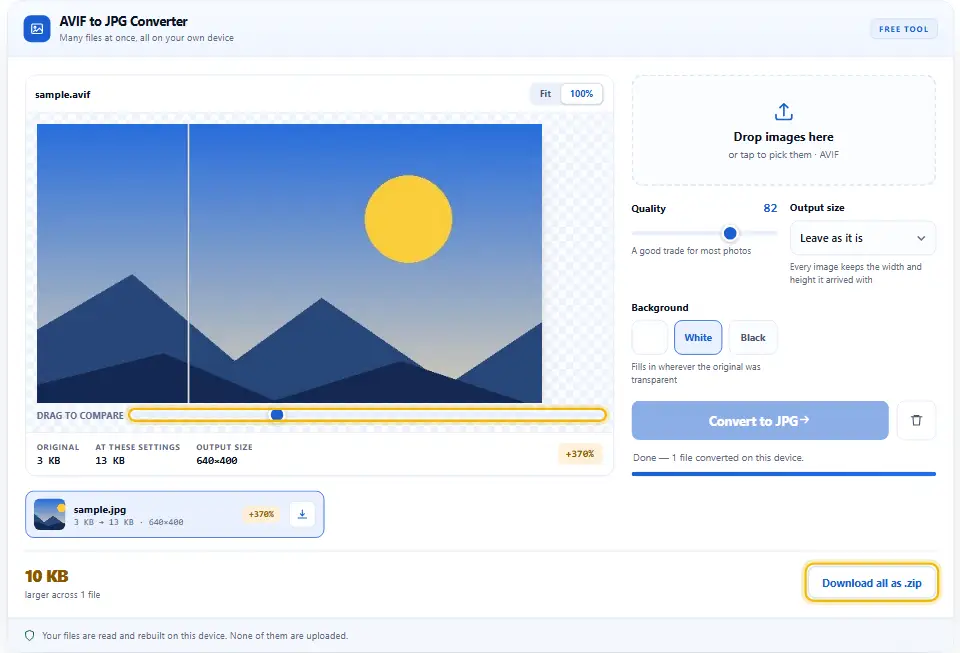
That is why the JPEG comes out heavier. In fact, doubling the size is common, and the row will tell you exactly.
See-Through Pixels Need A Colour
AVIF can hold transparency, though JPEG cannot. So the Background control decides what fills those pixels. Pick the shade of the page or document the photo is heading for, and the join disappears.
Turning AVIF Into JPG, Step by Step
Zero installs, zero sign-ups, zero uploads. In fact, two settings cover everything.
- 1
Add the AVIF files
Drag them onto the panel, or tap it to browse. Up to a hundred can queue together.
- 2
Choose the background
White, black or any shade from the colour picker. That shade lands wherever the picture was see-through.
- 3
Set the quality
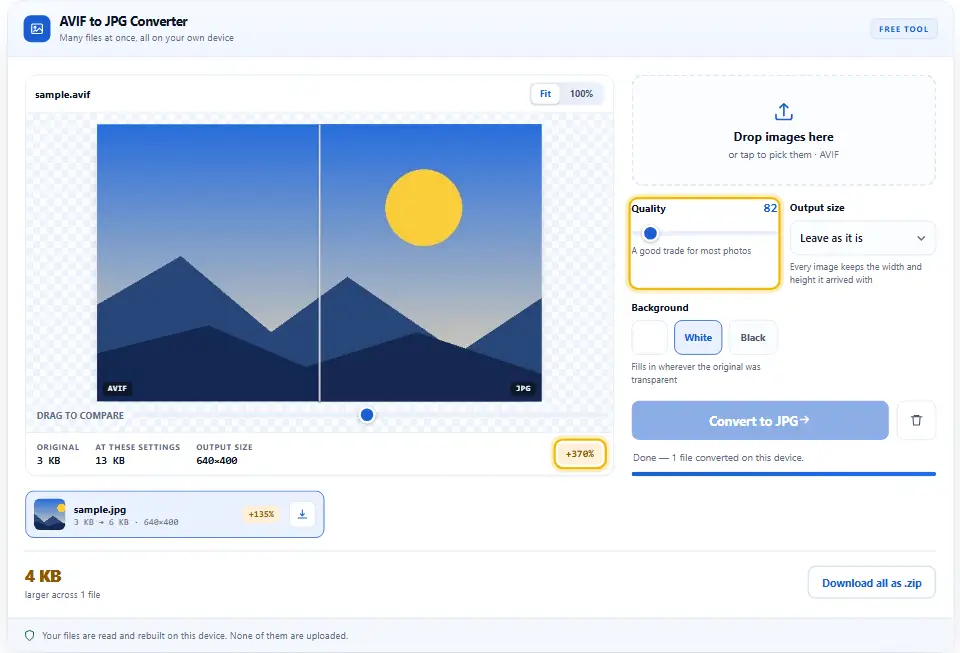
Slide it and the preview re-encodes as you go. The resulting file size appears beside it as you move.
- 4
Convert and save
Press Convert to JPG and watch the rows finish. Download them individually, or pull the whole run down at once.
Why Use This Page
Other converters ask for the photo before they help. Yet your browser can already read AVIF, so the trip is pointless.
The photo stays here
No fetch, no upload form and no storage sits in this page. So a private picture never lands on a stranger's disk.
Forms stop arguing
JPEG sits on every allowlist ever written. Therefore the upload that failed a minute ago goes straight through.
You pick the backdrop
Rival tools drop a black square behind a cut-out. Instead, the colour picker sits right there in the panel.
Your file size, shown before saving
Every row prints both byte counts as it finishes. A file that grew turns amber, rather than slipping past unnoticed.
Whole folders at once
Queue a hundred photos and let them run. The zip gets built right here in the tab, with nothing fetched from outside.
No sign-up required
No credits, no daily cap and no email box. Since the encoding runs on your hardware, there is no usage to bill for.
Getting Through The Form First Time
The format switch itself is simple. Still, a few habits stop a second rejection.
- Read the form's size limit. Many cap the upload at two or five megabytes. So set a width here, and the file drops under the line.
- Sample the page colour. A white fill glows on a dark site. Therefore sample the real colour before you convert a cut-out.
- Start the quality at 82. That suits most photographs nicely. Then slide down while you watch the busiest corner of the shot.
- Expect a heavier file. AVIF was doing more work with fewer bytes. Rather than worry, treat the growth as the cost of getting accepted.
- Keep flat artwork out of JPEG. Logos and charts smear along their edges here. Instead, send anything with hard lines to the PNG page.
- Hold on to the AVIF. It stays the lighter file for your own website. So convert a copy, and leave the original where it is.
Three Easy Missteps
Each of these sends you back to the upload form. All three take one line to put right.
Renaming the file instead
Changing the ending to .jpg fools nobody, because servers read the bytes. So convert the picture properly and move on.
Crushing the quality to fit
A tiny quality number makes blocky skin and fuzzy text. Therefore cap the width first, and keep the slider high.
Losing the cut-out edge
A logo on a chosen colour is stuck with it forever. Instead, keep transparency alive by picking the PNG route.
AVIF And JPG Questions
Does the Denwix converter upload my AVIF photo?
No. This AVIF to JPG converter holds no fetch, no XHR and no form post. Decoding, repainting and encoding all take place in the browser you are reading this in. Nothing leaves this tab.
Why will my site not accept AVIF?
Because its allowed-type list predates the format. Those lists sit in server code and rarely get revisited. So the file fails before anyone looks at the picture itself.
Why did the file double in size?
AVIF packs a photo far more tightly than JPEG can. Moving the other way gives some of that ground back. However, the row prints both numbers, so nothing is a surprise.
What happened to my transparent edge?
There is nowhere in a JPEG to record transparency. Every see-through pixel takes the colour from the Background control. So pick that shade carefully, or use the PNG page for cut-outs.
Can I convert back to AVIF afterwards?
Not on this site, because no browser writes AVIF yet. Going back would also round the picture off twice over. Therefore keep the original AVIF safe instead.
How many AVIF files will the Denwix converter take per batch?
Up to a hundred, none of them past twenty-five megapixels. Your own processor handles each one, so those limits exist to keep this tab responsive. Split a bigger job across two runs.
Further Free Denwix Tools
Every Denwix converter below follows the same routine. So not one of them asks for an account, an upload or a payment.
One page, seven formats in and three formats out.
Open tool →The exact route, for cut-outs and careful editing.
Open tool →Check the width, height and weight before you send it.
Open tool →
Ready To Beat That Upload Form?
Add the files, pick a quality, then convert. It takes seconds, it costs nothing, and every photo stays on your own device.