HTML Formatter
Beautify, Minify And Check Your Markup
This HTML formatter tidies your markup the way a browser reads it, so an unclosed list item or a missing table cell is filled in rather than refused. Moreover it fixes the indent, quotes the attributes and closes the tags you left implied, and then it notes each change on its own line. Because the whole job runs in this tab, nothing you paste is uploaded and nothing runs.
- FreePrice
- Beautify + minifyModes
- On its lineChecks
- NoneUploads
HTML Formatter
Beautify, minify and check HTML in your browser, with every issue on its line
- Elements
- 0
- Depth
- 0
- Size
- 0 B
Ready. Paste your HTML, open a file or try the sample.
| Result | Check | Details |
|---|
What An HTML Formatter Does
A browser never refuses a page. Therefore an unclosed paragraph, a list item with no end tag and a table cell left open all render anyway, because the parser quietly fills the gaps as it reads. So the markup behind a live site is usually looser than the source a person would like to work with.
That gap is the job this HTML formatter exists for. Because it reads your markup with the same rules a browser uses, it closes the tags you left implied, fixes the indent, lines the attributes up and hands back something you can actually read.
Alongside the tidy-up it keeps a note of every decision. For example an implied list end, a void element written with a closing slash, or a stray tag with no partner each land in a checks table, with the line and the column where they sit.
It builds no page and runs no script, so a block of markup copied from a client site is read exactly like your own. Moreover a <script> or a <style> block is carried across untouched, because its contents are not HTML and reformatting them would break them.
Nothing leaves this tab either. Hence a template under an NDA, a half-finished component or a page you would never publish are all safe to paste.
How An HTML Formatter Reads Your Markup
The first pass turns the text into tokens. A start tag, an end tag, a run of text, a comment and the doctype are all different things, and the reader decides which it is looking at one character at a time.

The second pass arranges those tokens into a tree, which is where the shape gets checked. The rulebook here is the WHATWG HTML parsing specification, the same document every browser follows.
The order explains most of what the checks table says. Because some tags may be left open on purpose, a fresh <li> ends the one before it and a new row closes the last cell. So the tree the reader builds is tidier than the text you fed it.
Three kinds of element get special handling. First, a void element such as <br> or <img> never takes a closing tag. Second, a raw-text element such as <script>, <style> or <textarea> keeps its contents verbatim. Third, <pre> keeps its whitespace, because in that one element whitespace is content.
Case is a decision rather than a rule. By default the formatter leaves your tag and attribute names exactly as they are, so an inline <svg> keeps viewBox and linearGradient spelled the way SVG demands. Still, a single switch lowercases everything when you want the plainer HTML style.
Why Beautify And Minify Are The Same Reader
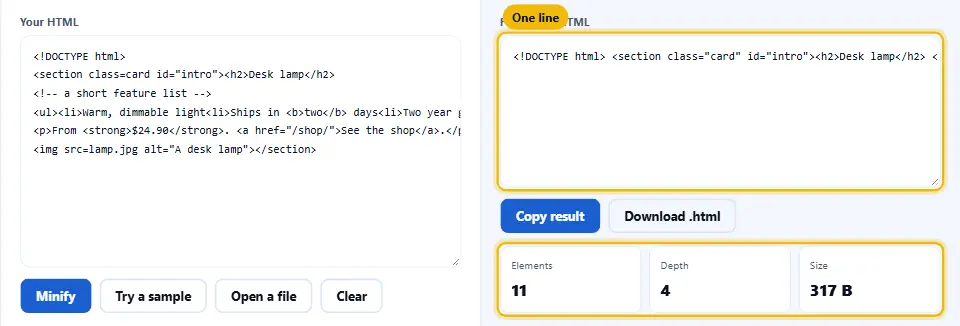
Both modes read the markup the same way and build the same tree. Then one mode prints that tree across many indented lines, and the other prints it with the gaps between tags removed.
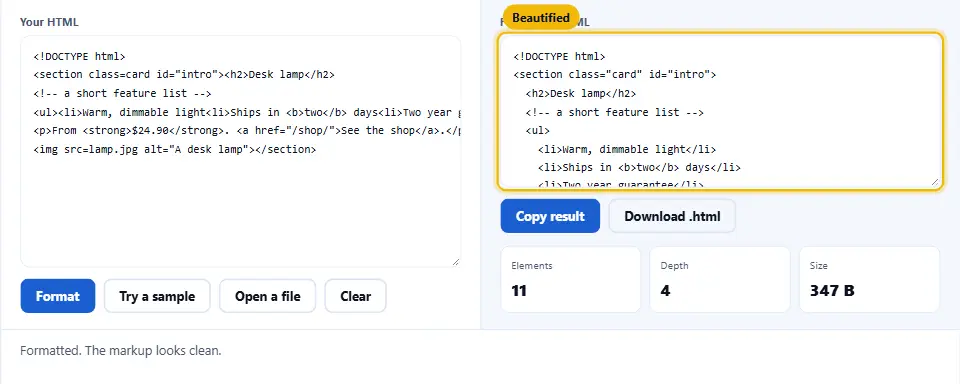
So the difference is only the last step. Because minifying collapses runs of whitespace rather than deleting them, a space between two inline tags is kept, since dropping it would glue two words together on the page.
That shared reader is why the checks are the same in both modes. A missing end tag is filled in whether you are beautifying or minifying, and the note appears either way.
In short, beautify when you want to read or edit the markup, and minify when you want to ship it. For a page you are about to serve, the dedicated HTML minifier does the same squeeze with a few more options.
The Checks It Runs, And What Each Note Means
The first note is an implied end tag. Because a <li>, a <p> or a table row may close itself, the formatter fills the end tag in and tells you where, so the tree is explicit even when your source was not.
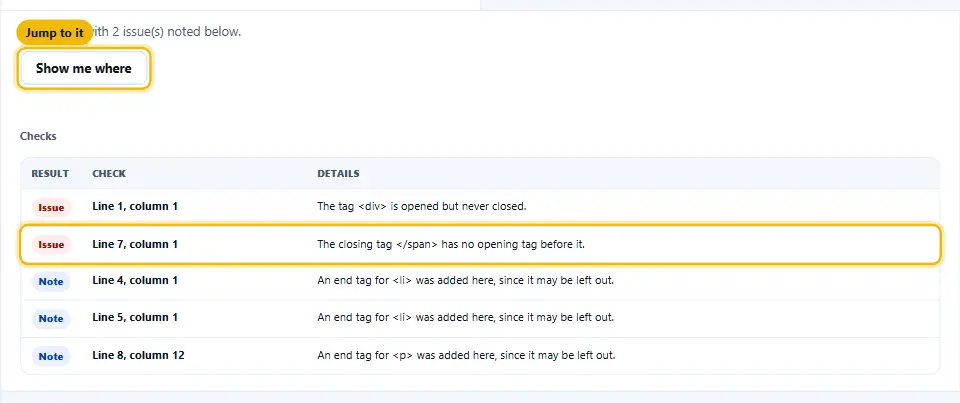
The second is a void element written with an end tag. A </br> or a closing tag on an <img> means nothing, so the reader drops it and notes the spot rather than leaving a confusing pair.
The third is a close tag with no partner. When an end tag matches nothing on the stack, the reader cannot pair it, so it flags the line instead of guessing which open tag you meant.
The fourth is an element that never closes. If a <div> or a <span> runs to the end of the file still open, the note names the tag that started it, because that is the one you need to find.
The fifth is a duplicate attribute. Two class values on one tag mean a browser keeps the first and ignores the second, so the reader points at the pair before it quietly changes your styling.
The sixth stops everything, and it is the only one that does. A comment, a doctype or a <script> block with no end runs off the edge of the file, so the reader cannot finish and nothing is printed until you close it.
What This HTML Formatter Will Not Do
It will not render your page. Nothing here loads an image, runs a script or applies a stylesheet, so the markup cannot act on the tab while you read it.
It will not fully validate the markup. A formatter checks the shape, not the rulebook, so a <div> nested inside a <span> or a heading level skipped from two to four comes out neatly indented and still wrong. Tidy is not the same as valid.
It will not fix your code for you beyond the shape. A guessed end tag is filled in and noted, because that is what reading the tree requires, but the formatter never rewrites your attributes or reorders your content.
It will not touch what is not HTML. The contents of a <script>, a <style> or a <pre> are copied across exactly, so run those through the JavaScript validator or the CSS validator when you want them checked too.
How To Use The HTML Formatter
Four steps, and none of them need an account.
- 1
Paste or drop the markup
So paste a whole page or one component, or drop a file on the box. Because the reader works on text, a fragment is fine and a full document is fine too.
- 2
Pick the indent, or minify
Then choose two spaces, four spaces or tabs to beautify, or pick one line to minify. Since the same reader drives both, you can switch between them without pasting again.
- 3
Read the checks
Next, scan the table below the output. Because each row carries a line and a column, an implied end tag or a dropped void close is a click away rather than a hunt.
- 4
Copy, download or carry on
Finally, copy the result, download it as a file, or jump to the first issue and fix it. After that, the markup is ready for your editor or for the page.
Why Use This HTML Formatter
Five reasons, and each one saves a few minutes of squinting.
It always gives you a result
Because HTML is forgiving by design, the reader tidies imperfect markup rather than refusing it. So you get tidy output and a list of notes, not an error and a blank pane.
It shows the line and the column
Each note carries both, and a button jumps straight to the spot. Therefore a long template is a short read rather than a search.
It keeps your script and style blocks
Because the contents of a raw-text element are not HTML, the formatter copies them across untouched. So a page comes out tidy without its JavaScript being mangled.
Nothing uploads
The whole job runs in this browser tab. Hence a page from a private repository or a client build is safe to paste and read here.
Beautify and minify in one place
Since one reader drives both modes, you format while you work and minify when you ship, without a second tool or a second paste.
Habits That Keep Markup Tidy
Six habits that keep a page easy to read and quick to format.
- Close a tag as you open it So the partner is already there when you fill the middle in. It is a small habit, yet it removes almost every unclosed-element note before it happens.
- Quote every attribute value An unquoted value works until it meets a space or a slash, and then it swallows what follows. Because quotes end the guessing, the formatter never has to add them for you.
- Indent by nesting, not by eye A child tag sits one level in from its parent, always. Therefore a formatter can confirm the shape you meant, rather than inheriting whatever spacing crept in.
- Keep one block element per line Inline tags can share a line, but a section, a list or a table reads better stacked. So the tree on the page matches the tree in your head.
- Validate before you minify A minifier trusts its input, so a tag left open comes out open and harder to spot. Hence beautify first, read the checks, and only then shrink the file.
- Leave raw blocks to their own tools A script or a stylesheet inside the page is not HTML. So check those with a validator built for them rather than expecting a formatter to read them.
Six Ways Markup Trips People Up
None of these stops a browser, which is exactly why they are easy to ship by accident.
A list item with no closing tag
Watch out here. A
<li>closes itself when the next one opens, so the page looks right and the source hides how deep the nesting really goes.A void element with a closing tag
A
</br>or a closed<img>means nothing to a browser, so it is dropped silently. Because nothing breaks, the stray tag survives review after review.Two attributes with the same name
A browser keeps the first
classand ignores the second. Hence a style that will not apply is often a duplicate attribute rather than a bad selector.A block element inside an inline one
A
<div>inside a<span>renders, yet it is invalid and it confuses layout. So the markup can be perfectly indented and still wrong.A comment that is never closed
A comment with no end marker swallows the rest of the file. So everything after it vanishes from the page, and this is the one case where the formatter prints nothing.
A quote dropped inside an attribute
A missing closing quote lets the value run into the next attribute. Because the tag then reads as one long value, the error appears far from where you made it.
HTML Formatter Questions
Is this HTML formatter free?
Yes. There is no account, no limit and no paid tier. So you format as many pages as you like.
Does it upload my markup?
No. The whole job runs in this browser tab, and nothing is sent anywhere. So a page under a confidentiality clause stays where it is.
What is the difference between beautify and minify?
Both read the markup the same way. Beautify prints the tree across indented lines so you can read it, and minify prints it with the gaps removed so it ships smaller.
Does it keep the spaces between my inline tags when minifying?
Yes. Minifying collapses runs of whitespace rather than deleting them, because a space between two inline elements is visible on the page and dropping it would join two words.
Will it touch my script and style blocks?
No. The contents of a script, a style or a pre element are copied across exactly, because they are not HTML and reformatting them would break them.
Why did it add end tags I never wrote?
Because some tags, such as a list item or a table row, may be left open on purpose. The reader fills the implied end tag in and notes it, so the tree is explicit.
Why did it remove a closing tag on my image?
A void element such as an image or a line break never takes a closing tag. So a closing tag on one means nothing, and the reader drops it and names the line.
Does it validate my HTML?
No. It checks the shape, not the full rulebook, so a page can come out tidy and still be invalid. Tidy and valid are two different questions.
Can it format a whole document, not just a fragment?
Yes. A full page with a doctype, a head and a body formats, and so does a single component. The line numbers refer to what you pasted.
Does it keep the case of my SVG attributes?
Yes, by default. An inline SVG keeps viewBox and linearGradient exactly, because SVG is case sensitive where HTML is not. A switch lowercases everything when you prefer that.
Will it ever refuse to format?
Almost never. Only a comment, a doctype or a script block with no end stops the reader, because it cannot find where that block was meant to close.
Does it work on Vue, Svelte or template files?
Mostly. Framework attributes such as a bound value or a directive survive, because the reader is lenient about attribute names. Still, heavy template syntax is read as text.
Can I lowercase my tag and attribute names?
Yes. A switch folds every tag and attribute name to lower case, which is the common HTML style, while leaving your text and values alone.
How do I jump to an issue?
Each note carries a line and a column, and a button scrolls the input to the first one. So you land on the character rather than on the area.
Can I wrap long attribute lists?
Yes. A switch breaks a tag with many attributes across several lines when the line grows too long, which keeps a wide component readable.
Is minifying here the same as the HTML minifier page?
The result is the same squeeze. The dedicated HTML minifier adds a few options for a page you are about to serve, so reach for it when shipping.
Does it count anything?
Yes. It reports the number of elements, the deepest nesting and the output size, which helps when you are checking whether a paste lost something.
Does it need an account or an extension?
No. There is no sign-up, no plugin and no extension. So you close the tab once the markup is tidy.
Does it work on a phone?
Yes. The panes stack and the notes wrap, so a quick format works on a phone, though a long file is easier with a keyboard.
What about my privacy?
Everything happens in the browser, so no markup is stored or sent. Of course, you can read the behaviour for yourself by opening the page with the network tab watching.
Tools That Go With This One
Four pages the same job usually leads to.
Once the page is tidy, shrink it for production. Because a browser downloads every byte, minify the markup you are about to serve.
Open tool →HTML entity encoder and decoder
A formatter leaves your text alone, so turn a stray angle bracket into an entity here when you need to show markup rather than render it.
Open tool →The stricter cousin, where a missing end tag is an error rather than something to fill in. So format a feed or a config file with the right reader.
Open tool →Once the markup reads well, colour it for a post or a slide. Because the colours follow the tokens, a tidy page highlights cleanly.
Open tool →
Tidy The Markup, Then Ship It
Paste the page, pick an indent or minify, and read the notes below the output. Nothing runs and nothing uploads. Most files format before the kettle boils, and the checks table names every tag the reader had to close for you.