PNG to JPG Converter
Lighter Files, With the Background You Pick
This PNG to JPG converter redraws every picture inside your own browser, which keeps the whole job private. First, add your files. Then set the quality and choose what sits behind any transparent pixels. Finally, download the results. So your images shrink, and none of them leave the device.
- FreePrice
- NoneUploads
- You pickBackground
- Up to 100Batch
Change your PNG files into JPG on this page
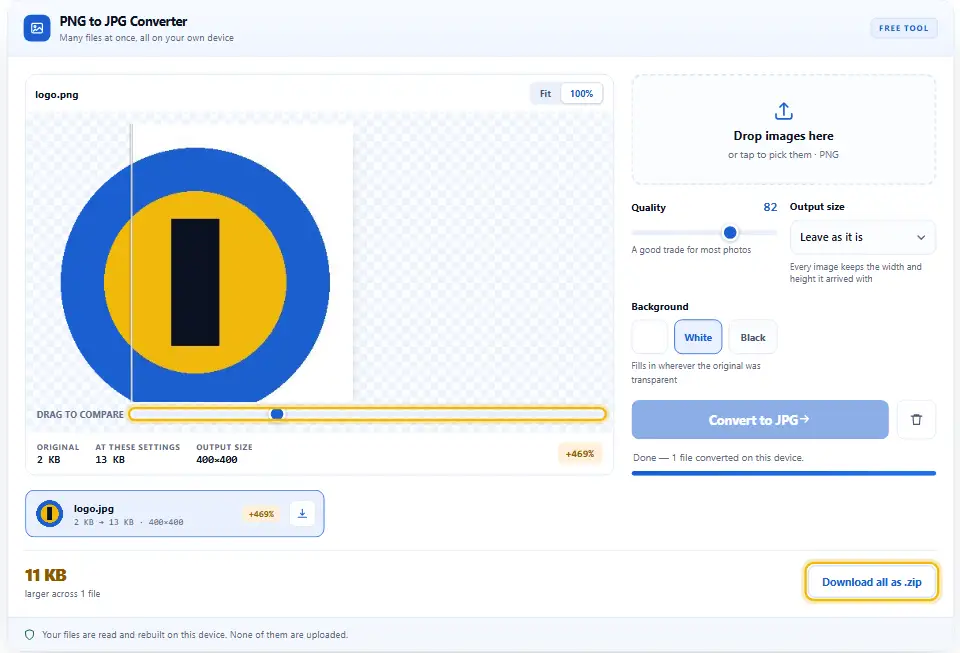
Set your quality, choose what sits behind any transparent pixels, then press convert. The panel shows you both the picture and the finished size before you save anything.
PNG to JPG Converter
Many files at once, all on your own device
No images picked yet.
Jobs a PNG to JPG Converter Handles Well
PNG preserves each pixel without any loss. That habit makes gorgeous logos, yet it makes heavy photographs. So a folder of PNG screenshots can run to hundreds of megabytes for no visible gain.
JPG, on the other hand, trades detail for size. It groups the picture into small blocks, then spends fewer bytes on the detail your eye skims past. Therefore the same photograph often lands ten times lighter.
One catch comes with the swap. JPG has no transparency at all, so a see-through background needs a colour instead. This page asks you which one, rather than guessing.
The choice comes down to what the picture holds. MDN's guide to image file types explains that split clearly.
Where the Transparent Background Goes
Every transparent pixel must become something solid. White works for most websites, while black suits dark layouts and video thumbnails. Pick either preset, or open the swatch and match your brand exactly.

You can judge the result in the preview before saving. So if a soft shadow suddenly looks grubby against white, you will see it immediately and can try another colour.

Images That Should Stay PNG
Sharp edges are the warning sign. JPG spreads each block of detail across its neighbours, which leaves a faint halo around text, line art and flat logos. Photographs hide that effect, but a screenshot of a spreadsheet will not.

See-through areas are the second clue. If the background must vanish on a coloured page, no quality setting will save you. Instead, keep the PNG, or convert to WebP and keep both the alpha and the small file.
Making Sense of the Quality Setting
The slider is not a percentage of anything real. It simply tells the encoder how hard to squeeze. So judge the result with your eyes, because every picture reacts differently.
Turning PNG Into JPG, Step by Step
No installer and no registration form. In fact, one screen covers the whole job.
- 1
Add your PNG files
Drop them on the panel, or tap it to browse. Up to a hundred files queue together.
- 2
Choose the background
Tap White or Black, or open the swatch for any colour. Then the preview redraws, so you see the change at once.
- 3
Set the quality
Drag the slider and compare both halves. 82 suits most photographs, though busy detail sometimes wants a little more.
- 4
Convert and download
Press Convert to JPG and read the saving on each row. Finally, save them singly or grab the whole zip.
Why Convert Here Instead?
Other converters want your file on their server first. However, that trade gives away your privacy for a job your browser handles alone.
You choose the backdrop
Most tools flatten everything onto white and move on. Instead, this one hands you a swatch, so a logo can sit on your own brand colour.
Nothing leaves the tab
No fetch, no form post and no storage sits in the script. So an unreleased mockup never reaches anybody else's disk.
Judge it before you save
The preview encodes at the exact quality you picked. Therefore you spot banding or a muddy edge while it still costs nothing to fix.
Measured savings
Every row shows the bytes in against the bytes out. Also, a rare file that grows appears in amber rather than slipping past.
Whole folders at once
Queue a hundred screenshots and convert them in a single pass. A zip lands at the end of it, built without any server.
Free, with no ceiling
Denwix sets no account wall and no daily cap. Since the JPEG is written on your hardware, there is no usage to bill for.
Getting A JPG Worth Keeping
JPG rewards a little care. These six habits cover almost every case.
- Name the backdrop first. A white box on a dark site looks broken. So set the colour to whatever sits behind the picture in real life.
- Start at 82 and listen to your eyes. It is a fair trade for photographs. Then drop lower only while the preview still looks right.
- Resize before you compress. A 3000px screenshot shown at 700px carries four times the pixels it needs. Therefore cap the width first. After that, the quality slider works on far less data.
- Keep text and line art as PNG. Sharp edges pick up a halo in JPG. Instead, reserve this conversion for photographs and rich artwork.
- Never convert a JPG again. Every re-save throws away a bit more detail. So always start from the PNG, or from the best copy you hold.
- Keep the original safe. JPG cannot bring the lost detail back later. Above all, convert a copy and file the master somewhere else.
Three Conversions To Think Twice About
JPG suits most pictures. Still, these three cases usually end in regret.
Flattening a cut-out logo
The transparent edge becomes a solid rectangle for good. So keep PNG or WebP whenever the background must disappear.
Squeezing a screenshot hard
Small text smears once the quality drops below fifty. Therefore check the preview at full zoom before you convert a batch.
Uploading private work
Plenty of converters keep whatever you send them. Instead, use a tool that never asks for the file in the first place.
PNG to JPG Questions
Is my picture sent anywhere?
No. This PNG to JPG converter holds no fetch, no XHR and no form post. Your browser reads the file, a canvas redraws it over your chosen colour, and your browser writes the JPG. So the work never leaves this tab.
What happens to transparency?
JPG cannot store it, so every see-through pixel takes the background colour you picked. White is the default, while black sits under the swatch as a second preset. Therefore you decide, rather than the tool.
By how much will the JPG shrink?
Photographs usually shrink by eighty to ninety percent. Flat graphics save far less, because PNG already handles them well. Meanwhile each row prints the real figure, so you never have to guess.
Which JPG quality number suits most photos?
Try 82 first and compare the two halves of the preview. If the picture still looks clean, step down a little. Below fifty, edges smear and smooth gradients start to band.
Is it possible to turn the JPG into a PNG again?
You can, although nothing comes back. The detail that JPG discarded has gone for good, so the PNG would simply copy the JPG faithfully and weigh more. Keep your original PNG instead.
How many PNGs can one Denwix batch hold?
A hundred files per batch, and twenty-five megapixels per picture. Both caps exist to protect your own browser. So run a second batch whenever you have more to do.
Related Denwix Tools
Each follows the same short routine. So there is no account, no upload and no charge.
Image Converter
Seven formats in, three out, all on one page.
Open tool →WebP to PNG Converter
Turn a WebP into a PNG that older software will actually open.
Open tool →Image Size Finder
Check the exact size of any picture, in pixels and in inches.
Open tool →
Ready To Shrink Those PNGs?
Add the files, pick a background, set the quality, then download. Nothing is charged, nothing is queued, and no picture leaves this device.