WebP to JPG Converter
The Format Everything Reads
This WebP to JPG converter rebuilds each picture on your own device, into the one format everything reads. Choose a quality, choose what sits behind any see-through pixels, then convert. What lands in your downloads is a plain photo file that no app will turn away.
- FreePrice
- NoneUploads
- AnythingOpens in
- Up to 100Batch
Change your WebP files into JPG on this page
Pick a quality, pick what goes behind any see-through pixels, then convert. You get the one photo format that every phone, printer and inbox on earth already reads.
WebP to JPG Converter
Many files at once, all on your own device
No images picked yet.
When A WebP To JPG Converter Is Right
A WebP file saves bytes, but plenty of software shrugs at it. So a picture that looked fine online turns into a chore once you save it.
JPEG has the opposite habit. It weighs more, yet every phone, printer and inbox already reads one.
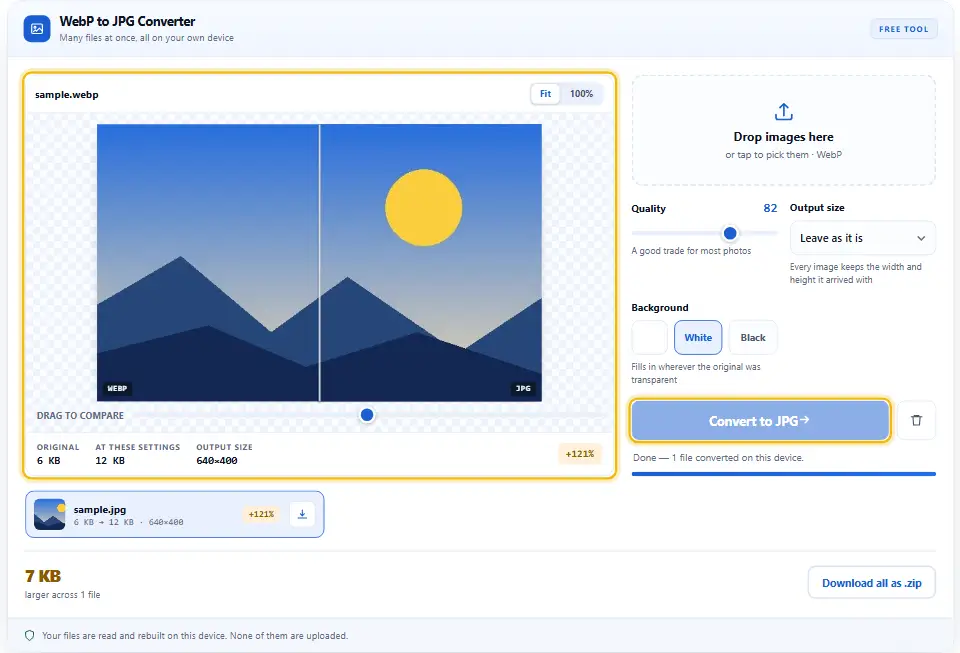
This page makes the swap without an upload. Your browser decodes the WebP, paints it, then writes a fresh JPEG on your own machine.
Going back to JPEG costs quality, so do it once. MDN's guide to image file types explains the trade either way.
Why JPEG Stays So Small
Your eyes track brightness far better than colour. JPEG leans on that, and keeps colour at half the detail.

Brightness holds every pixel, while the two colour layers get halved. So a photo shrinks hard, and still looks right.
The trick does slip on sharp coloured edges. For example, red text on white can smear a little.
PNG Or JPG: Picking The Exit
Both formats open anywhere, so either one ends the trouble. The real question is what your file holds.

Photos suit JPEG, because the colour trick costs nothing you can see. Flat artwork suits PNG instead, since its edges stay crisp.
A lossless WebP is usually a screenshot or a logo. Therefore send those to the PNG page rather than this one.
Transparency Has To Land Somewhere
JPEG holds no alpha channel at all. So pick the colour that fills any see-through pixels before you convert. White suits most pages, though black often works better on a dark one.
Turning WebP Into JPG, Step by Step
No installer, no account and no queue to wait in. In fact, two settings cover the whole job.
- 1
Drag the WebP files onto the page
Drag them onto the panel, or tap it to browse. The list holds a hundred pictures at a time.
- 2
Choose a colour for see-through areas
Choose white, black or any colour you like. That shade lands wherever the WebP was see-through.
- 3
Set the quality
Slide it while the preview re-encodes. Meanwhile the panel prints what the finished photo would weigh.
- 4
Run the queue
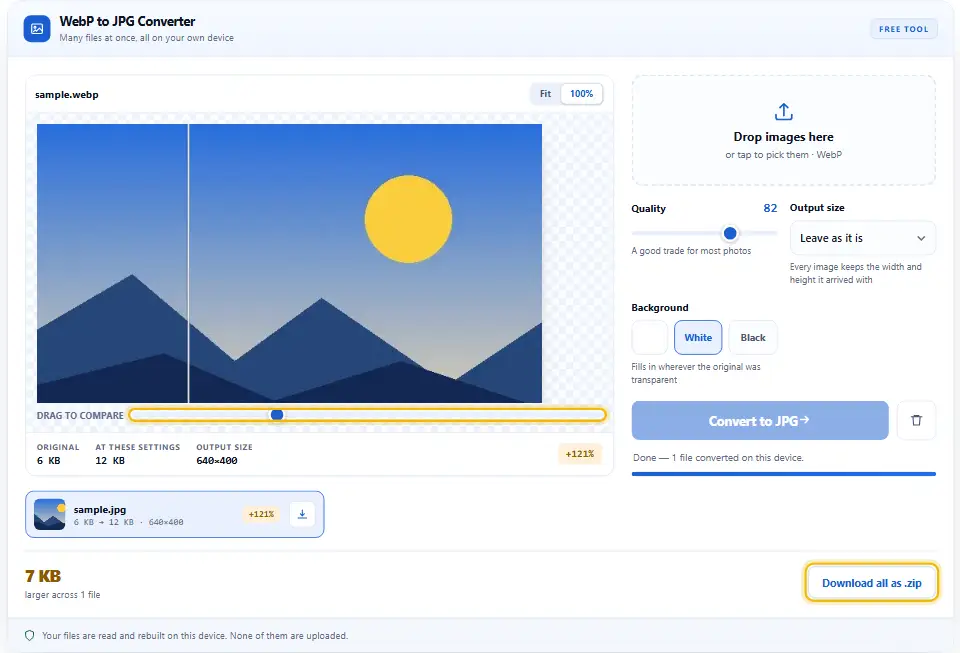
Hit Convert to JPG and each row works through in turn. After that, save each file on its own or download the batch as one zip.
Why This Beats A Random Website
Most converters ask for the file before they do anything. Yet handing a picture to a stranger buys you nothing here.
The file never travels
No fetch, no upload form and no storage lives in this page. So the picture simply stays on your device.
You own the backdrop
Other tools drop a black square behind your cut-out. Instead, this one hands you the colour picker up front.
Opens absolutely anywhere
JPEG has shipped in every operating system for decades. Therefore a print shop or an old form will take it.
Your file size, shown before saving
Each row prints both byte counts as it finishes. Also, a file that grew shows in amber rather than hiding.
Batches that behave
Queue a folder and let it run through in one pass. Then the page writes the zip itself, with no server involved.
Free, with no ceiling
No credits, no daily cap and no email box to fill. Since the encoding happens on your hardware, there is no usage to bill for.
Getting A JPG You Can Send Anywhere
One tap reverses the conversion. Still, three or four small choices decide how good the result looks.
- Pick a fill colour that suits the page behind it. A white fill glows on a dark site, and black looks like a hole on a light one. So sample the real page colour first.
- Start the quality at 82. That number suits most photographs well. Then slide down while you watch the busiest corner of the picture.
- Send flat artwork to PNG. Logos, charts and screenshots smear at their edges here. Instead, use the lossless route for anything with hard lines.
- Resize during the swap. Shrinking twice softens a picture for no reason. Therefore set the width now, before the encoder runs.
- Hold on to the WebP original too. It weighs less, and all browsers open it. So serve WebP on your own pages, and hand out the JPEG elsewhere.
- Zoom in on coloured text. Red and blue lettering shows the colour trick first. Above all, check that once before you send the file on.
Three Ways To Waste The Trip
Each of these turns a clean swap into a sloppy one. Correcting any of them takes a moment.
Flattening a cut-out logo
A JPEG cannot hold see-through pixels, so the edge picks up a box. Instead, keep logos in PNG and the shape survives.
Crushing a screenshot
Interface text goes fuzzy long before a photo does. Therefore treat a low quality number as a photo setting only.
Trusting an upload site
Many of them hold on to whatever you send. So a private picture sits on somebody else's disk for no gain at all.
WebP And JPG Questions
Does anything get uploaded?
No. This WebP to JPG converter holds no fetch, no XHR and no form post. Decoding, repainting and encoding all happen inside the browser you are reading this in. Nothing travels further than this tab.
Why did my transparent edge turn white?
Because JPEG has nowhere to store transparency. Every see-through pixel takes the colour you chose in the Background control. So change that colour, or use the PNG page for cut-outs.
Will the JPG copy lose visible quality?
A little, since both formats round detail off in their own way. At quality 82 the difference rarely shows on a photo. However, sharp text and flat colour give it away faster.
Will the JPG weigh more or less than the WebP?
Usually a touch bigger, because WebP packs the same picture more tightly. The row prints both numbers either way. So you always know before you save anything.
What happens to a WebP file that holds an animation?
Only the opening frame comes across. A JPG stores a single still frame and no more. Therefore keep the WebP too if the motion matters to you.
How many WebPs can one Denwix batch hold?
A hundred files, and twenty-five megapixels in each picture. Your hardware carries the load rather than a queue elsewhere, so those numbers exist to protect this tab. Anything beyond them simply goes in a fresh run.
Other Free Converters
Each of these follows an identical routine. So not one of them asks for an account, an upload or a payment.
Image Converter
One page, seven formats in and three formats out.
Open tool →WebP to PNG Converter
The exact route, for cut-outs and flat artwork.
Open tool →JPG to WebP Converter
Head back the other way and shed a third of the bytes.
Open tool →
Ready To Open Them Anywhere?
Queue the files, pick a backdrop, then convert. It takes seconds, it costs nothing, and every picture stays on your own device.