JPG to WebP Converter
Lighter Pages In Seconds
This JPG to WebP converter will compress your images right in your web browser. As a result, your web pages load quicker. You can move the quality slider and see the byte count change as you do so. Once you are happy with the size of your images, you can convert the entire group of images, save them, and they will all remain on your computer.
- FreePrice
- NoneUploads
- 30%Typical cut
- Up to 100Batch
Change your JPG files into WebP on this page
Slide the quality where you want it and watch the byte count move with it. Each finished row prints what you saved, in kilobytes, on that exact photo.
JPG to WebP Converter
Many files at once, all on your own device
No images picked yet.
What a JPG to WebP Converter Gains You
Most of what makes up a web page is photos, and so, the photo determines, to a great extent, how quickly a web page will load on a cell phone.
WebP stores the same photo using fewer bytes. In fact, a third off is a fair rule of thumb at matched quality.
Every current browser reads WebP happily. Therefore the saving is free, as long as you keep the JPEG around for older software.
Despite what many guides say, WebP is not smaller every time. MDN's guide to image file types gives the honest comparison.
How WebP Beats JPEG On Size
JPEG codes each block of the photo on its own. WebP first looks at the blocks that have been coded/drawn next door.

Then it stores only the gap between that guess and the truth. Because the guess is usually close, the gap is tiny.
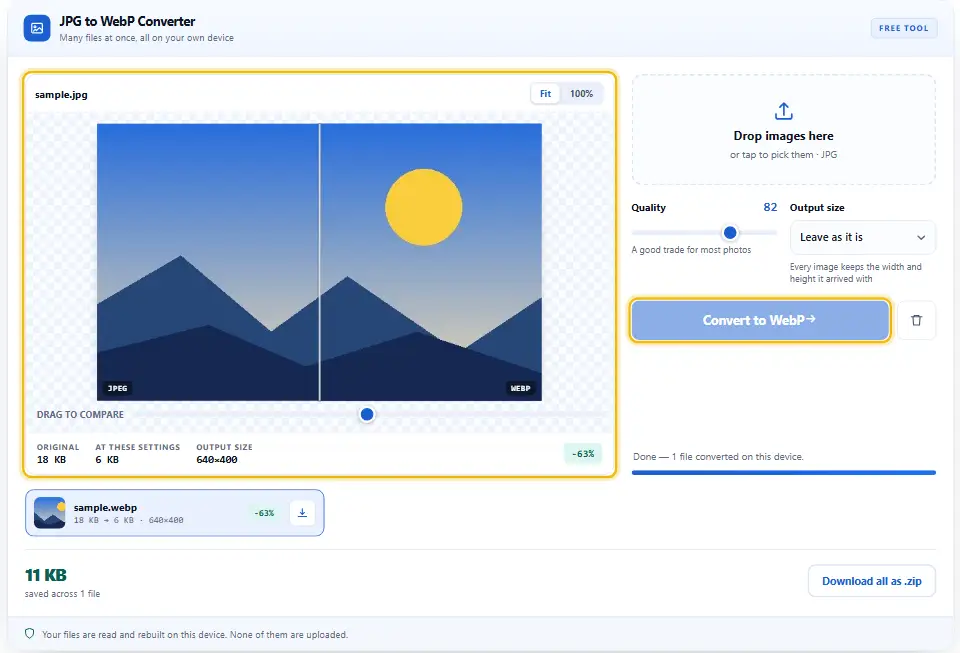
Add a more efficient way to pack your number on top so the image takes up about one third less byte space.
Your Photo Lost Detail Once Already
The original JPEG had one rounding pass, but now WebP has taken another round of rounding on the remaining parts of the image.
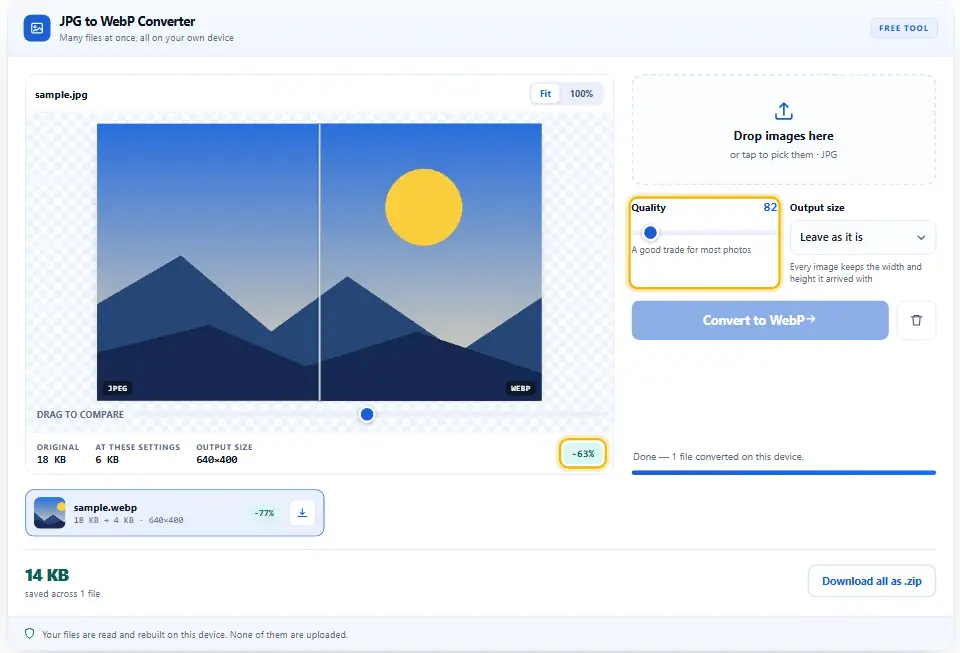
When you have two roundings in a row, it’s best to set the slider higher. Most importantly, use 86% quality on the source image (or more) if the source is a JPEG.
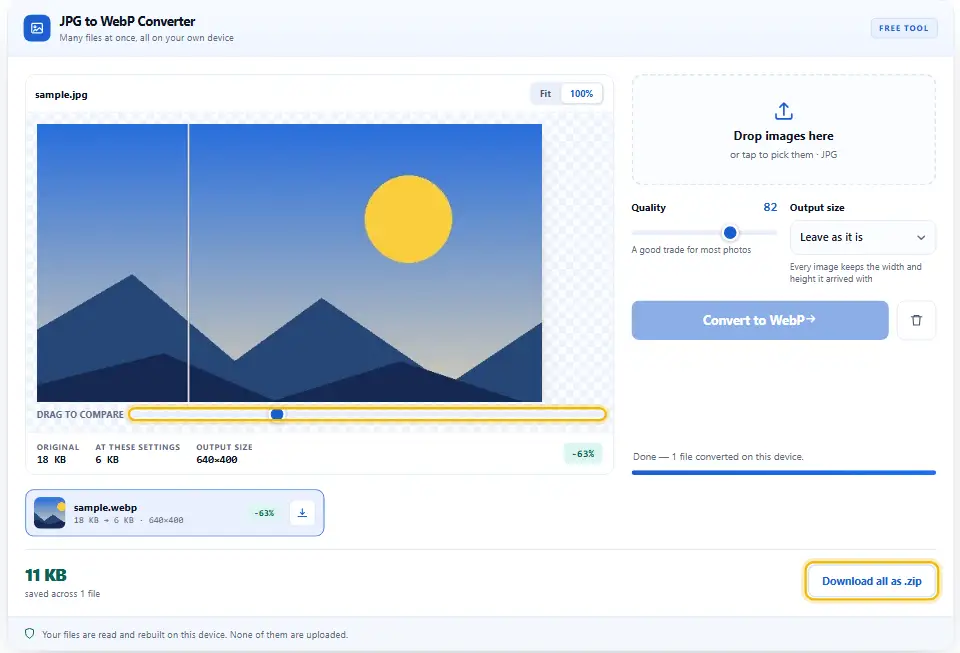
If you are working from a camera file, then you can use a lower number as nothing has rounded your photo yet.
Why A Quality Of 80 Means Different Things In Each Format
A WebP at 80 is not a JPEG at 80. Each format counts that scale its own way. So judge by the preview and the byte count, rather than by the number itself.
How the JPG to WebP Converter Works, Step by Step
This brief video shows each step from start to finish. Choose your language below, and switch on captions if they help.
Turning JPG Into WebP, Step by Step
No need to download, wait in line or create an account. The slider is the only thing you need to set.
Drop your photos in
Drop your files on the panel, or tap the panel to pick them. Up to a hundred files wait in the queue at once.
Set the quality
As you slide the image across your screen, the preview is continually re-encoded, and at the same time, the panel will display how heavy the file will be.
Compare both halves
Move the line to the area with the most activity in the picture. If everything appears to be sharp, then the current setting will work fine.
Convert and save
Press Convert to WebP and let the rows finish. Grab them one by one, or save the entire set at the end.
Why This Converter, Not An Upload
Rival tools take your photo first and squeeze it later. Yet your browser holds the same encoder, ready to go.
The photo stays put
No fetch, no upload form and no storage sits in this page. So a client shoot never lands on a stranger's disk.
You see how much you save first
The panel will encode according to the parameters you have set before making a commitment. This allows you to select a number with the actual number of bytes in view.
Alpha survives the trip
WebP has transparency (PNG did as well), which JPEGs didn’t have. This means that if you import a cut-out into your project, it will remain clean.
Nothing to pay for
No account, no credits and no daily limit here. Because the process of squeezing takes place within your own computer’s hardware, there are no charges associated with its use.
Getting The Size Down Safely
Anyone can drag a slider to 40. The skill lies in stopping just before the loss becomes visible.
- Start at 86 on a re-encode. Once your source has lost detail once, allow for a second pass, and then come down gradually if you wish to have extra detail.
- Judge on the busy areas. Flat sky is used for hiding damage, while flat sky reveals damage through the use of leaves and hair. As such, you should place the divider directly over the most cluttered area.
- Resize before you squeeze. A photo shown at 800 pixels gains nothing from 4000. Instead, cap the width here and save twice over.
- Keep the original safe. Use WebP for the copies that are delivered to users, while keeping JPG as the original version. Store the image from the camera in an archive and use the WebP file as the final product to publish.
- Do not re-squeeze a WebP. Every lossy pass costs a little more quality. Rather than convert twice, go back to the source and start again.
- Watch the amber rows. Generally speaking, sometimes a WebP will be larger in file size than a JPEG. In addition, always believe the actual size shown in print, rather than the expected size.
Where People Lose Quality
Three habits can drain the savings, or the image. Fortunately, all three are easily corrected.
Reusing your JPEG quality setting for WebP
You can’t just guess where the lines meet, but you can use the divider to help you see exactly what you’re looking for.
Serving WebP only
A few old email clients and desktop apps still refuse it. Therefore keep a JPEG fallback for anything you send out.
JPG And WebP Questions
Does my JPG ever leave this Denwix page?
No. At no point in the script is there a fetch request made, an XHR request opened or a form submitted. Your browser will decode the JPEG, draw the image to a canvas element and then create the WebP file using your browser. The original JPEGs are kept on your machine throughout this process.
By how much will the WebP shrink compared with the JPG?
Roughly a third, at a matched quality. Photos with lots of flat colour do better than that. However, a small or already crushed JPEG may barely move, and the row will say so.
Which WebP quality number suits photos best?
Start at 86 when the source is a JPEG. Then slide down while you watch the busiest part of the picture. Once softness creeps in, go back up two or three notches.
Do all browsers read WebP now?
Yes, every modern application does, on both mobile devices and computers. But, some older desktop applications and email clients do not support WebP. For this reason, keep a JPEG version of the image available.
Will the Denwix converter make a lossless WebP from my JPG?
This doesn’t come from this page. A lossy encoder is exposed by browsers using a canvas, which is how this works. So, if you want an exact copy of a JPEG, then use the PNG page.
How many JPGs can one Denwix batch hold?
You have a hundred files, each with twenty-five megapixels. Your tab will respond quickly because there are no servers that queue things up. So, just begin another batch if you need extra space.
More Free Converters
Each of these steps follows a single pattern. So, each step does not need you to create an account, upload files, or make payments.
- Image Converter
One page, seven formats in and three formats out.
- PNG to WebP Converter
The same squeeze, aimed at logos, icons and screenshots.
- JPG to PNG Converter
A lossless copy, for when you are about to start editing.
Ready To Shed Those Bytes?
Queue the photos, set a quality, then convert. The run takes seconds, the tool costs nothing, and not one file leaves this device.