Gzip Compressor
Compress And Decompress In The Browser
This gzip compressor packs text or a file into gzip, zlib or raw deflate. It unpacks the same blob again right here. No account, no upload, and nothing saved on a server.
- FreePrice
- TwoModes
- ThreeFormats
- NoneUploads
Gzip Compressor
Pack and unpack gzip, zlib and raw deflate without leaving the page
Nothing packed yet.
Ready. Paste something, drop a file, or press the sample button.
What A Gzip Compressor Does
This gzip compressor shrinks text and files right in your browser. You paste some text or drop a file, pick the gzip format, and the tool packs it into a smaller blob in a moment. Because everything runs on your device, your data never leaves the page, and no copy is kept anywhere else.
The tool works both ways. First, choose compress to turn your input into a gzip file, or decompress to unpack a gzip blob back into plain text. In addition, you can switch the format to zlib or raw deflate, read the new size next to the original, and see the saving as a clear ratio.
No account is needed, and there is no upload step, so a result is ready at once. Everything updates as you work, which means you see the new size before you save it. When it looks right, you download the .gz file or copy the output as base64, ready to drop into a request, a config or a note.
This gzip compressor suits anyone who handles compressed data. In fact, developers test an API payload, writers shrink a long log, and students learn how gzip packs bytes without a command line. Because the output follows the standard, it opens in any tool that reads gzip, from a browser to a server, and it stays small on the wire.
One Input, A Smaller Blob
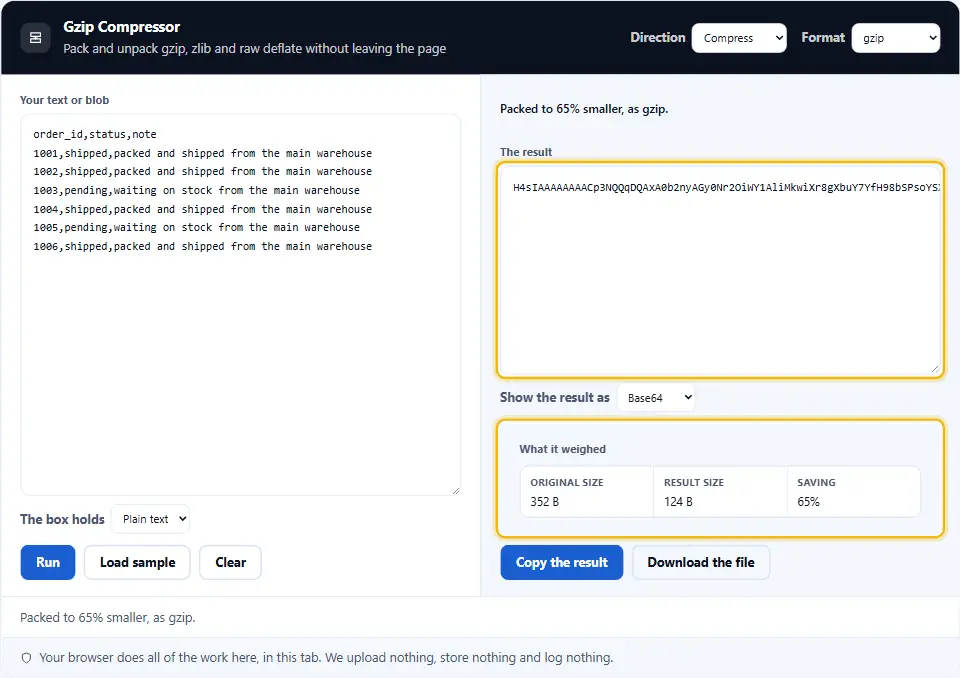
The picture below shows your text on the left, then the gzip blob the tool packs it into on the right, with the size and the saving beside it.

Compress runs the input through the browser itself, so the result matches the gzip a server would make. The reverse button unpacks the same blob back into the text you started with. In fact, the Compression Streams API is the part of the browser that does the work.
Choosing Between Gzip, Zlib And Raw Deflate
All three carry the same compressed payload. They differ only in what sits around it, so the choice is about the reader on the other side rather than about the saving.
Pick gzip unless something told you otherwise. It is what a web server sends, what a .gz file holds, and what a command line expects. Its header also names the format, so a reader can check it.
Pick zlib when a library asks for it. Its wrapper is two bytes rather than ten, and PNG and some protocols use it. The saving is the same; only the envelope is shorter.
Pick raw deflate only when the other side adds its own framing. It has no header at all, so nothing can verify it, and a blob that arrives without a note is impossible to tell from random bytes.
Guessing is the one thing worth avoiding. A gzip reader refuses a zlib blob outright, so this tool reads the first bytes and names the wrapper it sees instead of handing you a header error.
How to Use the Gzip Compressor
A short video walks through every step. Then pick your language below, and turn on captions if you like.
How to compress or decompress with gzip
Six steps, and the data never leaves the tab.
- 1
Paste text or drop a file
Type or paste your text, or drop a file onto the box. The tool reads it on your device, so nothing is sent away.
- 2
Pick compress or decompress
Choose compress to pack the input, or decompress to unpack a gzip blob you already have. The tool switches direction with one click.
- 3
Choose the format
Stay on gzip for the common case, or switch to zlib or raw deflate when a server or a library expects that wrapper instead.
- 4
Read the size and the ratio
The tool shows the original size, the new size and the saving as a percentage, so you can tell at a glance how well it packed.
- 5
Pick the output form
Keep the result as a downloadable .gz file, or copy it as base64 or hex text when you need to paste it somewhere.
- 6
Download or copy
Save the file or copy the text. Nothing is sent to a server, so the data stays private and the result is ready to use.
Why compress gzip in the browser
Three reasons a browser tool beats a command line for this job.
See the size drop as you work
Gzip packs data by replacing repeated runs of bytes with short references. Because the tool shows the original size next to the new size, you watch the saving appear the moment you compress. In practice, that is faster than a terminal command, and it answers the real question, which is whether the file is worth sending in a smaller form.
Your data stays private
This gzip compressor avoids the usual upload step. Many online packers send your file to a server and hand back a link. Here the work runs on your own device, so a private payload or an unreleased log stays private. Therefore a draft config or a client export can be compressed without any risk to the source data.
The output follows the standard
The output matters as much as the saving. Because the result is plain gzip, it opens in any tool that reads the format, from a web server to a command line. As a result, you get a file a browser can unpack. A server can serve it too, and a library can read it, with no special step.
How gzip actually packs data
Three things decide the result, and each one is worth knowing before you compress.
- Gzip wraps a deflate stream Gzip is a short header, a deflate stream, and a checksum at the end. Because the deflate part does the real packing, zlib and raw deflate share the same engine inside a different wrapper. In addition, the checksum lets a reader catch a corrupt blob, so the format is both small and safe. In short, pick the wrapper the other side expects, and the bytes inside stay the same.
- Text shrinks far more than media Gzip loves repetition. Because text, JSON and logs repeat the same words and symbols, they often shrink by half or more. However, a photo, an MP3 or a ZIP is already packed, so gzip finds little to remove and the saving is tiny. Therefore compress the text and leave the media alone, since a second pass rarely helps.
- The result is bytes, not letters A gzip blob is binary, not readable text. A raw byte can break when you paste it into a form. Therefore the tool can show the output as base64 or hex, which travel safely as plain characters. Also, decompress reverses the exact bytes, so the round trip returns the file you started with, down to the last character.
Common gzip mistakes to avoid
Each of these wastes time or breaks the file, which is what makes it easy to miss.
Compressing an already-packed file
A JPEG, an MP4 or a ZIP barely shrinks, because it is already compressed. In practice, run gzip on text, JSON and logs, and leave media in the form it came in.
Mixing up gzip and zlib
A zlib blob and a gzip blob carry different headers. Because a gzip reader rejects a zlib wrapper, match the format to the tool on the other side before you send it.
Pasting raw bytes as text
Binary output breaks when it lands in a text box or a JSON field. Instead, copy the result as base64 or hex, which stay intact wherever you paste them.
Expecting a tiny input to shrink
Gzip adds a small header and a checksum, so a very short string can come out larger. Because the overhead is fixed, compression only pays off past a few hundred bytes.
Losing the original
Compression is reversible, but a damaged blob is not. In practice, keep the source until you have unpacked the result once and checked that it matches.
Trusting the ratio of one sample
One file is not the average. Because real data varies, test a true sample of your payload before you promise a saving, so the number holds up in production.
Gzip compressor frequently asked questions
Does the gzip compressor upload my data?
No. In fact, the whole job runs in your browser. Your text or file therefore never reaches a server, because the tool does not need one to compress or unpack the data.
What is gzip?
Gzip is a format that packs data into a smaller file, made of a short header, a deflate stream and a checksum. Because it is a standard, any tool that reads gzip can open the result, which is why the web uses it so widely.
Does the tool compress and decompress?
Yes, both ways. Because the tool runs in either direction, you compress text into a gzip blob, or decompress a blob back into the original text. In practice, one click switches the direction.
What is the difference between gzip, zlib and deflate?
All three use the same deflate engine inside. However, gzip adds a header and a checksum, zlib uses a shorter wrapper, and raw deflate has no wrapper at all. Therefore pick the one the other side expects, since the packed bytes are otherwise the same.
Can I compress a file, not just text?
Yes. Because you can drop a file onto the box, the tool reads it on your device and packs it like any other input. After that, you download the smaller .gz file or copy the bytes as text.
Can I download the result as a .gz file?
Yes. Because the output is a standard gzip blob, you save it as a .gz file that any gzip reader can open. In practice, a saved file drops straight into a server, a build step or a shell command.
Can I copy the output as text?
Yes. Because compressed data is binary, the tool can show it as base64 or hex, which travel safely as plain characters. So you can paste the result into a request body, a config file or a message without it breaking.
How much smaller will my data get?
It depends on the content. Because gzip packs repetition, plain text and JSON often shrink by half or more. However, a file that is already compressed barely changes, so the saving on media is small.
Why did my file get bigger after compressing?
Because gzip adds a small header and a checksum, a very short input can come out larger than it started. In practice, compression only pays off once the input passes a few hundred bytes.
Is the gzip compressor free?
Yes, completely. In fact, there is no account, no trial and no watermark. Because the work runs in your browser, there is no server cost, so every feature stays free.
Does it work offline?
Yes. Once the page has loaded, every compress and decompress happens locally. You can therefore turn off the connection and the tool keeps working, because it never contacts a server.
Can I compress JSON?
Yes, and it works well. Because JSON repeats the same keys and symbols, gzip finds plenty to pack, so a payload often shrinks sharply. In practice, tidy the JSON first, then compress it for a smaller request.
Does the tool store my data?
No. Nothing is saved on a server or in local storage, so no copy survives the session. So when you close the tab, the data is gone. Therefore download or copy the result before you leave the page.
Can I decompress a .gz file someone sent me?
Yes. Because the tool reads a gzip blob, you drop the file, pick decompress, and it unpacks to the original text. However, if it fails, the blob may be zlib or raw deflate, so switch the format and try again.
What is a compression ratio?
The ratio compares the new size to the original, shown here as the percentage you save. Because a smaller percentage of the original means a bigger saving, the number tells you at a glance whether the pack was worth it.
Can I use the gzip compressor on my phone?
Yes. Because the page adapts to a small screen, you can compress on a phone or tablet. However, dropping a large file is easier on a desktop, so a phone suits a quick text job.
Is gzip lossless?
Yes. Because gzip only packs the data and never drops any of it, decompress returns the exact bytes you started with. Unlike image or audio compression, nothing is thrown away to save space.
Why is gzip used so much on the web?
Because a server can gzip a response to cut the bytes on the wire, and the browser unpacks it before it shows the page. In fact, text, HTML and JSON shrink a lot, so gzip makes a site faster without changing what a visitor sees.
Can I set the compression level?
It depends on the browser. Because the built-in streams use one solid level, the saving is close to the best in most cases. A higher level saves a little more for more time, but for everyday text the default is enough.
Does the tool add a watermark or change my data?
No. The output is a clean gzip blob of exactly what you put in. In fact, nothing is added or branded, because gzip is lossless and the tool only packs the bytes you gave it.
Does the tool track me or read my data?
No. In fact, your data is never sent anywhere, and no analytics script reads it. The compression therefore happens on your device, because nothing about your file leaves the page.
More tools for data and text
A few pages the same job usually leads to.
Turn the packed bytes into safe base64 text.
Open tool →Tidy and shrink a JSON payload before you pack it.
Open tool →Checksum a file to prove it arrived unchanged.
Open tool →Clean an XML document before you compress it.
Open tool →Embed a small image straight into your markup.
Open tool →
Compress your first file now
Open the gzip compressor, paste your text or drop a file, then pick compress or decompress. The size updates as you work, and one click saves the result. Nothing leaves your device.