Social Share Buttons Generator
Icons, Colors And Code In One Place
Make social share buttons for your site in under a minute. Pick the networks, a shape and your colors, then set the layout. After that, copy clean HTML + CSS, or pure HTML with inline styles. There is no third-party script, no cookie and no sign-up.
- FreePrice
- 32 SVGIcons
- HTML + CSS or pure HTMLCode
- NoneTracking
Social Share Buttons Generator
Pick networks, shape and colors, then copy the HTML
The buttons follow the order you tick them in.
Instagram, YouTube, TikTok and the other greyed ones have no share link. Switch to “Link to my profiles” to use them.
Paste the full address of each profile. A button with no address points to # until you add one.
- Buttons
- 0
- Code size
- 0
- Scripts
- 0
The preview and the code change as you change anything. Copy the code when it looks right.
What This Social Share Buttons Tool Makes
Social share buttons are the small icons that let readers pass your page on. One click opens Facebook, X, WhatsApp or email, with your link already filled in. So each reader can become the first link to your site for someone new.
This tool builds those buttons for you. To begin, tick the networks you want from 32 SVG icons. Next, pick a shape, from a square to a circle, and how smooth the corners are. Then choose brand colors, or your own background and icon color.
After that, you set the layout. The buttons can sit side by side, stack in a column, fill a grid or float at the edge of the screen. Finally, you copy the code. The HTML + CSS version keeps the style in one small block, while the pure HTML version puts each style on the tag itself.
The buttons are plain links to each network’s own share page. Therefore there is no widget, no tracking script and nothing that slows the page down. Each link also gets a clear aria-label, so screen reader users hear “Share on Facebook” instead of nothing.
What Is Inside One Share Button
Every button is one link with three parts. First, the address is the network’s share page with your link and title added. Second, the icon is an inline SVG, so it stays sharp at any size and needs no extra file.

The third part is the label. It is either visible text, like “Facebook”, or a hidden aria-label. Because of it, the button still makes sense to people who cannot see the icon.
Social Media Icons In SVG, Ready To Style
The tool draws all 32 social media icons as SVG. In other words, each icon is one path, filled with the color you choose. So a white icon on a brand color and a dark icon on a soft tint both come out sharp.
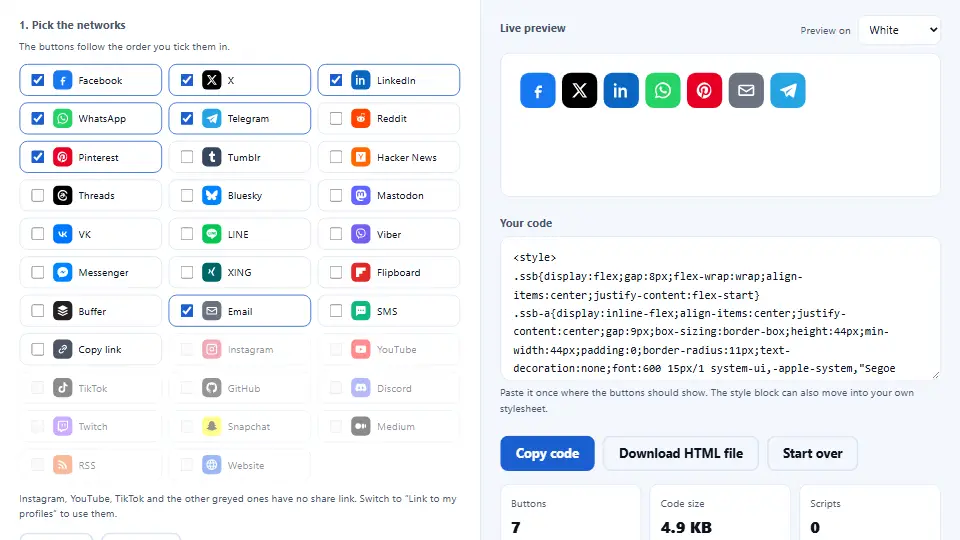
Every change shows in the live preview at once. Also, you can view the preview on a white, light grey or dark background. That way you see how the buttons will look on your real page.
HTML For Social Media Icons: Two Code Types
Choose HTML + CSS for a website or a theme. Then you get one style block and short class names, and hover effects work too.
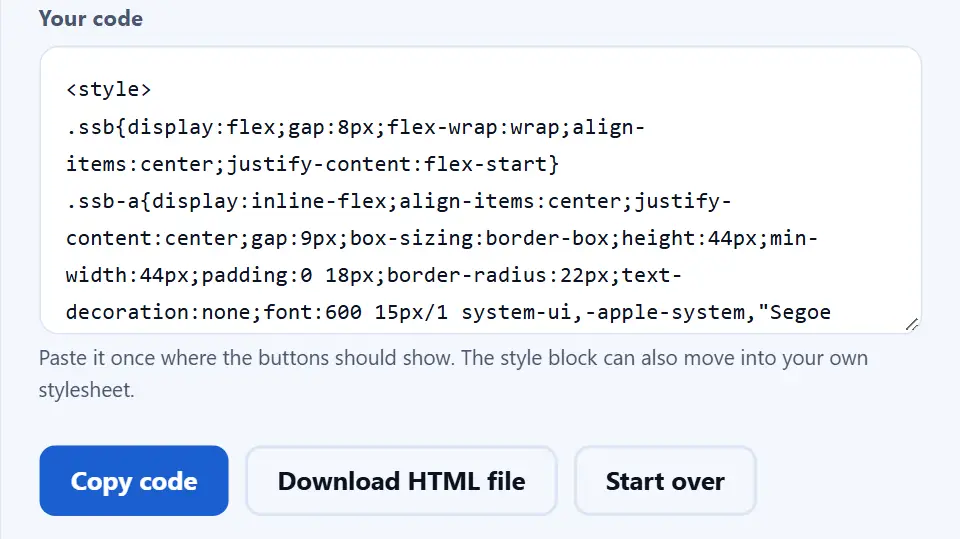
On the other hand, choose pure HTML for page builders, Markdown or an HTML email. There each style sits on the tag, so nothing else is needed.
Watch the Social Share Buttons Generator in Action
A short video walks through every step. Then pick your language below, and turn on captions if you like.
How to make social share buttons
Six short steps. Everything happens in this tab.
Choose share or follow
Use “Buttons that” at the top. Share a page builds share links, and Link to my profiles points to your own accounts.
Tick the networks
Tick each network you want. The buttons appear in the order you tick them, so tick the most useful one first.
Add the page or your profiles
Type the page address and the text to share. For follow buttons, paste each profile link instead.
Pick shape and colors
Pick a shape, move the smoothness slider and choose a style. Then keep the brand colors, or set your own background and icon color.
Set the layout
Place the buttons side by side, stacked, in a grid or in a floating side bar. Also set the size, the space between them and the text.
Copy the code
Pick HTML + CSS or pure HTML, then copy the code or download it as an HTML file. Paste it once where the buttons should show.
Why use these social share buttons
Three reasons to make your own buttons instead of adding a widget.
No widget, no tracking
Share widgets often load a script, set cookies and track your readers. These buttons, however, are plain links. So your page stays fast, and there is nothing extra to list in your privacy policy.
Every style in one place
Shape, smoothness, colors, size, layout and hover all sit on one screen. In addition, six quick looks give you a good start in one click, and you can still change every setting after that.
Code that fits anywhere
The HTML + CSS version suits a site or a theme. Meanwhile, the pure HTML version works where you cannot add CSS, for example in a page builder block or an email.
How the share buttons are built
Three rules shape the code you copy. Knowing them helps you use it well.
- Each network has its own share address Facebook, X, LinkedIn and the others each have a page that opens a ready post. The tool adds your encoded link and title to that address. Some apps, such as Viber and Messenger, use an app link instead, so they work best on phones.
- Share links stay nofollow A share link is not a page you vouch for. That is why the tool marks share links with rel="nofollow noopener noreferrer". Profile links get rel="me" instead, which tells some networks the profile is yours.
- Contrast decides what people can see An icon needs a contrast of at least 3 to 1 with its background to be easy to see. That is the rule in the WCAG non-text contrast guide. So when your own colors fall below it, the tool warns you.
Common share button mistakes to avoid
Each of these costs shares, even with good buttons.
Too many networks
Twenty buttons feel like noise. Instead, keep the three to six your readers really use.
Icons with no label
A screen reader cannot read an icon. For that reason, the code adds an aria-label to each button.
A pale icon on a pale color
White on light yellow is hard to see. So watch the contrast warning and fix the color.
The wrong page address
Then every page shares your home page. Instead, tick the automatic address option for templates.
Buttons too small on phones
A tiny button is hard to tap. Keep them at 40 pixels or more for thumbs.
A floating bar over content
A side bar can cover text on a small screen. Therefore test it on a phone before you publish.
Social share buttons frequently asked questions
Is this social share buttons generator free?
Yes. There is no price, no sign-up and no watermark in the code. Your browser does all the work.
Do the buttons track my readers?
No. They are plain links, with no script from us or the networks. A network only sees a visit when a reader clicks.
How many networks can I use?
There are 32 icons. Of those, 22 can share a page, while the others, such as Instagram and YouTube, link to a profile.
Why can I not tick Instagram in share mode?
Instagram, YouTube and TikTok have no web address that shares a link. So switch to “Link to my profiles” to use them.
What is the difference between share and follow buttons?
A share button posts your page to the reader’s own account. A follow button, on the other hand, takes the reader to your profile.
Which code type should I pick?
Pick HTML + CSS for a website or a theme. Then pick pure HTML for page builders, Markdown or emails.
Why are hover effects missing in pure HTML?
A hover effect needs a CSS rule, and inline styles cannot hold one. So use HTML + CSS if you want the effect.
What does smoothness do?
It sets how round the corners are, as a share of the button height. Zero gives sharp corners, and 50 gives a full curve.
Which shapes can I choose?
Square, rounded, circle, pill, leaf and hexagon. Pill is best when the buttons show the network names.
Can I use my own colors?
Yes. Untick “Use each network’s own brand color”, then pick a background color and an icon color.
What do the styles mean?
Solid fills the button, and gradient fades it. Outline draws only a border, soft tint uses a pale fill, and icon only drops the background.
How do I put the buttons side by side?
Choose “Side by side” under Layout. They line up in a row and wrap to a new line on small screens.
What is the floating side bar?
It pins the buttons to the left edge of the window, halfway down. So they stay in view while the reader scrolls.
Can the buttons share whatever page they are on?
Yes. Tick the automatic address option in HTML + CSS. A small script then fills in the page address and title.
How does the copy link button work?
It copies the page address to the clipboard. Because that needs a script, the code adds a few lines for it.
Where do I paste the code?
Paste it once where the buttons should show, for example after a post. In WordPress, use a Custom HTML block.
Can I change the class name?
Yes. Type a new name under “CSS class name”, so the buttons never clash with styles you already have.
Are the icons SVG?
Yes. Each icon is one inline SVG path, so it stays sharp at any size and needs no image file.
Can I use the SVG icons elsewhere?
Yes, copy the SVG from the code. Still, follow each network’s brand rules when you show its logo.
What size should share buttons be?
Around 40 to 48 pixels works well on phones and computers. Smaller buttons are hard to tap.
Do share buttons help SEO?
Not directly, because shares are not a ranking factor. However, more shares bring more visitors, and some of them may link to you.
Why are share links nofollow?
A share link points to a tool, not to content you recommend. So nofollow is the honest choice.
Do the buttons work on phones?
Yes. On a phone, WhatsApp, Viber, Messenger and SMS can open the app straight away.
Can I use these in an HTML email?
Yes, with the pure HTML code. However, some email apps hide SVG, so test in the apps your readers use.
Does the tool save my settings?
No. Nothing is kept after you close the tab. So copy or download the code before you leave.
Can I make follow buttons for my profiles?
Yes. Choose “Link to my profiles”, tick your networks and paste each profile address. A button with no address points to # until you add one.
More tools for sharing and HTML
A few pages that pair well with share buttons.
- Open Graph Generator
Write the tags behind the card a link shows.
- Online HTML Editor
Paste the button code and try it live.
- HTML Minifier
Make the code smaller before you paste it.
- Color Scheme Generator
Find button colors that match your brand.
- SEO Checker
Check your page, share buttons included.
Make your social share buttons now
Tick your networks, pick a look and copy the code. The tool is free, and nothing you type leaves this tab.