Online HTML Editor
Type On One Side, See It On The Other
This online HTML editor pairs two code panes with a live preview. You write markup and CSS, watch the result appear as you type, and test it at phone, tablet and desktop widths. Nothing you type leaves the browser.
- FreePrice
- TwoPanes
- NoneSign-up
- NoneUploads
Online HTML Editor
HTML and CSS on one side, a live preview on the other
Ready. Type in either pane and the preview redraws a moment later.
What An Online HTML Editor Does
An online HTML editor lets you write a web page and see it right away. You type HTML in one pane and CSS in the other. A moment later, the editor redraws the page. So you never save a file, switch windows and press reload just to check one change.
The panes sit on the left, and the preview sits on the right. On a narrow screen, they stack. Above them, a row of buttons sets the width of the view, so you can see the same page as a phone, a tablet or a desktop would show it.
Nothing needs an install. You open a tab instead of a code editor, and you close it once the layout looks right. In addition, the whole draft stays in this browser. An unreleased page or a client mock never reaches our server, because there is no server step at all.
Under the result, the editor shows a report panel that reads your work. It counts the elements and the CSS rules. It names the rules that match nothing, and it lists the accessibility gaps it can spot. Finally, it lists anything it blocked. So a page that looks fine but reads badly shows up here, not in a review later.
How The Preview Stays Apart From This Page
The preview is not pasted into this page. Instead, the editor draws it inside a shadow root, which works like a walled garden inside the browser.

A shadow root keeps styles apart in both directions, as the HTML specification describes. So your h1 rule cannot reach the heading above it, and our stylesheet cannot flatten the card you are building.
Because of that wall, the editor stays honest. What you see is your markup under your rules, with nothing of ours mixed in.
The editor also turns your text into real elements. Therefore the browser lays out your page the same way it would lay out a saved file. That matters for a grid or a flex row, because a fake view often hides the point where a row wraps.
Why Scripts Do Not Run Here
The editor switches scripts off. That is a choice, not a gap. It removes script tags, drops onclick and every other event attribute, and refuses javascript: links.
Two reasons stand behind that. First, a page that runs your script can be made to act for whoever sent you the snippet. Second, an editor that runs code cannot promise that nothing leaves your browser.
So the report lists every handler and every script tag it took out. As a result, you never wonder why a button did nothing.
If you need a JavaScript playground, this is the wrong page. Instead, build the structure and the styles here, then wire up the behavior in your own code editor.
Links and forms are inert for the same reason. A click inside the preview could take the tab away from your work, so the editor shows a short note instead.
Testing A Layout At Three Widths
The editor uses a width, not a device name. The presets cover 375 pixels for a phone, 768 for a tablet and 1280 for a desktop. In addition, the custom field takes any width from 200 to 2560.
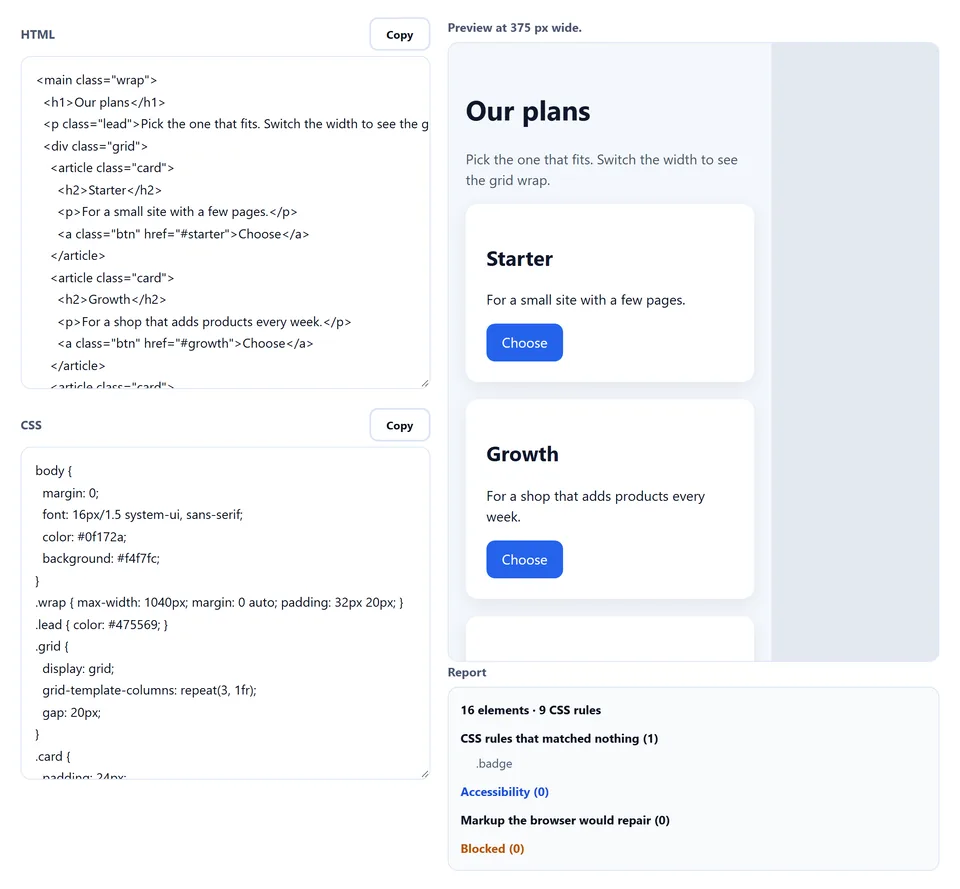
Your media queries answer to that width. The editor turns each width-only @media rule into a container query on the preview box. So a breakpoint at 600 pixels fires when the view is 600 pixels wide, even though this page is wider.
The custom width is often the most useful one. Between about 320 and 900 pixels, most grids break somewhere, and the break sits at an odd number that no preset covers.
A wide page still fits on your screen. The editor scales it down to the space it has, but it keeps the real layout width. Hence the text looks small at 1280, yet it wraps exactly as it would on a desktop.
What The Report Panel Lists
The report panel turns the editor into a quick review tool. It reads the markup and the stylesheet after each redraw, then writes down what it found.
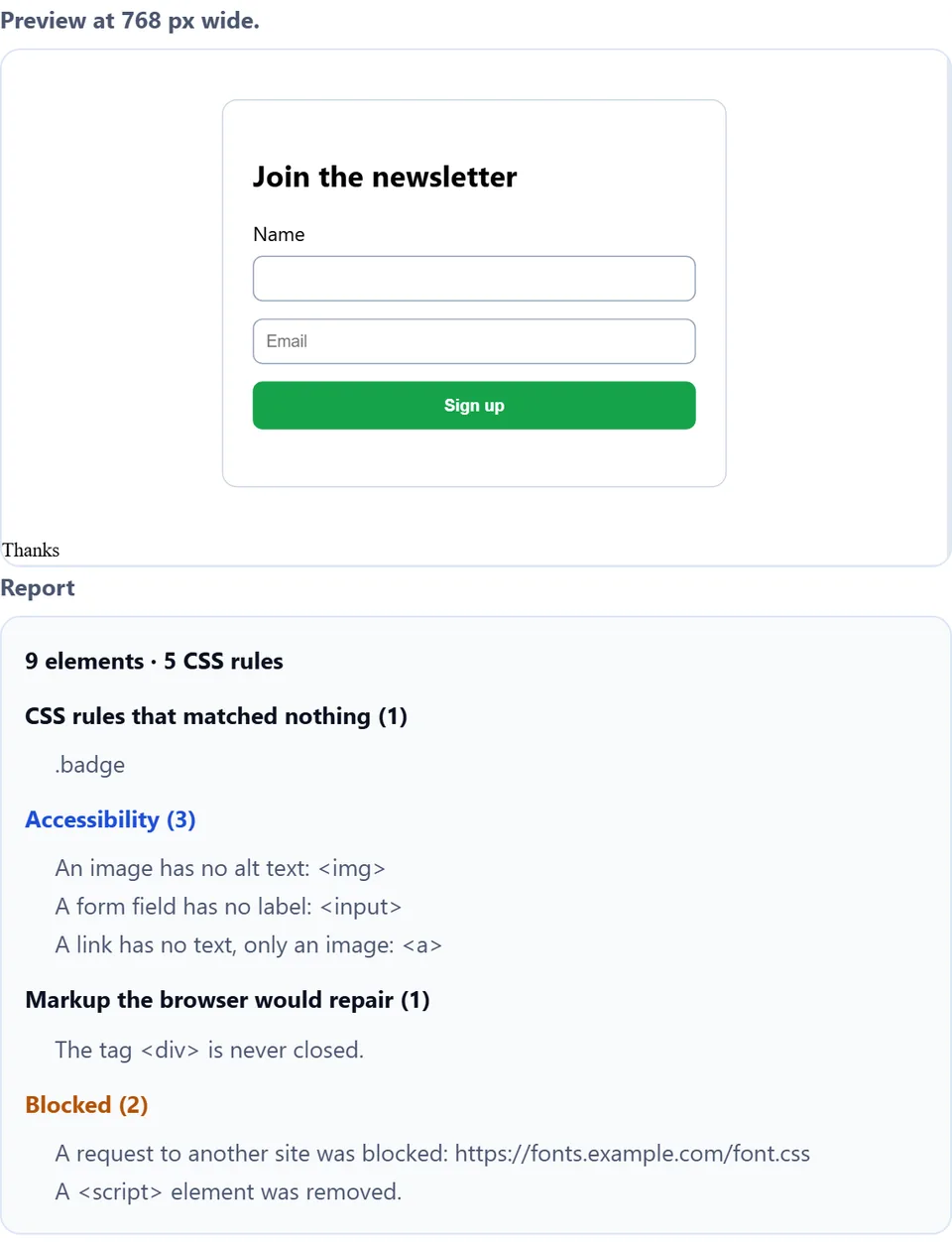
First come the counts: how many elements the page has, and how many CSS rules. Next comes the list of rules that matched nothing. A typo in a class name fails in silence, because the browser just skips the rule. So the panel names the selector for you.
After that come the accessibility notes. An image with no alt text, a form field with no label, a link that holds only an image, and a heading that jumps from level two to level four each get a line.
Then come the tags a browser would repair on its own, such as a div that never closes or a closing tag with no opening tag. Finally, the blocked list names each script, event handler, remote image, web font and @import it stopped. So a missing logo comes with a reason, not a mystery.
How to Use the Online HTML Editor
A short video walks through every step. Then pick your language below, and turn on captions if you like.
How To Use The Online HTML Editor
Four steps, and none of them need an account.
- 1
Write the markup
Type into the HTML pane, or pick a sample to start from working code. The editor redraws the page a moment after you stop typing.
- 2
Style it in the second pane
Then write rules in the CSS pane. Both panes feed the same view, so a change in either one shows up in the same place.
- 3
Pick a width
Next, step through 375, 768 and 1280 pixels, or type a width of your own. That way, you catch the wrap that only happens at 420 pixels before anyone else does.
- 4
Read the report, then export
Finally, fix the dead rules and the accessibility notes. After that, copy each pane, or download one HTML file that holds both.
Why Use This Online HTML Editor
Five reasons, and each one saves a round trip.
The preview cannot touch this page
The editor draws your page in a shadow root, so a stray rule of yours cannot restyle the page around it. Even a wildcard selector stays harmless.
Nothing loads from another host
A snippet copied from an unknown page cannot call home while you look at it. As a result, you can open a client mock without any worry about trackers.
A report, not a blank preview
When the page looks wrong, the editor often says why. For example, it lists a missing image as blocked, instead of leaving you with an empty box.
Real widths, real media queries
The editor lays out your page at the width you choose, so your breakpoints fire for real. A layout that holds at 375 and 768 is likely to hold on the screens those numbers stand for.
One file comes out
The download packs the markup and the stylesheet into a single HTML file. So you can hand it to a colleague or open it offline, with no build step in between.
Habits That Make The Editor Useful
Six habits that turn a scratch pad into a real workflow.
- Start from a sample Load the card grid, the form or the article, then cut it down. A working skeleton beats a blank pane when you only need one component.
- Write the markup first Plain HTML already reads well in a browser, so the structure shows up before any rule exists. Then the CSS only has to arrange what is already there.
- Give every rule a reason Delete a rule the moment it matches nothing. The report names those rules, and a stylesheet with no dead rules is much easier to maintain.
- Check the narrow width first Begin at 375 pixels and widen from there. A layout that works narrow usually stretches well, while the opposite is rarely true.
- Name classes after the job Write card-foot rather than grey-small. A class name travels into the next redesign, and a name tied to a color or a size ages badly.
- Clear the alt list before you export Fill in every alt text the report asks for. Then the markup leaves the page in better shape than it arrived.
Six Ways A Live Preview Misleads You
Each of these looks fine in the pane and surprises you later.
Trusting a preview that is not the real page
A snippet that works alone can break inside a template, and every preview shares that limit. So paste it into the real site and check it there before you ship it.
Leaving scripts in and expecting them to run
This editor drops script tags and event handlers on purpose. Therefore a button that does nothing here is not a bug, and the report names what it removed.
Forgetting that remote files never load
A logo, an icon font or a background from another host will not appear. So use a data URI while you build, or accept the gap and add the real file later.
Styling an element that is not there
A rule for a class your markup never uses changes nothing. The page stays silent about it, so the report is the only place the mistake shows up.
Testing only at the widest width
A desktop-only check misses most readers, since many of them browse on a phone. Hence the preset row starts with the phone width.
Closing the tab with the only copy
The draft lives in this browser alone, and clearing site data removes it. So download the file once the layout is right.
Online HTML Editor Questions
Is this online HTML editor free?
Yes. There is no account, no limit and no paid tier. Open it as often as you like.
What is an online HTML editor?
It is a page where you write HTML and CSS and see the result as you type. In short, the editor turns your browser into the result, so you stop switching windows to see what a change did.
Does it run my JavaScript?
No. Script tags, event attributes and javascript: links are all removed, and the report names each one. Thus a snippet from a stranger cannot act while you read it.
Can the preview break this page?
No. It renders inside a shadow root, so a rule of yours cannot reach the page, and a rule of ours cannot reach your markup.
Can I load an image from another site?
No. The editor blocks requests to other hosts, and the report says so. However, a data URI works, because it travels inside the markup.
Which widths can I test?
The presets cover 375, 768 and 1280 pixels, and the custom field takes any width from 200 to 2560. So you can sit on the exact number where your grid breaks.
Do my media queries work?
Yes, for width queries. The editor turns each one into a container query on the preview box, so it fires at the width you picked in the editor. Other queries, such as print or hover, keep their normal meaning.
What does the report panel check?
It counts elements and CSS rules, and it lists rules that match nothing. It also lists accessibility gaps, tags a browser would repair, and anything it blocked.
Is my markup saved anywhere?
Only in this browser, as a draft. When you come back, the editor loads it again. Clearing site data erases it, so download the file to keep it.
Can I paste markup I did not write?
Yes. The editor strips the parts that could act for someone else before it draws anything. Hence an unknown snippet is safe to look at here.
Can I paste a whole page in?
Yes. A full document works. The editor keeps the style blocks from the head, and it renders the body content inside the editor.
Will it tell me my HTML is invalid?
It reports a tag that never closes and a closing tag with no opening tag. A browser repairs both in silence, so the page alone would hide them.
Does it support grid and flexbox?
Yes. The editor draws a real box in a real browser, so both layout modes behave as they will in production.
Can I copy the code out when I finish?
Yes. Each pane has its own copy button. In addition, the download packs both panes into one HTML file.
What happens to scripts in the download?
The file keeps your markup and styles. However, script tags turn into short comments, and event attributes are removed, so the file matches what you saw.
Can I undo a change?
Yes. Each pane is a normal text box, so your browser undo works inside it. To start over, pick a sample and load it again.
Does it format or minify the code?
No, and that is on purpose. Each pane keeps the spacing you typed. When the markup is final, run it through the minifier instead.
Does it work on a phone?
Yes. The panes stack on a narrow screen, and the editor keeps the page at its own width. So you can fix a wrap while you are away from your desk.
Who owns the markup I write?
You do. There is no credit to give and no claim from us, so you can use it in paid work.
Do I need an account or an extension?
No. The page runs on its own, with no sign-up and nothing to install.
Tools That Go With This One
Four pages the same job often leads to.
Run a selector against markup you paste and see what it catches. A selector that matches nothing is easy to miss by eye, so this page names it.
Open tool →Once the layout settles, strip the comments and the extra spacing. Then the file you ship carries the structure, not the notes behind it.
Open tool →Before markup goes out as mail, check it the way a mail client reads it. A mail client removes far more than a web preview does.
Open tool →When a page needs an icon or a small diagram, draw and tidy it there. Then paste the clean SVG code straight into the HTML pane.
Open tool →
Write Markup And Watch It Land
Type the HTML, style it in the next pane, step through three widths and read the report. Nothing loads from another host, no script runs, and the whole draft stays in your browser.