How to Minify JavaScript: The Short Version
Here is how to minify JavaScript, step by step, with free tools.
JavaScript minification gets rid of unnecessary characters in JavaScript code to decrease the size of the code. Browsers don’t need the characters to interpret and execute the code, so they can be removed.
There are several ways to go about JavaScript minification. You can use an online resource to do it for you, use a command line utility, or implement minification as part of your website’s build process. If you update your code often, the build process is the best choice.
Minifying JavaScript files is just one of many things you can do to increase the performance of your website. Other things to try include removing unnecessary JavaScript to decrease the filesize of your website and caching and compressing the remaining files.
Prefer to watch? The full video tutorial shows every step on screen, and the free JavaScript Minifier does the job in your browser.
What Gets Stripped Out When You Minify JavaScript?
Developers add spaces, line breaks and comments to make code easier to read and edit.

The browser does not need any of these characters. A minifier may also reduce the length of variable names to single characters and remove code that doesn’t impact the function of the script.
The following is a list of some of the elements of JavaScript code that may be removed by a minifier.
- Extra whitespace
- Comments
- New line characters
- Names of variables and functions that are longer than needed
- Unused code
1. Whitespace
Developers deliberately place spaces and tabs to format code to increase readability. Minifiers remove all extraneous whitespace including spaces that are used to separate sections of code in JavaScript.
Before minification:
function welcome() {
    console.log("Hello, visitor!");
}
After minification:
function welcome(){console.log("Hello, visitor!");}Both versions do the same task, but the second version uses fewer characters.
2. Comments
JavaScript comments are removed during minification. Browsers disregard these comments anyway.
Before minification:
// Displays 'Hello' message to the user
function welcome() {
    console.log("Hello");
}
After minification:
function welcome() { console.log("Hello"); }3. Turning Long Variable and Function Names Into Single Letters
In order to reduce file size still further, some minifiers change long variable and function names to shorter ones. People call this trick name mangling.
Before minification:
function calculateTotalPrice(price, tax) {
    let finalAmount = price + tax;
    return finalAmount;
}
After minification:
function calculateTotalPrice(e,t){let n=e+t;return n}4. Unnecessary Code
Some minifiers can remove sections of code that do not alter program behavior.
Before minification:
function showMessage() {
    const unused = 100;
    console.log("Welcome!");
}
After minification:
function showMessage(){console.log("Welcome!")}Original Size vs Minified Size vs Gzip Size
The size of an uncompressed JavaScript file may be 120 KB. To reduce the size further, one can use a tool to remove unnecessary characters in the JavaScript file. Further reduction in size of the file can be achieved by using compression methods like Gzip or Brotli.
Results may vary as illustrated in the table below.
| Version | Size | Reduction |
|---|---|---|
| Original JavaScript | 120 KB | 0% |
| Minified JavaScript | 78 KB | 35% |
| Minified + Gzip | 23 KB | 81% |
To minify a JavaScript file, you can use an online tool or a build tool. We cover each way next.
Online JavaScript Minification Tool
To use this tool, you do not need to install software or configure any build systems to generate minified JavaScript files. The JavaScript code to be minified can be pasted in the online tool to generate the minified code.
Using the Denwix online minifier takes only a few clicks.
Step 1. Paste Your JavaScript
Open the online tool to minify JavaScript, and in the text area provided, add the JavaScript code you wish to minify.
For small to medium scripts this tool is very convenient to use. With longer and larger JavaScript code it may be more efficient to use a build tool.
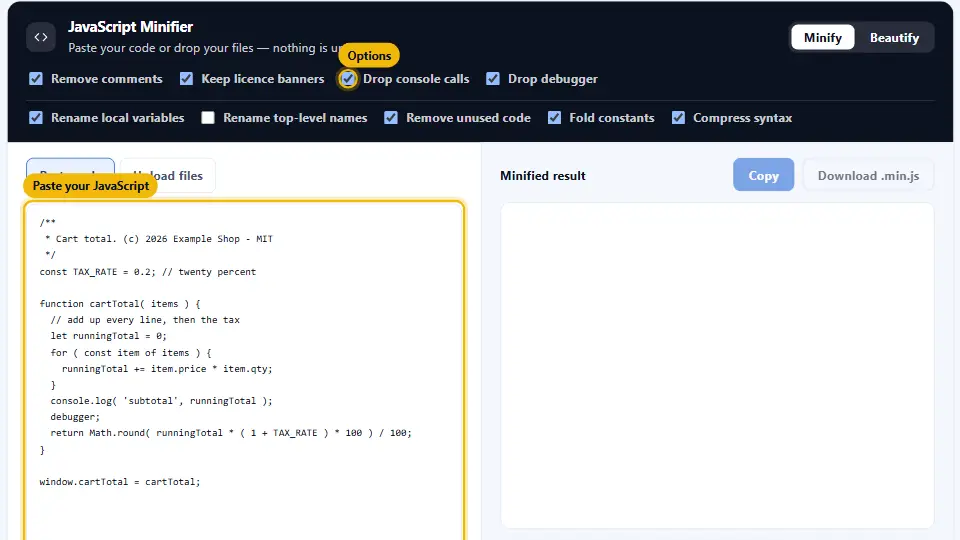
Step 2. Minification Options
Some tools let you modify settings to adjust how they process your code.
Some of these settings may include the following:
- Removing whitespace
- Removing comments
- Shortening variable names
- Applying further code optimizations
For easy to use scripts the default settings should be good to go. If you have scripts that rely on particular variable names or comments adjust the settings accordingly.
Step 3. Minify Code
Click the ‘Minify’ button to reduce the size of your script.
Check the output to make sure the code was minified correctly. If the tool points out syntax errors in the code, double check for missing quotes or brackets.
Step 4. Copy or Save Minified Code
Copy or download the minified code to your computer and save it with the file name ‘app.min.js’ or whatever name you desire.
To check the minified code’s functionality, replace the non-minified version on your site with the minified version.
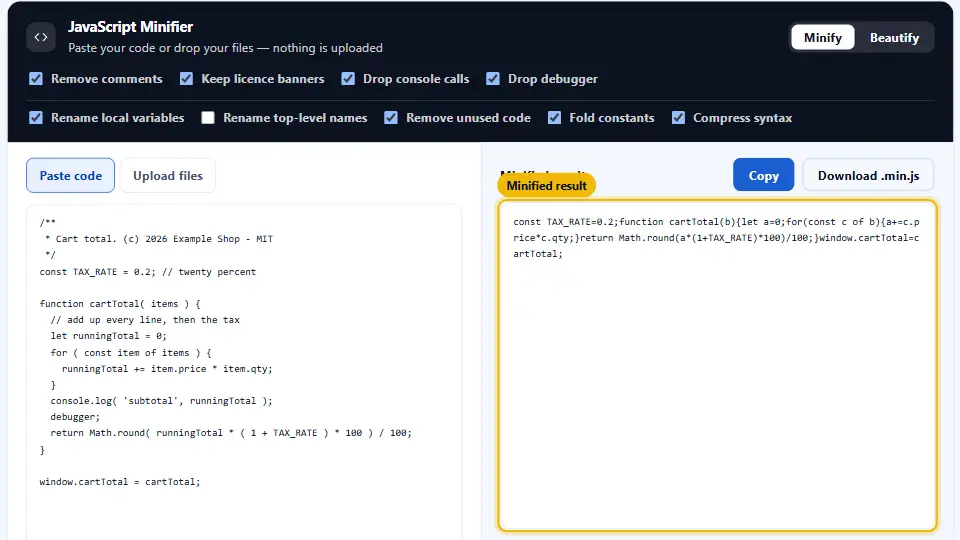
Online tools can be very convenient when you need to quickly minify a JavaScript file to add to your website.
Using Build Tools to Minify JavaScript Files
Minifying JavaScript files should be part of the process of preparing your code for release to the public. It is easy to forget to minify files before each release. To automate this process you can incorporate it into your build process using one of the tools described below.
- Terser
- Webpack
- Vite
- esbuild
Using Terser from the Command Line
Terser is a well known command line JavaScript minifier. It offers many options including compression and obfuscation.
First, install it via:
npm install terser -DOnce installed you can minify a file with the command:
npx terser app.js -o app.min.js -c -mThe minified JavaScript will then be stored in app.min.js. Use the -c option to enable compression and the -m option to enable mangling of variable names.
To generate a source map along with the minified JavaScript add the flag:
npx terser app.js -o app.min.js -c -m --source-mapUsing Webpack
When Webpack is used in production it will minify JavaScript files automatically.
Below is an example Webpack configuration to produce a minified production build.
module.exports = {
   mode: 'production',
   entry: './src/index.js',
   output: {
       filename: 'bundle.min.js'
   }
}
To generate the production build execute the command:
npx webpackFor more control over compression and source maps, you can add the TerserPlugin to your Webpack configuration.
Using Vite
Vite also provides a command to generate an optimized production build.
Run the command:
npm run buildTo modify the minification settings edit the configuration file vite.config.js with the following:
import { defineConfig } from 'vite';
export default defineConfig({
   build: {
      minify: 'esbuild'
   }
});
Using esbuild
Install esbuild using the command below:
npm install esbuild --save-devRun the command below to generate a minified version of app.js
npx esbuild app.js --minify --outfile=app.min.jsAlternatively you can bundle the entire application in one file using the command:
npx esbuild src/main.js --bundle --minify --outfile=dist/main.min.jsThis will output the file to the dist folder.
How to Minify JavaScript and CSS in One Step
Minifying both JavaScript and CSS will decrease the size of the files a visitor needs to download to view a page on your site. To further decrease the file size you can also minify HTML files using the same build process.
To implement this in your project use two different tools to minify JavaScript and CSS and then run them through your build process.
To do this, first install the tools with the following commands.
npm install terser postcss cssnano -DMinify the JavaScript using the command below
npx terser app.js -o app.min.jsTo minify the CSS use the following command
npx postcss style.css -o style.min.css --use cssnanoAlso include an HTML minifier to further decrease the file size of your site’s HTML files using the command below.
npx html-minifier-terser index.html -o index.min.html --collapse-whitespace --remove-commentsFor large projects you can add these commands to the package scripts to run them in combination.
Here's an example of how the scripts in your package.json may look:
{
  "scripts": {
    "build:js": "terser app.js -o app.min.js -c -m",
    "build:css": "postcss style.css -o style.min.css --use cssnano",
    "build": "npm run build:js && npm run build:css"
  }
}
You can run the following command to build your minified and optimized assets:
npm run buildAlways test your site after minifying to make sure the JavaScript, CSS and other files still work.
Minify JavaScript in WordPress With a Plugin
Most themes, plugins and custom scripts used on WordPress sites include JavaScript files. This can make it very difficult to minify all the JavaScript files used on the site manually.
To make things easier, you can use a performance plugin to automatically reduce the size of JavaScript files used on your site.
Choose an Optimization Plugin
Some of the more popular plugins to achieve this include:
- WP Rocket
- Autoptimize
- LiteSpeed Cache
Check your server configuration to decide which features will be available to you.
Once you’ve activated the plugin to minify JavaScript, check the website to make sure it is still functioning correctly. Continue to test the site after enabling other settings to minimize and combine JavaScript files on the site.
Minifying JavaScript is less risky than combining or delaying scripts to load on the site.
What Can Go Wrong?
WordPress plugins are known to break when the order of scripts on the page changes. This can occur with the use of a page speed optimization plugin.
Examples of plugins that can break with page speed optimization are:
- Plugins to create navigation menus
- Contact form plugins
- Plugins to add “add to cart” buttons
- Plugins to create product filters and sorting
- Slider and gallery plugins
- Plugins to create pop-up consent forms to dismiss cookies
To troubleshoot, disable the setting that you recently changed to minify scripts and test the site to see if the scripts are now functioning correctly.
It’s best practice to take a complete site backup before changing settings on a live site.
Reducing JavaScript Size in VS Code
JS files can be minified directly within VS Code with the Terser plugin.
Option 1: A VS Code Extension
To install a JavaScript minification extension, open the Extensions section of the VS Code sidebar, search for the extension and follow the prompts to install. To minify JavaScript, open the JavaScript file and run the command through the VS Code Command Palette. The saved minified file should be named with the extension “.min.js.”
Option 2: The Built-in Terminal in VS Code
Terser can also be used to minify JavaScript files from the command line. Navigate to the directory of the JavaScript file to be minified and type “terser filename.js” to minify the file.
Open the integrated terminal and run the following command to add Terser to your project:
npm install terser -DRun the command below to run Terser on the JavaScript file script.js, saving it as script.min.js.
npx terser script.js -o script.min.jsYou can also add this command to your project’s build script, so files are minified on every build.
How to Fix the “Minify JavaScript” Warning in PageSpeed Insights
Lighthouse and PageSpeed Insights occasionally suggest “minifying” JavaScript to reduce the file size.
In most cases the suggestions are valid. Smaller files make pages load faster, especially for users on slower connections.
However, don’t focus on removing these warnings to improve your score. Users’ experience should be improved first.
The steps are simple.
1. Determine Which Files Need to be Minified
Use Lighthouse or PageSpeed Insights to analyze your site and look for suggestions to minify JavaScript. The suggestion may include specific files and the expected size reduction.
Files might be included from other themes, plugins or 3rd party sources as well.
2. Minify the Files Locally
Use one of the tools available such as Terser or esbuild to reduce the size of the files.
Example:
npx terser file.js -o file.min.jsOnce reduced, have the page load the minified version.
3. Enable Server Side Compression
Turn on Gzip or Brotli on your server so the files that travel to visitors get even lighter. In conjunction with minification this will further decrease the size of the files transferred to end users.
A combination of both strategies in this article may potentially yield even better results.
4. Remove Unused JavaScript
Minifying does not remove code that your website never uses.
Check the dependencies of your application and get rid of the extra libraries. Also, use code splitting to include the minimum number of scripts on each page.
Repeat the test to see if your changes have improved site performance. Check the loading behavior and look for errors in the browser console to be sure the site is still functional.
If a warning is thrown due to a third-party script that is not within your control to edit, see if there are alternative scripts with lower impact that you can use instead.
Real World Example: Reducing a 420 KB JavaScript Bundle
Let’s say a local home repair business has a website with a few pages that contain an image slider, contact form and menu.
Prior to minification, this site includes a single 420 KB JavaScript bundle. The site owner notices long loading times on mobile devices and receives poor scores in web performance tests.
To improve loading time the site owner first needs to determine which scripts are being loaded on each page and which are unnecessary. The site owner can use the Lighthouse tool to gain more information about the requests being made to and from the site. In this case, several scripts that are being loaded on all pages are used only on the booking page of the site.
Current Stats:
| Metric | Before Optimization |
|---|---|
| Size of JS Bundle | 420 KB |
| Size of JS Transferred to Mobile | 165 KB |
| Mobile Page Load Time | 4.8 secs |
| Lighthouse Performance Score | 54 |
These stats do not represent any official benchmarking.
Step 1: Minify the JavaScript
Terser is the tool of choice for the developer to remove spaces and comments in the JS code. The size of the production JS bundle is reduced but that’s not to say other changes to improve performance of the site aren’t necessary as well.
Step 2: Remove Unused Code
The developer next checked which packages were being imported and used by the app.
The developer also removed a slider library and the animation package that were previously used to create effects on the booking confirmation screen.
Now users don’t have to download these components to view the homepage.
Step 3: Brotli Compression and Caching
To further improve performance the hosting server is configured to send out Brotli compressed JS files to users. The developer also configured the site to use cache control to set some resource requests to public, thereby allowing users to retain cached copies of those resources.
Step 4: Check the Results
The following stats represent the site after the changes were implemented.
| Metric | Before | After |
|---|---|---|
| Size of JS Bundle | 420 KB | 245 KB |
| Size of JS Transferred to Mobile | 165 KB | 72 KB |
| Mobile Page Load Time | 4.8 secs | 3.1 secs |
| Lighthouse Performance Score | 54 | 82 |
Minification of JS is a good first step to increase performance of a website but there are several other strategies such as removing unused code and integrating other performance improvements that can also have a large impact on performance of a web app.
Minify vs Uglify vs Obfuscate vs Compress
Although these methods are similar, they differ in specific ways. Knowing the differences allows you to choose the most appropriate method for the situation.
| Method | Process | Purpose | Size Effect |
|---|---|---|---|
| Minify | Remove unneeded characters | Improve load time of code | Yes |
| Uglify | Rewrite code to use fewer characters | Reduce size of code | Yes |
| Obfuscate | Rewrite code so it is hard to read | Prevent understanding of code logic | No |
| Compress | Encode files to use fewer bytes | Reduce size of data transmitted | Yes |
Minification does not make your code secure. To increase the level of security, the code should be obfuscated as well.
To speed up the loading of web pages, the client side code should be both minified and compressed.
Mistakes When Minifying JavaScript
When minifying JavaScript there are some potential issues that can cause broken functionality and increase the difficulty of debugging the code.
1. Minifier Fails Because of Broken Syntax or a Missing Semicolon
Automatic semicolon insertion in JavaScript can be misleading and cause bugs.
To fix: Before minification run a JavaScript syntax check and ensure the build process has completed successfully.
2. Source Maps
Without a source map, an error in minified code points to one long line. So tracking the bug back to your source code turns into guesswork.
Fix: Generate source maps during development to locate the originating code of the minified version.
3. Minifying a .min.js File a Second Time
Minifying a file that is already minified wastes time and can break code.
Fix: Always minify from the original source file, not from a .min.js file.
4. Minifying External Scripts
Third-party scripts are often minified already. Minifying them again can break them.
Fix: Do not minify external scripts. Load the minified version the vendor gives you.
5. Removing the Original File
If you delete the original script, you can no longer read or fix your code easily.
Fix: Keep the original script and minify a copy before you deploy.
How to De-Minify JavaScript
To decipher minified JavaScript code you will need to ‘beautify’ it. Several online tools exist to assist with beautification.
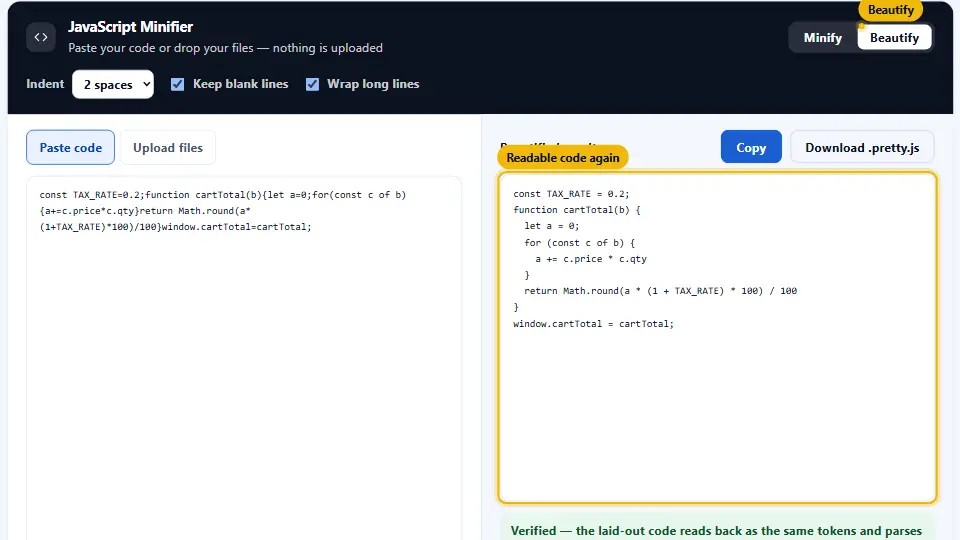
For the example below:
function add(a,b){let total=a+b;return total} console.log(add(5,10));You would get the following:
function add(a, b){
    let total = a + b;
    return total;
}
console.log(add(5, 10));
Copy the minified JavaScript code into a beautifier. Free beautifiers are easy to find, and Chrome DevTools has one built in.
Another Way: Format the Code in Your Editor
If you are using Visual Studio Code, you can use the format document command found under edit.
To use prettier on the command line, type the following:
npx prettier script.min.jsBeautifying will not recover the names of variables or add comments to the code. The minifier shortens variable names to the point where they may be very difficult to understand without the original source code.
Add JavaScript Minification to Your Workflow
Minifying JavaScript source code can reduce the size of the files to be transferred to the user. This can easily be done online or using one of many libraries available to integrate into your website. Using Terser to minify JavaScript before caching and compressing the files can further increase the performance of your site.
JavaScript Minification FAQ
What Does Minifying JavaScript Mean?
Minification removes unnecessary characters from JavaScript code to decrease the size of the code. It removes whitespace and comments, and it can shorten variable names.
Why minify JavaScript code?
When visitors load the web page, they have to download the JavaScript code associated with the web page. Minifying the JavaScript code reduces the time it takes to download the code and therefore increases the speed of the web page.
How can I minify JavaScript without using additional software?
Visit an online JavaScript minification webpage and enter your code to create the minified version.
Is there a free online service to minify JavaScript?
Yes. Several websites offer this service, such as the free Denwix JavaScript Minifier.
Will JavaScript code stop functioning if it is minified?
Minification should not change how the code works. Problems may occur if the code relies on certain variable or function names.
Is Minified JS Faster?
Minified JS code downloads faster because the file is smaller. The browser also parses it a little faster. However, it does not make the code itself run faster.
Can I Minify JS Code Online?
You certainly can. Go to any web site of your choice that provides this service to enter and process your JS code.
Which JS Minifier Should I Pick?
Either Terser or esbuild would be a good choice for production use.
Is Terser Better than UglifyJS?
Terser is more versatile and more recently implemented to handle some of the more modern JavaScript syntax compared to UglifyJS.
Does Vite Minify JS?
Yes, during a production build Vite will minify the JS code for you.
Does Webpack Minify JS?
Yes. In production mode, Webpack minifies JS code for you.
Is It OK to Minify JS and CSS at the Same Time?
Yes. Using a build process to minify both JavaScript and CSS files with Terser and cssnano respectively would be a good start.
Does JavaScript Minification Influence SEO?
Yes, a little. Lighter scripts mean pages open sooner. Faster pages give a better user experience, and Google uses page speed as a ranking signal.
Does Minification Eliminate Comments?
Minification removes standard comments. Some tools let users keep license and other comments of their choice.
Can WordPress Sites Minify JavaScript Too?
Yes. Several WordPress performance plugins offer the capability to minify JavaScript files.
Minification vs Gzip: How Are They Different?
Minification removes extra characters from the code. Gzip then compresses the file before the server sends it to the user.
When Should JavaScript Be Minified? Prior to or after Bundling?
In the majority of modern application builds, JavaScript is bundled, and then minified during the same process.
Is Minified JavaScript Reversible?
Yes, you can use a beautifier to add spaces and line breaks. However, in the process some or all of the original comments and names of variables may be lost.
Does Minification Secure My JavaScript Code?
Minification does not obfuscate code to protect it from being read. Browsers still have to be able to interpret the JavaScript code.
When Should I Minify JavaScript Again?
You should minify your JavaScript code each time you generate a production build. To further improve performance of your website, you can pre-configure your automation tool to minify all JavaScript files on the site before deployment.