SVG Editor
Shapes And Code, Side By Side
Paste SVG markup or start from a shape. This SVG editor lets you move and restyle it on a live canvas, then copy or download the clean markup. No account, no upload, nothing saved on a server.
- FreePrice
- FiveShapes
- Clean SVGOutput
- NoneUploads
SVG Editor
Paste or draw shapes, move and resize them, then save clean code
Nothing selected. Click a shape on the canvas or in the layer list.
Ready. A sample drawing is loaded. Paste your own SVG code below and press Load the code.
What An SVG Editor Does
This SVG editor lets you work on vector graphics right in your browser. You paste SVG markup or start from a simple shape. Then you move, resize and restyle the parts on a live canvas. Because everything runs on your device, the markup never leaves the page, and no copy is kept anywhere else.
Editing the drawing takes a few steps. First, paste your SVG code or add a shape such as a rectangle, circle, line or text label. Next, click a part to select it and drag it into place, or pull its corner dot to change its size. In addition, you can set the fill and border colors, type exact numbers, and reorder the layers so the right part sits on top.
You need no account and there is no upload step, so a drawing is ready in a moment. Everything updates as you edit, which means you see the final result before you save it. When it looks right, copy the markup or download it as an SVG file. Then drop it into a page, an icon set or a design file.
This SVG editor suits anyone who works with vector graphics. For example, developers clean up an icon, designers tweak a logo color, and writers adjust a small diagram without a heavy design app. Because the output is plain SVG text, it stays sharp at any size. It also stays readable as code when you paste it into a project.
One Drawing, Shapes And Code
The picture below shows the drawing canvas on the left. On the right is the clean SVG markup the editor keeps for it.

Click a shape on the canvas, and a dashed box marks it. Move or restyle that shape, and the matching markup updates at once. So the two always agree.
Select, Drag, Then Fine-Tune
Click a shape on the canvas or in the layer list. A dashed box marks it, and the dot in its corner resizes a rectangle, circle, ellipse, line, text or image. Paths and groups move by drag, and you size them in their code.
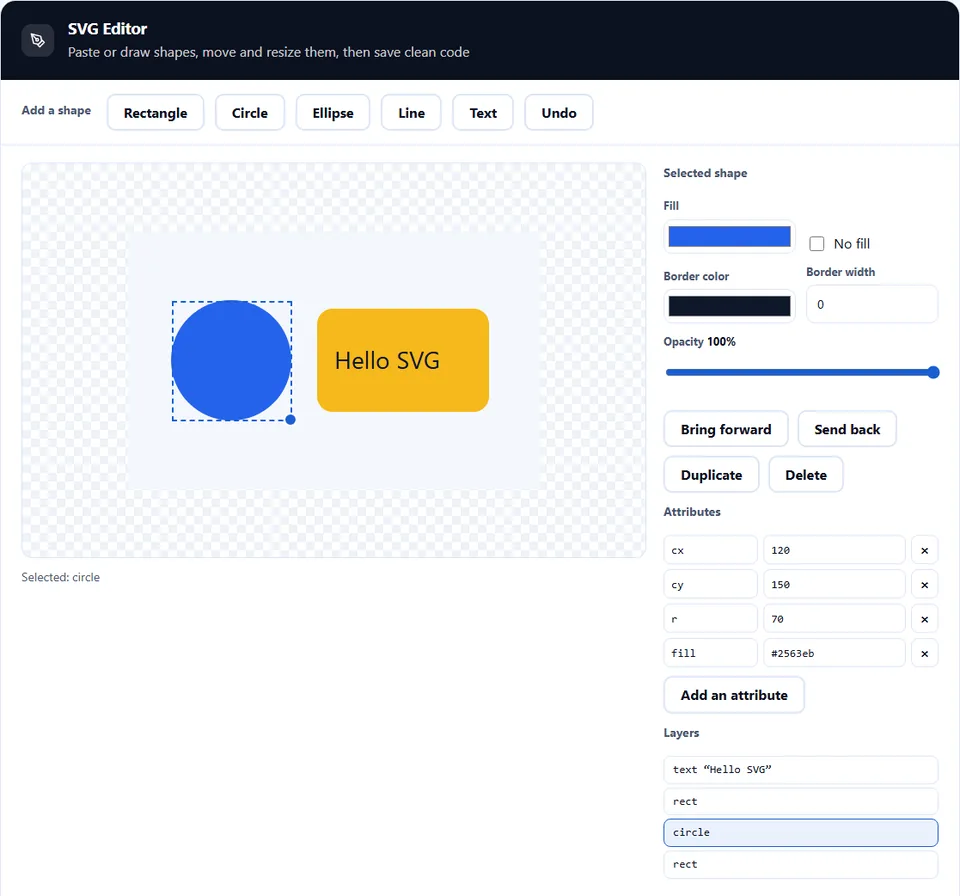
The side panel sets the fill, the border and the opacity. Below it, every attribute of the shape sits in its own field, so you can type an exact number. In addition, the arrow keys nudge the selected shape, and Undo steps back through your recent changes.
How to Use the SVG Editor
A short video walks through every step. Then pick your language below, and turn on captions if you like.
How to edit an SVG
Six steps, and the code never leaves the tab.
- 1
Paste your markup or add a shape
Paste SVG code and press Load the code. Or start with a rectangle, circle, ellipse, line or text label when you build from scratch.
- 2
Select a part on the canvas
Click a shape to pick it out. A dashed box and a corner dot appear, so you always know which part is active.
- 3
Move and resize it
Drag the shape to a new spot, or pull the corner dot to change its size. Hold Shift to keep the proportions of a rectangle, an ellipse or an image.
- 4
Restyle the fill and stroke
Set a fill color, add a border, change its width, and adjust the opacity. The canvas redraws as you change a value.
- 5
Reorder the layers
Use Bring forward and Send back to move a shape up or down the layer stack. That way, the drawing reads the way you intend.
- 6
Copy or download the result
Copy the clean markup to your clipboard, or save it as an SVG file. Nothing is sent to a server, so the code stays private.
Why edit SVG in the browser
Three reasons a browser editor beats a heavy design app for this job.
See the shape and the code at once
SVG is vector art written as plain text, which makes it easy to edit by hand but hard to picture. Because numbers describe the shapes, a small change to one value moves a whole shape. In practice, this editor shows the drawing and the numbers together. So you change a value and see the result at once.
Your code stays private
This SVG editor skips the usual upload step. Many vector tools send your file to a server and hand back a link. Here, however, the drawing is made on your own device. As a result, a private icon or an unreleased logo stays private, and you can edit a client draft without risk.
The output is clean, sharp SVG
The output matters as much as the edit. Because the result is plain SVG text, it drops into a web page or a design tool without a plugin. So you get a file that stays sharp at any size, loads fast, and reads cleanly when a developer opens it.
How the editor works
Three things decide the result. Each one is worth knowing before you save.
- Every click maps to a shape The editor reads your SVG markup, draws it, and maps every click back to the shape under the cursor. Because the art is shapes with coordinates, moving one part changes only its numbers. The rest of the drawing stays untouched. In addition, the panel lists the attributes of the selected shape, so you can type an exact value when a drag is not precise enough.
- Layer order decides what shows The layer order decides what sits on top. SVG paints shapes in the order they appear, so a shape later in the list covers the ones before it. Therefore, moving a part up or down the stack changes what a reader sees first. A small reorder can fix a hidden edge or a buried label.
- The export stays clean and portable The export keeps the markup clean. The editor writes tidy code as you work, so the copy lands as readable SVG text rather than one long line. Also, the file holds only the shapes you drew, so it opens in any browser and needs nothing else to display.
Common SVG editing mistakes to avoid
Each of these leaves the drawing looking right but behaving wrong, and that is slow to spot.
Losing the viewBox
Without a viewBox, the art crops or scales oddly in a page. So keep the viewBox, and change the width and height only when you need a fixed size.
Scaling one axis only
A shape stretched on one side looks broken. Because a vector stretches freely, hold Shift while you resize, so a shape keeps its proportions.
Leaving a fill on a line path
A shape meant as an outline floods a whole region when it has a fill. So tick No fill when a shape is meant to be an outline.
Editing a copy and losing the original
The editor works on the code you paste, so the source file stays safe. Still, keep a backup of the original, so you can compare the two versions.
Forgetting the stroke width
A hairline border vanishes on a high-resolution screen. Because vector art scales up, check the border width at a large size before you ship the file.
Dropping the accessibility label
A decorative image needs no title, but a meaningful one does. So add a short title element in the code, and a screen reader can name the graphic.
SVG editor frequently asked questions
Does the SVG editor upload my file?
No. The whole drawing is held in your browser. So your markup never reaches a server, because the editor does not need one to edit the art.
What is SVG?
SVG stands for Scalable Vector Graphics, a text format that describes parts with numbers instead of pixels. Because the art is vector, it stays sharp at any size. It also reads as code, which makes it easy to edit and small to download.
Do I need to upload an SVG file?
No. The editor takes pasted markup, so open your file, copy its SVG text and paste it in. After that, you edit on the canvas, and the source file on your disk stays as it is.
Which shapes can I add?
The editor adds a rectangle, a circle, an ellipse, a line and a text label. These cover most icons and diagrams, so you can build a simple graphic without a full design suite.
Can I edit the path of a complex shape?
Yes. The panel shows the raw attributes, so you can edit a path string by hand. In practice, use the canvas for quick moves and the attribute field when a value must be exact.
Can I change the fill and stroke colors?
Yes. The editor writes color values into the markup, so you set a fill, a border color and a border width per part. In addition, you can tick No fill, which is useful for an outline icon.
Does the editor keep my code clean?
Yes. It writes tidy attributes as you edit, so the copied markup stays readable rather than one long line. However, it does not fetch outside files or scripts, so the export holds only the parts you drew.
Is the SVG editor free?
Yes, completely. There is no account, no trial and no watermark. Also, the work runs in your browser, so there is no server cost to pass on. Every feature stays free.
Does it work offline?
Yes. Once the page has loaded, every edit happens locally. So you can turn off the connection and the editor keeps working, because it never contacts a server.
Can I download the result as a file?
Yes. The output is plain SVG text, so you can copy it to the clipboard or save it as a file. A saved file opens in any browser and drops straight into a web project.
Can I convert the SVG to a PNG?
Not on this page. This tool edits vector code, and raster output belongs to a converter. Instead, use the SVG to PNG page when you need a fixed-size image for a document or a post.
Can I edit a logo path?
Yes, if you have the SVG source. A logo is made of parts, so you can move and recolor the parts and edit their numbers. However, this editor cannot change a logo that arrives as a flat image, since it carries no shape data.
Can I set the artboard size?
Yes. The fields under the canvas hold the width, height and viewBox, so you can change them. In practice, keep the viewBox and adjust the size only when you need a fixed one.
Does the editor store my drawing?
No. No server or local storage keeps anything, so no copy survives the session. When you close the tab, the drawing is gone. Therefore, copy or download the result before you leave the page.
Can I use the editor on my phone?
Yes. The page adapts to a small screen, so you can edit on a phone or tablet. However, fine drag work is easier on a desktop, so a phone suits a quick color or size change.
Can I undo a change?
Yes. The editor keeps a short history of your edits, so Undo steps back when a move goes wrong. The history covers the recent steps of the current session only.
Is the SVG safe to paste into a page?
It depends on the file. Some SVG files carry scripts, event handlers or outside links, so the editor removes those parts and keeps the drawing. Then it tells you how many parts it removed.
Can I reorder the shapes?
Yes. SVG paints parts in their order, so moving a part up or down the layer list changes what covers what. Put the background part first and the labels last, so every part stays visible.
Does the editor add a watermark?
No. The export is a clean copy of your drawing as plain SVG code. The editor adds nothing and no branding, because it only writes the parts, the colors and the text you set.
Can I group shapes together?
A group from your file stays a group. It shows as one layer, so you select it, move it and recolor it as one piece. However, this editor does not build new groups, so wrap parts in a g tag in the code when you need one.
Does the editor track me or read my markup?
No. Your code is never sent anywhere, and no analytics script reads it. So the drawing is built on your device, because nothing about your file leaves the page.
Can I use the result in a website?
Yes. The export is plain SVG, so it drops into a page as an image or as inline markup. Inline SVG lets you style and animate the parts with CSS, while an image tag keeps the page markup shorter.
More tools for images and vector files
A few pages the same job usually leads to.
Export the finished vector as a fixed-size bitmap.
Open tool →Convert between PNG, JPG, WebP and more.
Open tool →Embed a small image straight into your markup.
Open tool →Build a palette for the fills and the strokes.
Open tool →Turn a picture into text art made of characters.
Open tool →
Edit your first SVG now
Open the SVG editor, paste your markup or add a shape, then move and restyle it on the canvas. When it looks right, copy the clean markup or download the file. Nothing leaves your device.