Unused CSS Finder
Find Dead Rules, Then Remove Them
This unused css finder scans every rule in your stylesheet. Then it compares each rule with your real pages and scripts. So you see what no page uses, and you get a clean file. Also, all the work happens in your browser, and we save nothing.
- FreePrice
- ThreeWays in
- NoneSign-up
- NothingStored
Unused CSS Finder
Find the rules no page uses, then download the stylesheet without them
One page, or several: start each new page with a line that says <!-- page -->.
The stylesheet to check. Style blocks inside the HTML are read too.
Add your JavaScript (optional, but it makes the result safer)
The finder keeps and labels the classes a script adds later, such as is-open, so it never calls them unused.
This site fetches the page, its stylesheets and its own scripts for you. No browser may read another site directly. Then the check runs here, in your tab.
Options
One per line or comma: a class name, a name with * in it (btn-*), or a pattern between slashes (/^is-/).
Ready. Add your HTML and CSS, then press Find unused CSS.
- Unused rules
- —
- Selectors removed
- —
- Size saved
- —
- Kept for scripts
- —
What An Unused CSS Finder Does
Stylesheets always grow. You add features and change the design, and old code stays behind. As a result, every visitor downloads styles for parts of your site that no longer show.
An unused css finder answers one question. Which rules can go without changing how any page looks? So this one reads your HTML, CSS and JavaScript. Then it puts every rule into one of four groups.
The groups are easy to read. First, rules that nothing uses. Next, rules where only some selectors in the list still match. Then, rules kept because a script may need them. Finally, rules your pages use right now.
The result is a plan, not a gamble. Each rule comes with a reason, so you can check it before you delete anything. After that, you download the clean stylesheet in one step.
How This Unused CSS Finder Reads Your Code
The work happens in three passes. First, the page turns your HTML into a tree of elements, each with its class, id and attributes. Then it reads your CSS and splits every selector list into single selectors. Finally, it tests each selector against each element.

Your browser does all of this. Because this site blocks unsafe ways of reading markup, the finder uses its own reader. So it never runs the code you paste, and a pasted script does nothing.
The matching follows the real rules of CSS. For example, a space means descendant, and a greater-than sign means child. Also, :nth-child counts siblings just like a browser does. So when a selector misses your markup, the report says so.
Find Unused CSS Across Several Pages
One page rarely shows the full picture. For example, a checkout rule looks dead on the home page, yet the checkout needs it. That is why this tool takes as many pages as you give it.
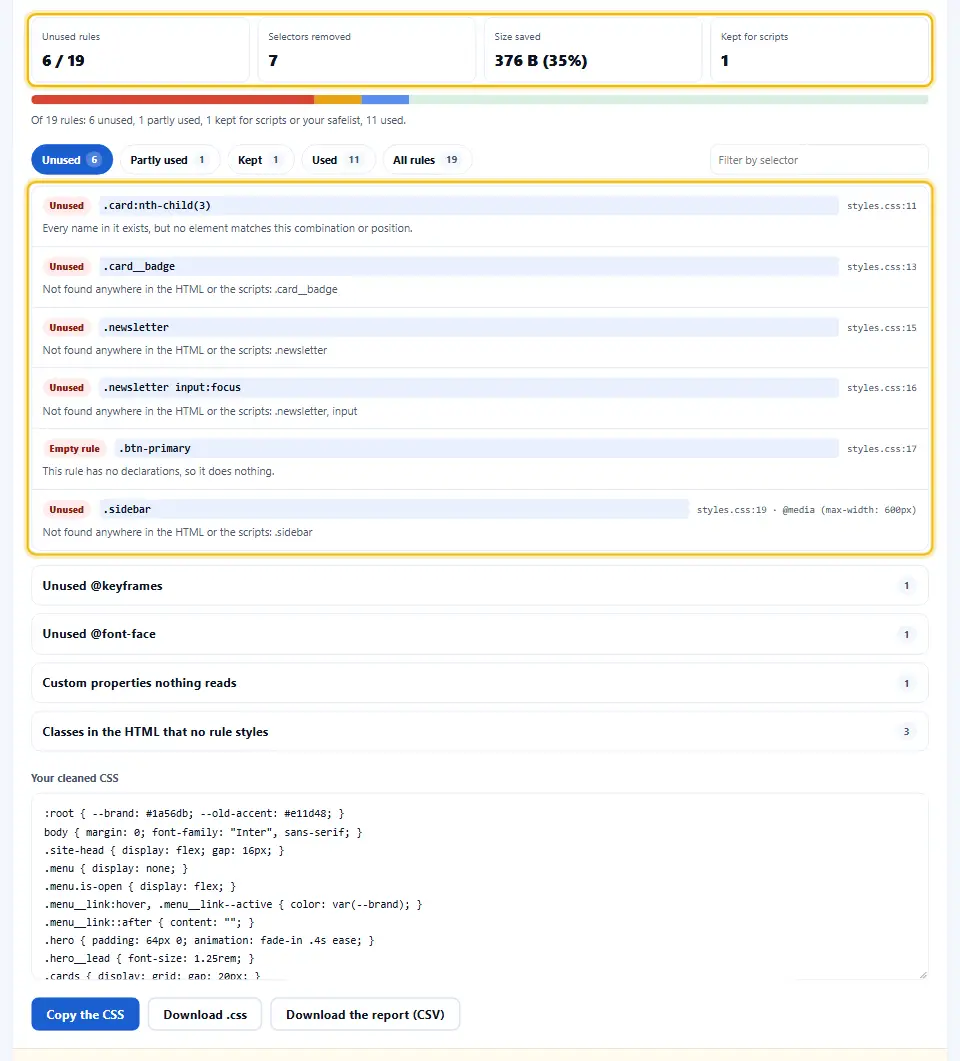
You can paste several pages into one box. Just start each new page with a comment line that says page. Or upload your HTML files instead, and each file counts as one page.
Each used rule also shows where it lives. For example, used on 2 of 5 pages tells you a style belongs to one template. So this hint helps when you later split a big stylesheet into smaller ones.
Why One Page Is Not Enough
Most sites share one stylesheet across many templates. So if you test a single page, about half the file looks unused, which is wrong. But add a product page, a blog post and a contact form, and the real dead weight shows up.
The rule of thumb is simple. Add one page of every kind your site has, because the finder can only judge the pages it sees.
Classes Your JavaScript Adds Later
Menus open, tabs switch and pop-ups appear. Each of these adds a class with a script, so the class is not in the HTML at first. As a result, a careless tool calls those rules unused, and deleting them breaks the menu.
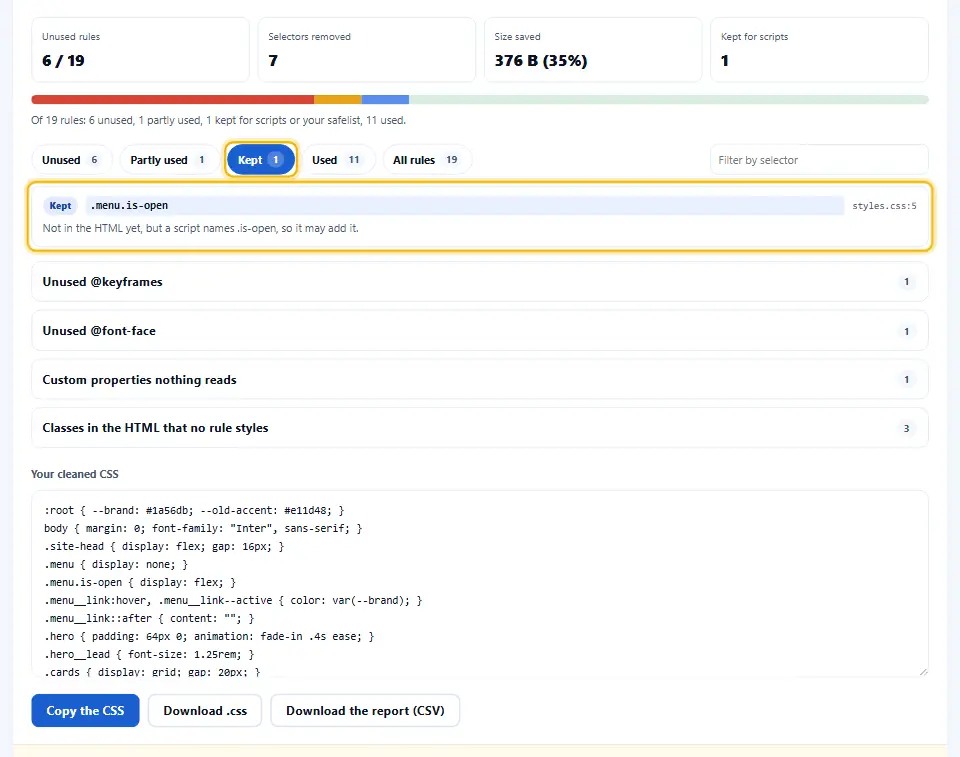
This finder reads your scripts too. It collects every string in them, even the parts of template strings. So if a script mentions is-open, the rule for .menu.is-open stays, with a label instead of a delete.
Prefixes matter as well. For example, a script that builds btn--${state} can make any class that starts with btn--. Therefore every rule for those classes stays, and the label explains why.
Framework bindings get the same care. The finder scans Vue, Alpine and Angular class attributes, plus data attributes and inline event handlers. In short, it covers the usual places where hidden classes come from.
The Safelist For Everything Else
Some classes come from places no tool can read. For example, a plugin may add them on the server, or an editor may type them by hand. For those, use the safelist.
Each line takes a class name, a name with a star, or a pattern between slashes. So wp-* keeps every WordPress class. Also, a pattern like /^is-/ keeps every state class at once.
Pseudo-Classes, Pseudo-Elements And States
Many unused css tools go wrong right here. They look for .card::after or .menu summary::before, find no such element, and call the rule dead. But a pseudo-element styles part of its element. So the rule counts as used whenever the element exists.
States work the same way. When a page first loads, nobody has hovered, focused or checked anything yet. However, visitors soon start to hover and click. So :hover, :focus and :checked count as reachable here.
Structure still counts, though. For example, li:nth-child(4) in a list of three items never matches, because no click can add a fourth item. In short, the finder only keeps what could really match.
An Unused CSS Remover That Keeps Your Formatting
Finding dead rules is only half the job. The other half is a clean file you can ship. So this unused css remover cuts dead rules out of your own text. It does not rebuild your stylesheet.
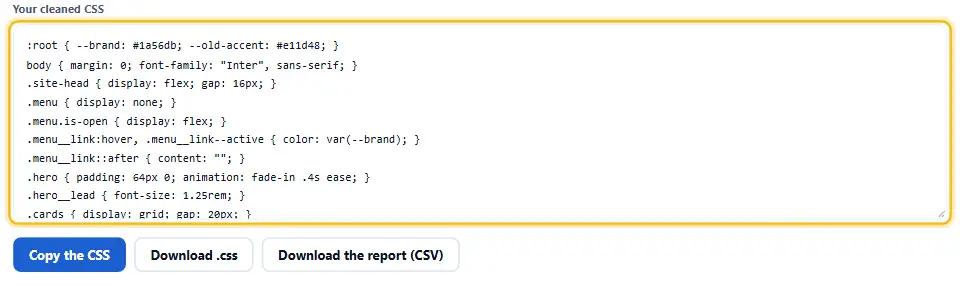
Your comments, spacing and order all stay. When only part of a selector list is dead, just that part goes. Also, the remover drops empty media queries.
You pick the shape of the result. Keep it readable for your project, or tick minify for a smaller copy. Then copy it, or download it next to the CSV report.
Dead @keyframes, Fonts And Variables
Rules are not the only dead weight. An unused animation, an unused font and a custom property nobody reads all cost bytes too. So the finder lists each of them under its own heading.
This check runs after the dead rules are gone. As a result, the finder also marks a font as unused when only a removed rule used it. A plain text search would miss that.
It also catches the opposite mistake. If a rule reads a custom property that nothing sets, the finder lists it. Usually, that means a typo or a missing file.
Fetch A Live Page By Its Address
Sometimes you only have the web address. In that case, type it in, and this site fetches the page, its stylesheets and its own scripts. Then the check runs in your browser as usual.
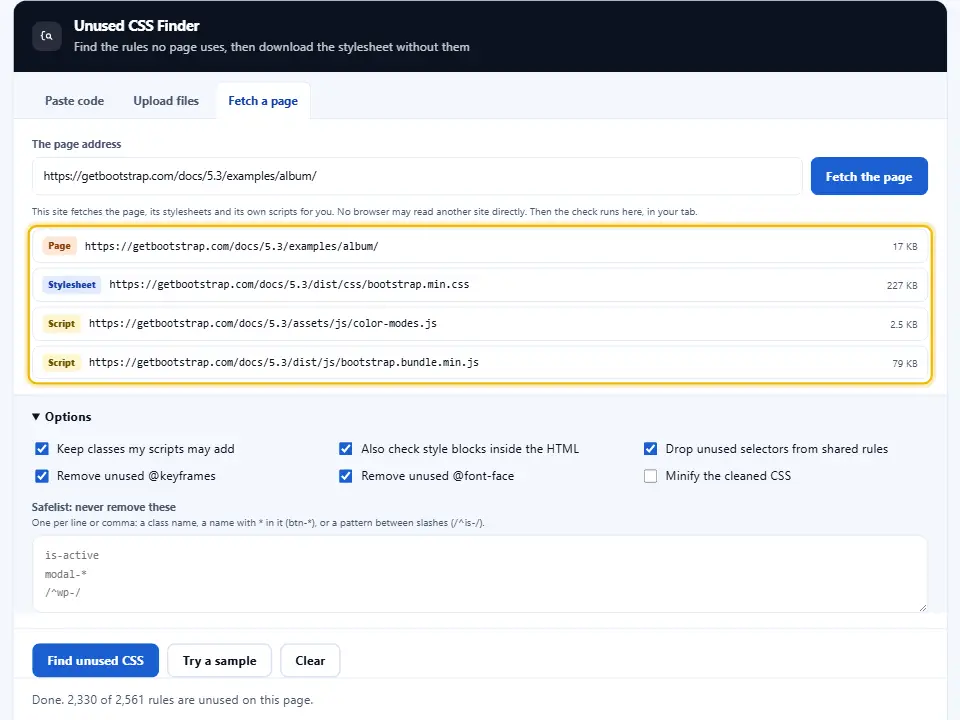
The fetch is careful. It follows one level of @import, skips scripts from other sites and stops at a safe size. So a tag manager or a chat widget does not waste your time.
This mode is good for a quick look at a site you do not own. However, for your own project, paste or upload the source files. That way, you can add every template at once.
What The Finder Cannot Know
No static check sees everything. For example, a class built from a server value, or markup a script loads later, stays hidden. That is why every removal comes with a reason you can read first.
So treat the result like a code review. Check the unused list, safelist what you need, and test the clean file on a staging copy. For a second opinion, the Coverage panel in Chrome DevTools shows what one visit used.
How to Use the Unused CSS Finder
A short video walks through every step. Then pick your language below, and turn on captions if you like.
Using The Unused CSS Finder, Step By Step
Four steps take you from a heavy stylesheet to a lean one.
- 1
Add your pages
Paste the HTML, upload the files, or type the address of a page.
- 2
Add the CSS and scripts
The finder checks the stylesheet, and your scripts protect the classes they add.
- 3
Read the verdicts
Every rule shows its group and its reason, so nothing is a guess.
- 4
Take the cleaned file
Copy the result or download it, then test it on a staging copy.
What This Unused CSS Finder Does Differently
Safe verdicts, real reasons, and a cleaned file that still looks like yours.
It reads your scripts
The finder keeps the classes a script adds later, and labels them.
It gets pseudo-elements right
A ::before rule counts as used whenever its element exists.
It checks many pages
Add every template, and each rule says how many pages use it.
It explains every verdict
Each rule names the class or the structure that made it dead.
It keeps your formatting
Dead rules are cut out of your own text, and comments stay.
It stays in your browser
Pasted and uploaded code never leaves the tab you are using.
Removing Unused CSS Without Breaking A Page
A few habits turn a risky cleanup into a routine one.
- Feed it every template One page of each kind gives the finder the full picture of your site.
- Always add the scripts Without them, state classes look dead even though a click adds them.
- Safelist what comes from the server Plugin and editor classes never appear in a template, so name them once.
- Test before you ship Put the cleaned file on a staging copy and click through the pages first.
Common Mistakes When You Remove Unused CSS
Each of these deletes a rule that a real visitor still needs.
Checking only the home page
Rules for inner pages look dead when the finder never sees those pages.
Leaving the scripts out
Open menus and active tabs depend on classes that only a script adds.
Trusting a tool that ignores ::before
Icons and decorations vanish when their pseudo-element rules are removed.
Forgetting print and dark mode
Media query rules apply in conditions a quick check rarely tests by eye.
Shipping without a test
A cleaned file is a change like any other, so it deserves one pass on staging.
Unused CSS Finder FAQ
What does an unused CSS finder do?
It is a tool that compares a stylesheet with the pages that use it. Then it lists every rule that no element matches. So you can remove dead styles, with a clear reason for each one.
Does this unused css finder cost anything?
No. It is free, you need no account, and you can use it as often as you like.
Does my code leave my browser?
Not when you paste or upload it. The whole check runs in your browser tab. Only the fetch mode sends the address you type to this site, and we save nothing.
How do I find unused CSS on a whole site?
Add one page from every template, plus the shared stylesheets and scripts. Because the finder sees all the pages together, any rule used on any page is kept.
Why does the finder keep some rules?
Because a script or your safelist names the class they need. A script can add that class after the page loads. So removing the rule could break a menu or a pop-up.
What does partly used mean?
The rule has a list of selectors, but only some of them match. So the remover drops the dead selectors and keeps the rule for the rest.
Does it understand :hover and :focus?
Yes. These states count as reachable, because a visitor can hover or click at any time. Only the page structure decides. So a rule fails only when no element could ever match.
Why do other tools flag ::before rules?
Because they look for an element called before, which never exists. But a pseudo-element styles part of its element. So here the rule counts as used whenever the element is there.
Can it read Tailwind classes?
Yes. Escaped names like md:flex or w-1/2 work fine. Still, a utility file is very large, so a build tool is the better place to clean it on every release.
Does it work with React, Vue or Svelte?
Mostly, yes. Upload your component files, and the finder reads the class names in their strings and bindings. However, classes built from server values stay hidden, so add those to the safelist.
What happens to @media rules?
The finder checks the rules inside like any other rule. If every rule in a media query is dead, the whole block goes. Otherwise, the live rules stay in place.
Does it remove unused @keyframes and fonts?
Yes, it removes both by default. You can untick either option to keep them. Also, it lists custom properties but never removes them, because a script may still use them.
Will the cleaned file keep my comments?
Yes. The remover cuts dead rules out of your own text, so comments, spacing and order all stay. Tick minify only if you want a smaller copy.
Can I check a page by its address?
Yes. Open the fetch tab and type the address. Then this site downloads the page, up to eight stylesheets and the site's own scripts. After that, the check runs in your tab.
Why did fetch mode skip some scripts?
Scripts from other sites, like analytics or chat widgets, rarely add classes to your stylesheet. So the finder skips them and focuses on your own code.
Is there a size limit?
Yes, about six megabytes of code in one run. Still, a large stylesheet with a few pages takes less than a second on a normal laptop.
How is this different from Chrome Coverage?
Coverage shows what one visit used, in one browser state. This finder checks many pages at once, reads your scripts and gives you a clean file. So the two tools work well together.
Is it safe to delete everything it lists?
Usually, but test first. A static check cannot see classes that come from a server or a later fetch. So a quick test on a staging copy is always worth it.
What is the safelist for?
It protects classes no tool can see. Add a name, a name with a star, or a pattern between slashes. Then every matching rule is kept.
Does removing unused CSS help page speed?
Yes. Less CSS means fewer bytes to download and less work before the page shows. In fact, Lighthouse reports it as Reduce unused CSS.
Can I download a report?
Yes. The CSV lists every selector with its group, file, line, media query and reason. So you can share it with your team or attach it to a ticket.
Does it fix invalid CSS?
No. A selector it cannot read is kept, just to be safe. For grammar problems, check the stylesheet with the <a href="/css-validator/">CSS validator</a> first.
Do I need an account?
No. The unused css finder is free, needs no sign-up, and keeps nothing after you close the tab.
Handy Companions For Stylesheet Work
Removing dead rules is one step. These three cover the steps around it.
Shrink the cleaned stylesheet further before it goes live.
Open tool →Check what is left against the CSS grammar, line by line.
Open tool →See exactly which elements one selector reaches.
Open tool →
Ready To Find Your Unused CSS?
Add your pages, your stylesheet and your scripts, then read the verdict on every rule. The unused css finder is free, needs no account, and your code stays in your browser.