Timesheet Calculator
Hours, Overtime And Pay
This timesheet calculator adds up your hours, overtime and pay. Type when you clocked in and out, set your overtime rules and your hourly rate, and the totals appear at once.
- FreePrice
- Daily + weeklyOvertime
- DeductedBreaks
- NoneSign-up
Timesheet Calculator
Clock in, clock out, and the week adds itself up
| Day | Clock in | Clock out | Project | Remove row |
|---|
- Total hours
- 0.00
- Regular
- 0.00
- Overtime
- 0.00
- Pay
- 0.00
| Day | Hours | Regular | Overtime | Pay |
|---|
Enter a clock-in and a clock-out to see the total.
What A Timesheet Calculator Does
The timesheet calculator turns a list of start and end times into a weekly total. First, it takes off unpaid breaks. Then it applies the overtime limits you set and multiplies the hours by your rate. All of this runs in your browser, so your time records stay on your own device.
You can track one person for one employer. You can also split the week across several projects at different rates. The summary then breaks the pay into regular hours, time and a half and double time. If you only need the hours, leave the rate fields empty, and the tool shows hours without pay.
You do not need an account, and there is no submit button. Everything updates as you type or click. Then, if you want to share the result with a manager or an accountant, download it as a CSV. Your entries stay private, because nothing is sent anywhere.
The tool suits freelancers, shift workers, contractors and anyone who fills in a paper timesheet. Moving away from paper or a spreadsheet stops the small maths errors that build up over a month. Also, the break is taken off for you, so you never subtract lunch by hand.
One Week, Counted Two Ways
One week of shifts: seven day rows on the left, each with a clock-in, a clock-out and a project tag.

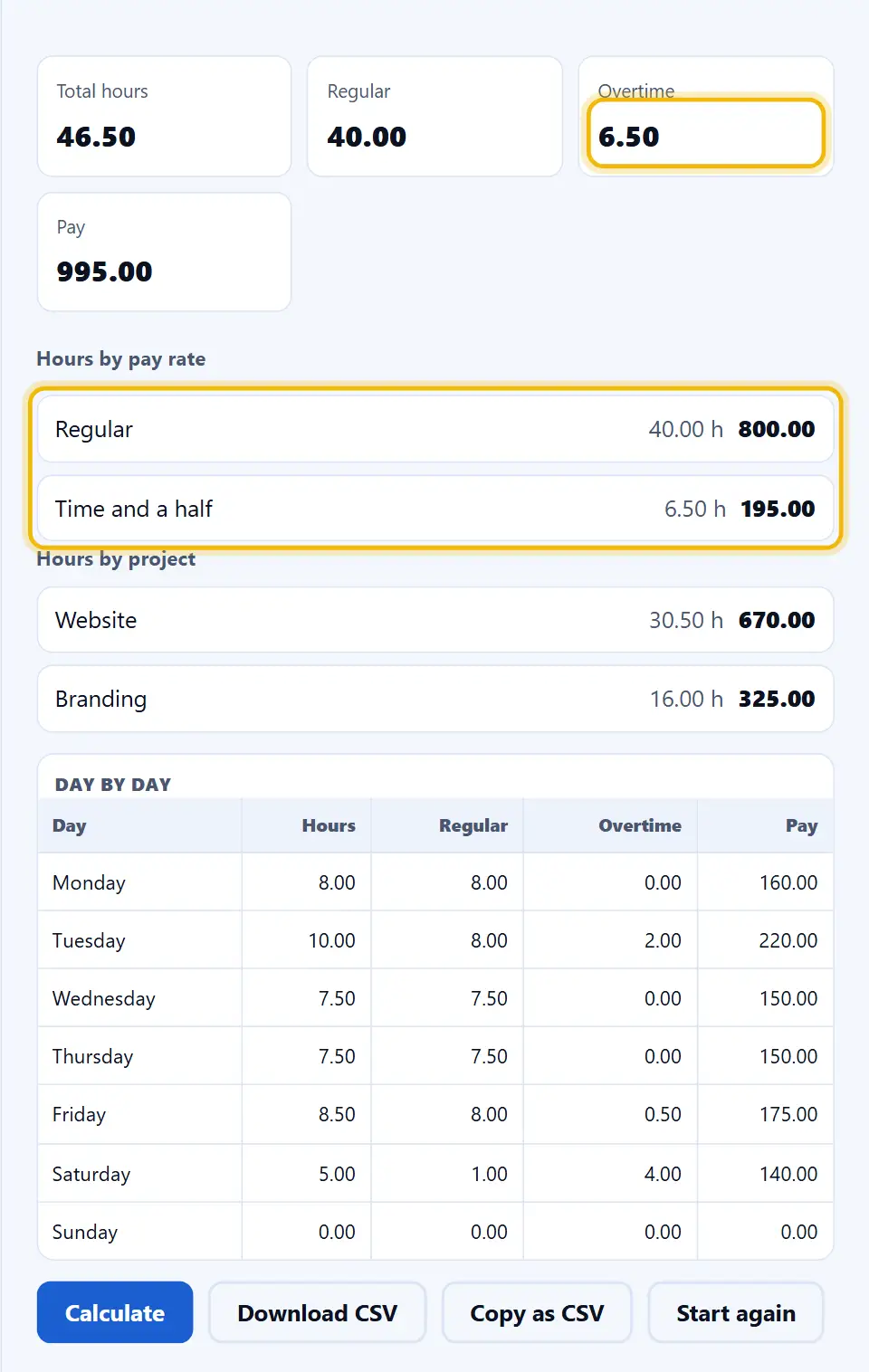
On the right, the tool totals the week. First, the daily rule moves hours past eight into overtime. Then the weekly rule adds up what is left.
Typing In A Week Of Shifts
Each day gets one row with a clock-in, a clock-out and an optional project tag. For example, Tuesday runs from 9:00 to 19:30. After the 30-minute break, that row counts as ten hours.
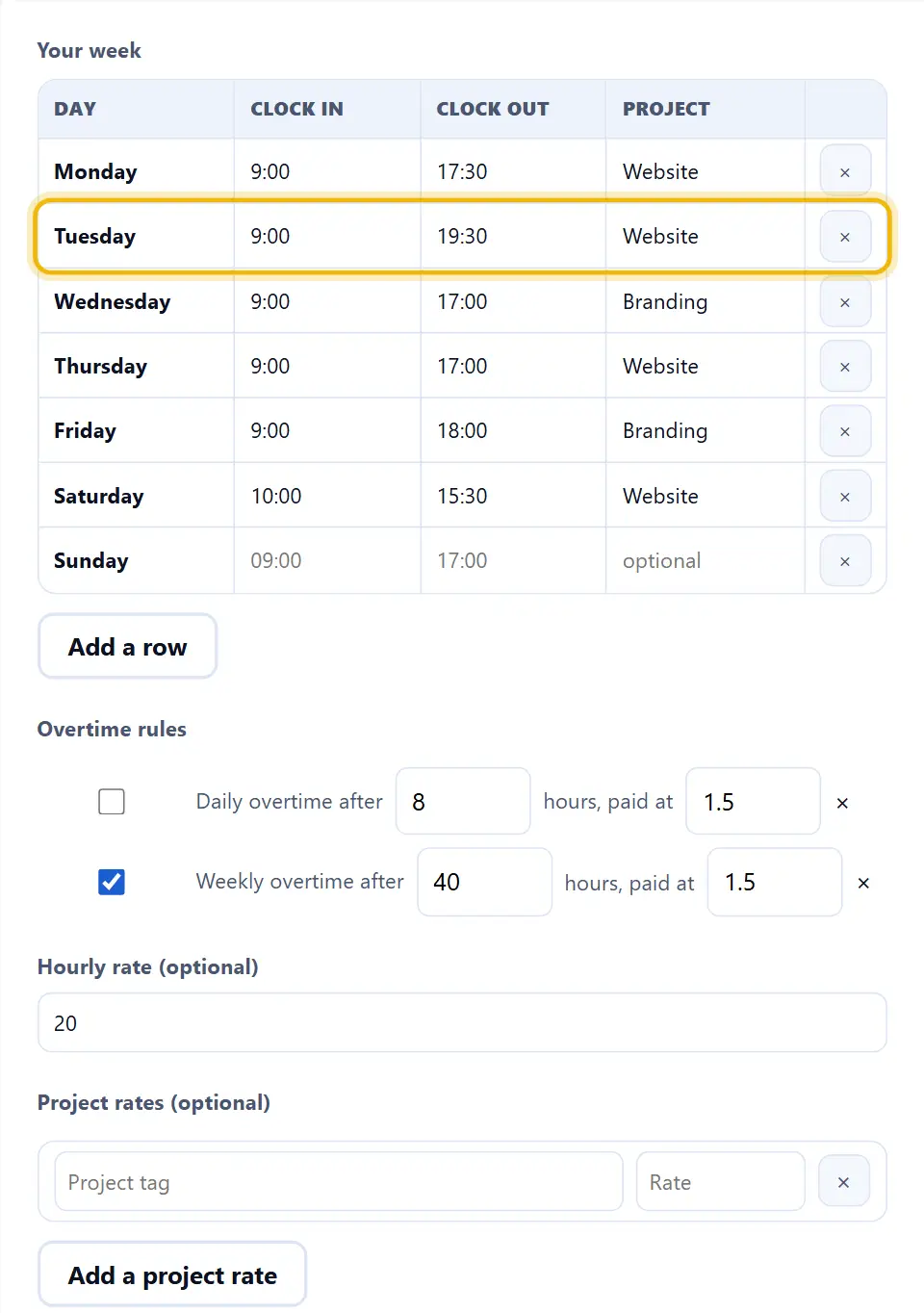
Sunday is left blank here, so it adds nothing. The grey times in that row are only hints. Below the table, you set the overtime rules and the hourly rate.
Overtime, Pay And Project Rates
With the daily rule on, Tuesday and Friday go past eight hours first. Then the weekly rule moves the last hours past forty. As a result, the same week shows 40 regular hours and 6.5 hours of overtime.
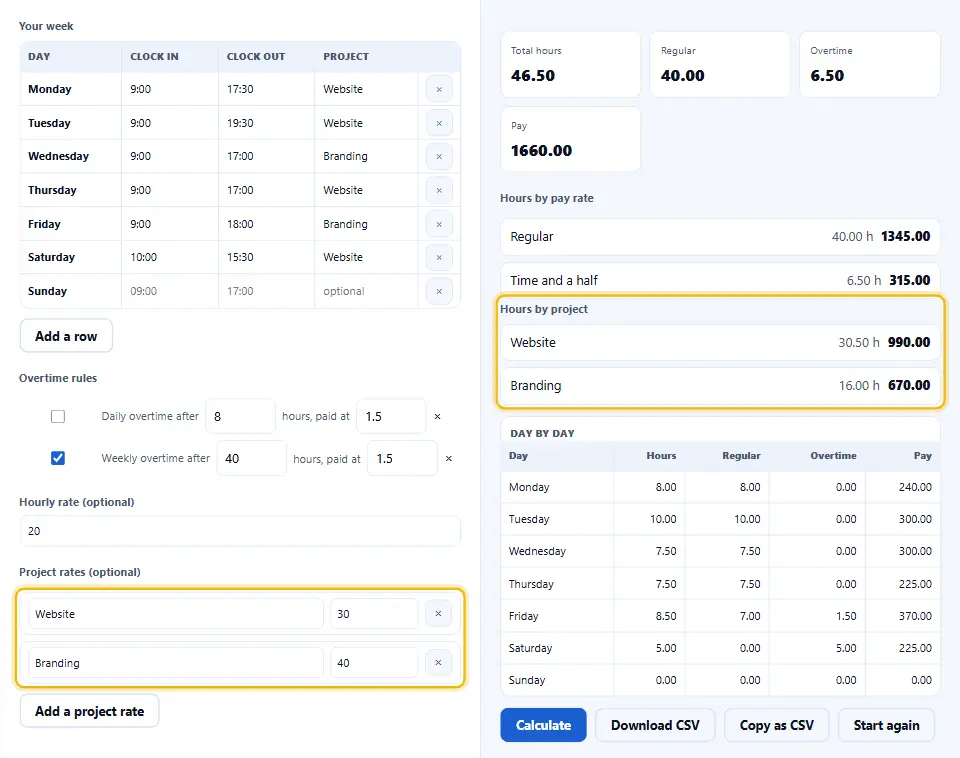
Next, give each project its own rate. Here, Website pays 30 an hour and Branding pays 40. The summary then splits the hours and the pay by project, and the day-by-day table shows each day on its own line.
How to Use the Timesheet Calculator
A short video walks through every step. Then pick your language below, and turn on captions if you like.
How to use the timesheet calculator
Six steps, and none of them need an account.
- 1
Pick the week start
Pick the day your week starts. Most payrolls start on Monday. However, you can start on Sunday or any other day to match your contract.
- 2
Enter each day's times
Type the clock-in and clock-out time for each day. Use 24-hour times like 17:30 or 12-hour times like 5:30 PM. If a shift runs past midnight, the tool counts the hours across it for you.
- 3
Set the break length
Set your unpaid break in minutes. The default is 30, which suits most full-time shifts. Use 0 for a paid break, or a larger number for a longer meal break.
- 4
Choose the overtime rule
Choose your overtime rule: a daily limit (after eight hours a day), a weekly limit (after forty hours a week), or both. Each limit has its own multiplier, such as time and a half or double time.
- 5
Add the pay rate
Type your regular hourly rate. You can also give each project tag its own rate if you split the week between clients.
- 6
Review the summary
The tool shows each day, your total hours, your overtime hours and your gross pay. Then download the result as a CSV file, or copy it into another document.
Why use a calculator instead of a spreadsheet
Three reasons a browser calculator beats a hand-rolled sheet.
It knows the overtime rules
A spreadsheet can add up a column. However, it does not know the overtime rules in your contract or your local law. This tool applies daily and weekly limits for you. It also takes off breaks before it counts, which is where most hand sums go wrong.
No file to save or sync
The calculator runs in your browser, so there is no file to save, no syncing and no clash with a coworker's copy. Instead, the results appear straight on your screen. A full week usually takes less than a minute.
A clean split for freelancers
Freelancers who bill by the hour gain the most from an automatic breakdown. If you bill regular and overtime hours in the wrong mix, you lose money. A small slip each week adds up to a large gap by the end of the year. Also, a dated CSV for each week makes your tax return easier.
How the hours are counted
The counting happens in three steps. It helps to know all three before you trust the total.
- One row, one shift Each row in the table is one clock-in and clock-out pair. The tool takes your break off each pair to find the paid hours for that day. If a day has more than one row, those hours are added together before overtime is checked.
- Overtime in two passes Overtime is worked out in two passes. First, the daily rule moves any hours past the daily limit into overtime. Then the weekly rule looks at the regular hours that are left and moves anything past the weekly limit. Most payroll systems count overtime the same way.
- One rate or many You can use one rate for every hour, or a different rate for each project. A project is just a short label you type in a row. For a project with its own rate, the tool multiplies its hours by that rate, then adds everything up. The summary also lists each project on its own line, so you can see where the time went.
Common timesheet mistakes to avoid
Each of these quietly changes the total. Still, most are easy to spot once you know what to look for.
Skipping unpaid breaks
In most places, a lunch break is unpaid. So if you clock out for forty minutes but type thirty, you add ten minutes you did not work.
Using decimal hours instead of time
Five thirty is 5.5 hours, not 5.3. So type the time itself, like 17:30 or 5:30 PM, not a decimal like 17.3.
Forgetting overnight shifts
A shift from 10 PM to 6 AM crosses midnight. The tool handles this for you. However, if you split one shift into two rows by mistake, the length comes out wrong.
Ignoring collective agreements
Some places cap overtime or set their own limits, whatever your contract says. So, before you use these totals for payroll, check the rules where you work.
Mixing gross and net pay rates
The calculator uses your gross hourly rate, before tax. If you type your net rate instead, it will show less pay than you earned. Also, the tool does not work out tax.
Deleting rows instead of zeroing them
A day off shows zero hours instead of being removed. In fact, keeping that zero row makes the weekly total clear and keeps a full record of the week.
Timesheet calculator frequently asked questions
Does this tool work offline?
Yes. Once the page has loaded, every sum runs in your browser. So you can go offline and the tool still works, because it never needs a server to add up hours.
Can I track multiple employees?
No. The tool is built for one person at a time. To track a team, each person uses it on their own device and exports their own CSV. After that, you can join the files in any spreadsheet.
Does the tool handle public holidays?
Not yet, because each employer and country treats public holidays differently. Instead, write the holiday in the project tag and give that tag its own rate. The tool will not spot a holiday by itself.
Can I set different overtime rates for different days?
The tool has a daily limit and a weekly limit, and each one has its own multiplier. If your contract pays double on Sundays or holidays, tag those rows as a project. Then give that project its own rate.
What file formats does the export support?
The CSV is a plain text file with a row of headings at the top. So it opens in Excel, Google Sheets, Apple Numbers and any text editor. It uses UTF-8 and a comma between fields.
Does the tool save my timesheet between visits?
No. When you close the tab, your entries are gone. So download the CSV before you leave the page if you want to keep a copy.
Can I use this for salaried employees?
Yes, because the rate fields are optional. Leave the hourly rate empty and the summary shows your hours without any pay. This also helps you check your hours against the weekly minimum in your contract.
How are overnight shifts handled?
If the clock-out time is earlier than the clock-in time, the tool reads it as a night shift. It then counts the hours across midnight for you. For example, 22:00 to 06:00 counts as eight hours.
Can I copy the results directly?
Yes. You can select and copy any cell in the day-by-day table and the summary. In fact, the CSV export holds every row and column too.
Is there a limit on the number of rows?
There is no fixed limit. Your browser sets the practical limit, which is far more rows than a week needs. Even so, the tool stays quick, because the sums are simple for a browser.
Is the timesheet calculator free to use?
Yes, completely. There is no account, no trial and no paywall. Also, the maths runs in your browser, so there are no server costs to pass on, and every feature stays free.
Does the tool follow a specific country's labor law?
Overtime rules change from one country, state or contract to the next. So the tool lets you set the limits and the multipliers yourself. Type in the daily and weekly limits from your own rules, and the totals follow them.
Can I enter times in 12-hour AM and PM format?
Yes. Type 24-hour times like 17:30, or 12-hour times like 5:30 PM. The tool reads both. The totals always show as decimal hours, so 8 hours and 30 minutes reads as 8.50.
Does the tool round clock times?
Only if you ask it to. By default, the tool uses the exact minutes you type. However, you can round each time to the nearest 5, 10 or 15 minutes. That way, the total matches employers who record time in those steps.
What is the difference between a paid and an unpaid break?
An unpaid break comes off your daily hours, but a paid break does not. So the break field is only for unpaid time. If your break is paid, set the field to 0, and every minute counts toward your total.
Which currency does the pay use?
Any currency works. The tool multiplies your hours by the rate you type, so the result is a plain number. As a result, it fits any currency. You can add the currency sign yourself when you share it.
Does the tool work on a phone or tablet?
Yes. The layout fits small screens, the table scrolls sideways, and the time fields open a number keyboard. However, if you enter many weeks at once, a laptop is easier.
Can I import a CSV back into the tool?
No, the tool cannot import a saved CSV. So, to rework an old week, open the CSV in a spreadsheet, or type the rows again.
Can I calculate a two-week or monthly total?
The tool works one week at a time, because most overtime rules count by the week. For two weeks or a month, export each week as its own CSV. Then add the weekly totals together in a spreadsheet.
Does the tool track me or run analytics on my hours?
No. Nothing you type is sent anywhere, and no tracking code reads your entries. In fact, every sum runs in your browser, so your timesheet never leaves the page.
Can I print the timesheet?
Yes. Use your browser's print option, or save the page as a PDF. However, if you want to work with the numbers later, the CSV export is the better choice.
What happens if I enter a clock-out without a clock-in?
The row stays incomplete and adds no hours until both times are in. The tool flags the gap instead of guessing. So a row with only one time is left out of your weekly total.
More tools for working with time
A few pages the same job usually leads to.
Turn hours into minutes, seconds and back again when a total needs another unit.
Open tool →Draw a random shift or a spot check when you audit a week.
Open tool →Mint a password before you export a timesheet on a shared machine.
Open tool →Read a clock-in time as a Unix stamp when a system reports it that way.
Open tool →Repeat a project tag across rows without retyping it.
Open tool →
Start your timesheet in one click
Open the timesheet calculator and type your first clock-in time. The tool does the rest. There is no sign-up, nothing to install, and nothing leaves your device.