QR Code Not Scanning: Why It Happens
You print a code, point a phone at it, and nothing happens. A QR code not scanning is almost always a design problem, not a broken phone. The good news is that each cause has a simple fix.

A scanner reads the code as a grid of dark and light squares, called modules. So anything that blurs that grid makes reading harder: weak colours, tiny modules, damage or a missing border. Below are the six causes we tested with a real QR reader, in the order you should check them.
Cause 1: Low Contrast
The most common reason a code won't scan is low contrast. Light grey, pastel or yellow modules on white look soft, but the camera cannot tell them from the background.
The fix is simple: use a dark colour on a light background. Black is safest, but dark blue, dark green or dark red also work. Our free QR Code Generator warns you straight away when the contrast is too low.
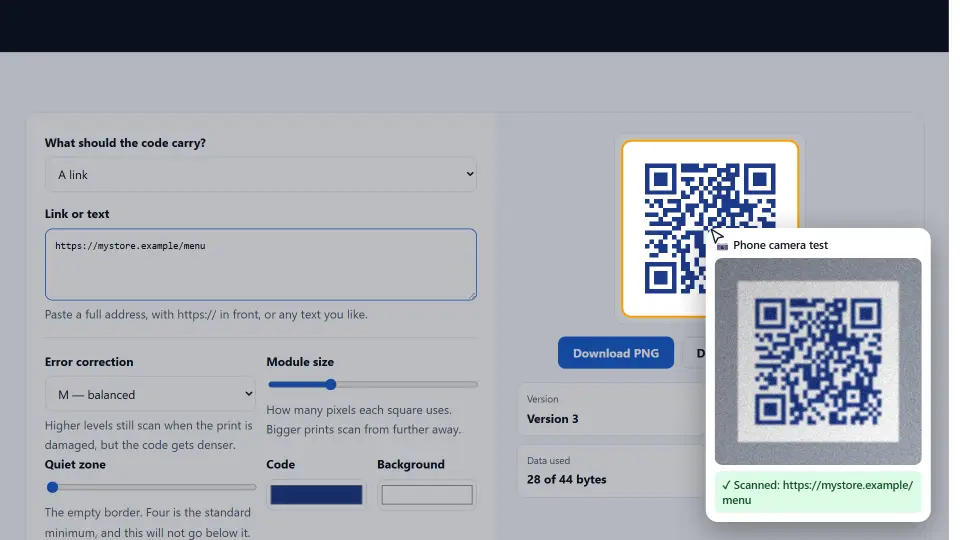
How much contrast is enough
As a rule of thumb, the dark colour should look almost black when you squint. If you can barely see the pattern from two metres away, a phone in poor light will not see it either.
Cause 2: Inverted Colours
White modules on a dark background look stylish, especially on dark brand colours. However, many scanners, and older phone cameras in particular, cannot read them.
So swap them back: dark modules on a light background. If your design is dark, put the code on a white box with a border around it. That way the page stays dark and the code still scans.
Cause 3: Too Much Data
Every character you put in a code adds modules. A long link full of tracking tags makes the code dense, with tiny squares. At the same print size, the reader gives up.
Instead, use a short link. Fewer characters mean bigger modules, and the code scans at once. For example, a 40-character link makes a much simpler code than a 200-character one.
Static and dynamic codes
A static code holds the link itself, so it can never change. A dynamic code holds a short redirect link that you can edit later. Dynamic codes are smaller, but they stop working if the redirect service shuts down. Therefore, for print that must last, a short link on your own domain is the safest choice.
Cause 4: Damage and Logos
QR codes have built-in error correction. It lets a reader rebuild missing parts of the code. There are four levels: L (about 7 percent), M (about 15), Q (about 25) and H (about 30).
If the code goes on a menu, a box or a poster that can get scuffed, raise the error correction to Q. Then the code still scans even with part of it damaged.
Adding a logo safely
A logo in the middle covers modules, so it uses up error correction. Keep the logo small, at most about a fifth of the code width, and use level H. After that, always test the final file.
Cause 5 and 6: Size and the Quiet Zone
A code that is too small cannot be read from a normal distance. Print it at least two by two centimetres. For larger distances, use about one tenth of the scanning distance: a poster read from three metres needs a code of about 30 centimetres.
Also keep the white border around the code, called the quiet zone. It should be at least four modules wide. Without it, the scanner cannot find where the code starts, especially on busy backgrounds.
Surfaces and finish
Glossy and curved surfaces
Shiny paper reflects light into the camera, and a bottle or cup bends the grid. So use matte print where you can, and put the code on the flattest part of the product.
How to Test a QR Code Before You Print
Always test the final file, not the draft. First, scan it from the screen with two different phones, one Android and one iPhone. Next, print one copy at the real size and scan it in normal room light.
- Scan from the screen with two phones.
- Print one copy at the final size.
- Scan it from the real distance, in poor light too.
- Check that the link opens the right page.
Our QR Code Generator shows a contrast warning while you design, so most problems never reach the printer.
When the Code Is Fine but the Phone Is Not
Sometimes the code is perfect, yet one phone still fails. In that case, check the phone itself.
- Clean the lens. A greasy lens blurs the grid.
- Turn on QR scanning. On some Android phones, it is a setting in the camera app or in Google Lens.
- Hold still and step back. Too close, and the camera cannot focus.
- Add light. In a dark room, turn on the torch or move to a window.
If the code scans on other phones, the code is fine. Then the issue is only that one camera.
Common Mistakes
- Pale colours or a dark background with light modules.
- A long tracking link that makes the code too dense.
- A large logo with low error correction.
- Printing the code smaller than two centimetres.
- Cropping away the quiet zone to save space.
- Never testing the printed copy.
In short: dark on light, short link, error correction Q or H, big enough, with a quiet zone, and always tested. For the technical background, see the ISO standard for QR codes.
Questions and Answers
Why is my QR code not scanning?
Usually low contrast, inverted colours, too much data, damage, a small size or a missing quiet zone. Check them in that order.
What colours work best for a QR code?
A dark colour on a light background. Black on white is safest; dark blue, green or red also work.
Can a QR code have a white pattern on black?
It can, but many scanners cannot read inverted codes. Keep dark modules on a light background.
How small can a QR code be?
At least two by two centimetres for close scanning. For longer distances, use about one tenth of the scanning distance.
What is the quiet zone of a QR code?
The empty white border around the code. It should be at least four modules wide, so the scanner can find the edges.
What error correction level should I use?
M is fine for screens. Use Q for print that can get scuffed, and H if you add a logo.
Can I put a logo in a QR code?
Yes, if it is small and you use error correction H. Always test the final file on two phones.
Why does a long link make the code hard to scan?
More characters need more modules, so each square gets smaller. A short link makes a simpler code.
Do QR codes expire?
Static codes never expire because the link is inside the code. Dynamic codes stop working if the redirect service ends.
Why does my QR code scan on one phone but not another?
The other phone may have a dirty lens, poor focus or QR scanning turned off. If most phones read it, the code is fine.
How do I scan a QR code on Android?
Open the camera app and point it at the code, or use Google Lens. On some phones, turn on QR scanning in the camera settings first.
How do I scan a QR code on an iPhone?
Open the Camera app and point it at the code. A link appears at the top of the screen; tap it to open.
Why does my printed QR code not scan?
Common reasons are a small print size, glossy paper, a cropped quiet zone or ink that is too light. Print a test copy at the final size first.
Can a damaged QR code still scan?
Often yes, thanks to error correction. At level Q, about a quarter of the code can be damaged and it still reads.
Does a QR code work on a curved surface?
It can, but curves bend the grid. Put the code on the flattest part and print it a bit larger.
Can I make a QR code for free?
Yes. Our QR Code Generator is free and warns you about low contrast while you design.
Does the QR Code Generator track scans?
No. It makes static codes with your link inside, so there is no tracking and nothing expires.
Why is my QR code blurry when printed?
The image was too small and got stretched. Download a large PNG or SVG and print it without scaling up.
Should I use SVG or PNG for print?
SVG stays sharp at any size, so it is best for print. PNG is fine for screens and small prints.
How do I test a QR code before printing?
Scan it from the screen with two phones, then print one copy at the real size and scan it from the real distance.