Decibel Meter
Read The Noise Around You
Point your mic at the room, and this decibel meter shows the loudness live on a gauge, with the average and the peak. No account, no upload, nothing saved on a server.
- FreePrice
- DecibelsReads
- YesLive
- NoneUploads
Decibel Meter
A live noise reading from your microphone, with average and peak
—dB
Not started yet.
- Average
- —
- Peak
- —
- Lowest
- —
Phone and laptop mics differ. If you know the true level of a sound, move this until the meter matches it.
Ready. Press Start the meter and allow the microphone.
What A Decibel Meter Does
This decibel meter reads the loudness around you right in your browser. You allow the microphone, and the tool turns what the mic hears into a live number on a decibel gauge. Because everything runs on your device, the tool never records the audio and nothing leaves the page.
The tool works in a few simple steps. First, the browser asks to use your microphone. Then the needle moves as the room gets louder or quieter. Meanwhile, the tool keeps the current level, a running average, the loudest peak and the lowest level. In addition, a graph shows the last minute, so you can watch the number settle.
You need no account and there is no upload step, so a reading is ready at once. Everything updates live, which means the gauge responds the moment a sound happens. When you clap or speak, the needle jumps. When the room falls quiet, it drops back down.
A browser reading is a guide, not a certified measurement. A laptop or phone mic is no calibrated meter, so treat the number as a way to compare loud and quiet. It is not a legal or safety reading. For a noise complaint or a workplace check, you need a proper sound level meter. This tool, however, gives a quick, everyday sense of how loud a space is.
A Live Reading From Your Mic
The picture below shows the mic feeding the meter on the left. On the right is the decibel gauge with the current, average and peak numbers.

The needle tracks the loudness as it changes, and the peak marks the loudest moment so far. In fact, the AnalyserNode is the part of the browser that reads the mic and turns it into the level the gauge shows.
Average, Peak And A One Minute Graph
Twice a second, the decibel meter adds a reading to the graph. At the same time, it updates the average, the peak and the lowest level. The average is an energy average, so a short loud bang moves it more than a quiet minute does.
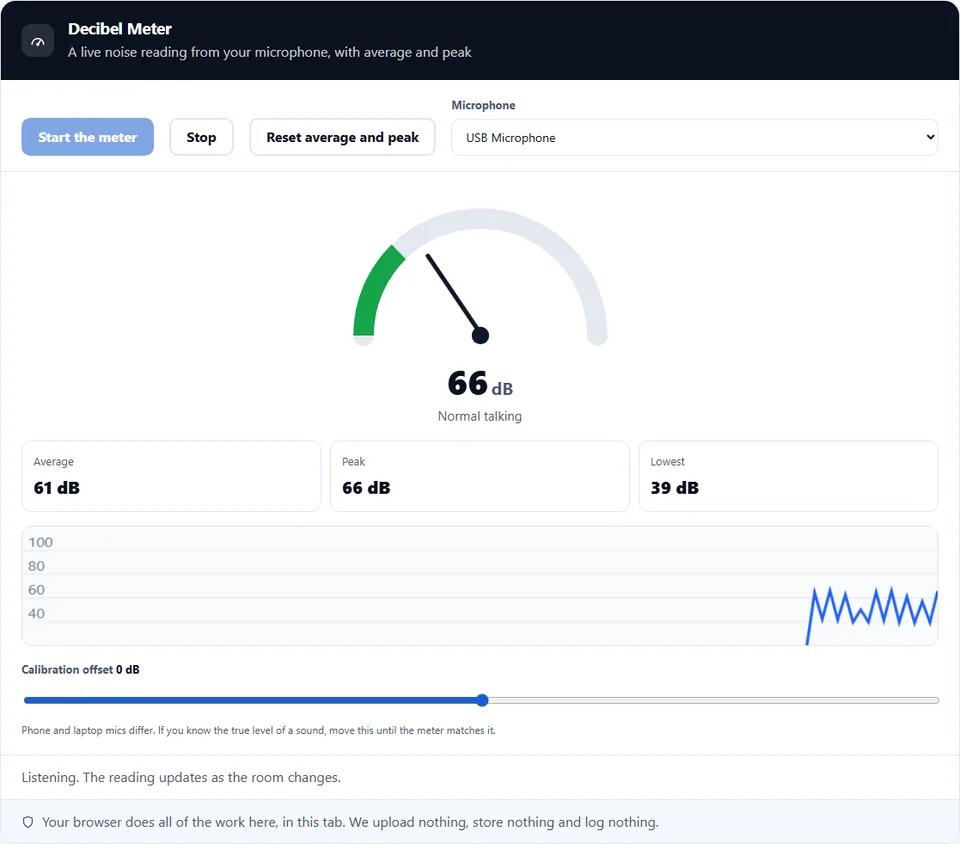
A phone or laptop mic only reports how close the sound is to its own limit. So the tool adds a fixed offset to turn that into an estimate in dB. If you have a real meter, play a steady sound. Then move the calibration slider until both numbers match.
How to Use the Decibel Meter
A short video walks through every step. Then pick your language below, and turn on captions if you like.
How to measure sound in your browser
Six steps, and the tool never records the audio.
- 1
Open the tool
Load the page in your browser. Because the meter reads your own microphone, you measure the room you are in with nothing to install.
- 2
Allow the microphone
Press Start the meter. The browser asks once. Click allow, and the tool reads the mic on your own device, so nothing is sent away.
- 3
Place the mic in the room
Point the microphone at the space you want to read, and keep your hand off it. A covered or rubbing mic gives a false, muffled number.
- 4
Read the current level
Watch the needle and the main number move with the room. A loud sound pushes it up, and quiet lets it fall back down.
- 5
Watch the average and the peak
Let it run for a few seconds. The average smooths out the number for the space. Meanwhile, the peak marks the single loudest moment.
- 6
Stop when you are done
Press Stop or close the tab to release the microphone. The tool records and sends nothing, so the reading leaves no trace.
Why use a browser decibel meter
Three reasons a browser reading is handy for an everyday check.
Compare loud and quiet in a moment
Most of the time you only want to know whether a space is loud or quiet. Because this meter shows the level live, you can tell at a glance that a fan, a street or a crowded room is louder than a library. In practice, that quick sense is enough to decide whether to move a call, close a window or turn something down.
Nothing leaves your device
This decibel meter reads the mic locally and records none of it. Many sites that offer a meter still run analytics or send audio away. Here, however, the page works out the level itself. As a result, nothing about the room or your voice leaves the browser, and you can read a private space without a worry.
It works on any device
The result matters as much as the reading. Because the tool uses the browser microphone, it runs on a laptop, a phone or a tablet with no app to install. So you get a quick level anywhere, on any device, with nothing extra to set up.
How to read the number honestly
Three things decide the result. Each one is worth knowing before you trust it.
- The reading is relative, not calibrated A browser meter is a guide, not a certified instrument. A laptop or phone mic has no tuning to a reference level, so the number can sit above or below what a real meter would show. Therefore, use it to compare one moment with another. When a legal, workplace or health reading is on the line, reach for a calibrated meter.
- The mic and the browser shape the number The same room can read differently on two devices. Each microphone has its own sensitivity, so the raw level depends on the hardware as much as the sound. Also, a built-in noise filter or auto gain can flatten the level. That is why the meter asks the browser to switch those helpers off.
- It needs a secure page and your permission The browser only opens the mic on a secure (https) address, and only after you allow it. The choice is yours: you can allow this page, block it, or change your mind later in the site settings. So if you see no reading, check that you allowed the mic and that the page is secure.
Common decibel meter mistakes to avoid
Each of these gives a wrong number that looks real.
Treating it as a certified meter
A browser reading is a guide, not an official figure. So use a calibrated sound level meter for anything that must stand up to a complaint, a rule or a safety limit.
Covering or holding the mic
A hand over the microphone muffles the sound and drops the number. The mic needs a clear path, so set the device down and keep your fingers away while you read.
Leaving auto gain on
Automatic gain control raises soft sounds and caps loud ones, so the number moves on its own. This meter asks the browser to turn noise reduction and auto gain off. Still, some phones apply their own, so compare readings on the same device.
Blocking the mic by habit
A quick click on block hides the reading for good on that site. Instead, open the site settings, allow the microphone, then reload and try again.
Comparing two different devices
A phone and a laptop will not agree on the same room. Each mic is different, so compare readings from the same device, not across two of them.
Reading through a thick case
A phone case or a cover over the mic hole lowers the number. So clear the mic opening before you decide a room is quiet.
Decibel meter frequently asked questions
Does the decibel meter record me?
No. The tool only measures the level and records none of the audio. So nothing reaches a server, because your own device works out the reading.
Is the reading accurate?
It is a guide, not a certified figure. A laptop or phone mic has no calibration to a reference, so the number can run high or low. Trust it to compare loud and quiet, not as an exact measurement.
What is a decibel?
A decibel, or dB, is a unit for how loud a sound is. The scale rises steeply, so a small jump in the number is a big jump in loudness. That is why a busy street reads far above a quiet room.
Can I use this for a noise complaint?
No. A complaint or a dispute needs a calibrated meter and a proper method, so a browser reading will not stand up. Instead, use this tool for your own sense of a space. For anything official, hire or buy a certified meter.
Can I use it for workplace safety?
No. Health and safety rules require a calibrated, certified meter, so this tool does not fit a workplace noise check. Treat it as an everyday guide only.
Why does my phone read differently from my laptop?
Each microphone has its own sensitivity, and some devices add gain. So two devices rarely agree on the same room. In practice, compare readings from the same device so the numbers mean something.
Why do I need to allow the microphone?
A page cannot read your mic without permission, so the browser asks first. That way, you stay in control. You can allow this meter, block it, or change the choice later in the site settings.
Is the decibel meter free?
Yes, completely. There is no account, no trial and no watermark. Also, the reading runs in your browser, so there is no server cost to pass on. Every part of it stays free.
Does it work offline?
Yes. Once the page has loaded, the meter reads your mic locally. So you can turn off the connection and the tool keeps working, because it never contacts a server.
What do the current, average and peak numbers mean?
The current number is the level right now. The average smooths it over time, and the peak marks the loudest moment. Each tells you something different, so together they describe a space better than one number alone.
Why does the number jump around?
Real sound changes from moment to moment, so the current level moves with it. For a steadier figure, watch the average, since it evens out the quick jumps.
Can I measure very loud sounds?
Only up to a point. A mic can clip when a sound is very loud, so the meter flattens at the top and cannot read past it. As a result, a concert or machinery may read lower than it truly is.
Does it work on a phone?
Yes. The page adapts to a small screen, so you can read a room on a phone or tablet. However, keep a case or cover away from the mic hole, since that lowers the number.
Why is my quiet room not reading zero?
A mic always picks up a little background hiss, and a room is never truly silent. So the meter rarely sits at zero. In practice, a low steady number is normal for a quiet space.
Can I turn off noise reduction for a better read?
The meter already asks for that. Noise reduction and auto gain change the level on their own, so turning them off gives a steadier reading. However, not every browser or phone lets a page switch them off.
Does the meter store my readings?
No. No server keeps anything, so no copy of your readings survives the session. When you close the tab, the numbers are gone and nothing about them remains.
Can I compare two rooms?
Yes, with the same device. One mic reads the same way each time, so you can measure one room, then another, and compare them. Hold the device the same way in both to keep it fair.
Can I check background noise before a call?
Yes, and it is a good use. A quiet background makes you easier to hear, so a quick reading tells you whether to close a window or move rooms. Aim for a low, steady level before you join.
Why does blowing on the mic spike the reading?
Moving air hits the mic hard, so a puff reads as a very loud sound. Keep breath and wind off the mic, since they spike the number without matching the real room level.
Which browsers does it support?
It works in any modern browser that can open a microphone, such as Chrome, Edge, Firefox and Safari. However, the page must be secure, so the address needs to start with https for the mic to work.
Does the tool track me or keep the audio?
No. The audio is never sent anywhere, and no analytics script reads it. So the meter runs on your device, because nothing about the sound leaves the page.
More tools for your device and calls
A few pages the same job usually leads to.
Check your camera and microphone before a call.
Open tool →Play a tone and check your left and right output.
Open tool →See your screen size, pixel ratio and viewport.
Open tool →Record your voice and play it back.
Open tool →Turn a short sound into a data URI.
Open tool →
Read your room now
Open the decibel meter, allow the mic, and watch the level move as the room changes. Use it as a quick, everyday guide. When a reading has to be official, reach for a calibrated meter. Nothing leaves your device.