Webcam and Mic Test
Check Your Camera And Sound
See a live preview from your webcam, watch your microphone level move, and pick the right device before a call. No account, no upload, and nothing saved on a server.
- FreePrice
- LiveCamera
- MeteredMic
- NoneUploads
Webcam And Mic Test
A live camera preview and a microphone level meter
Press Start the test, then allow the camera. Your picture shows here and never leaves this tab.
Not started yet.
- Resolution
- —
- Frame rate
- —
- Camera in use
- —
Not started yet.
- Level now
- —
- Loudest so far
- —
- Microphone in use
- —
Ready. Press Start the test to check your camera and microphone.
What A Webcam and Mic Test Does
This webcam and mic test checks your webcam and microphone right in your browser. You open the page, allow access, and the tool shows a live preview from the webcam and a moving level bar for the mic. Because everything runs on your device, the video and the sound never leave the page, and no copy is kept anywhere else.
The test works in a few simple steps. First, the browser asks for permission to use the webcam and the microphone. Second, the tool shows the picture the webcam sees and a meter that rises and falls as you speak. In addition, you can switch between cameras or mics when a device has more than one, and read the resolution the webcam is sending.
No account is needed, and there is no upload step, so the check is ready at once. Everything updates live, which means you see the picture move and the level respond as you talk. When the preview looks right and the meter reacts to your voice, you know the webcam and the mic are working before you join a call.
This webcam and mic test suits anyone about to go on camera. In fact, callers check a new headset before a meeting, students test a webcam before class, and support staff rule out a broken device in a moment. Because the whole thing runs locally, the quick check costs nothing and shares nothing.
Camera And Sound, Side By Side
The picture below shows the browser asking for permission on the left, then the live camera preview and the moving mic level on the right.

The preview is the exact feed your webcam sends, and the bar tracks how loud the mic hears you. In fact, the getUserMedia method is the part of the browser that opens the webcam and the microphone for the page.
Hear Yourself Before The Call
A moving bar proves the mic works, but it does not tell you how you sound. So the tool records five seconds from your microphone and plays the clip back. You hear the echo, the hiss or the muffled voice that others would hear.
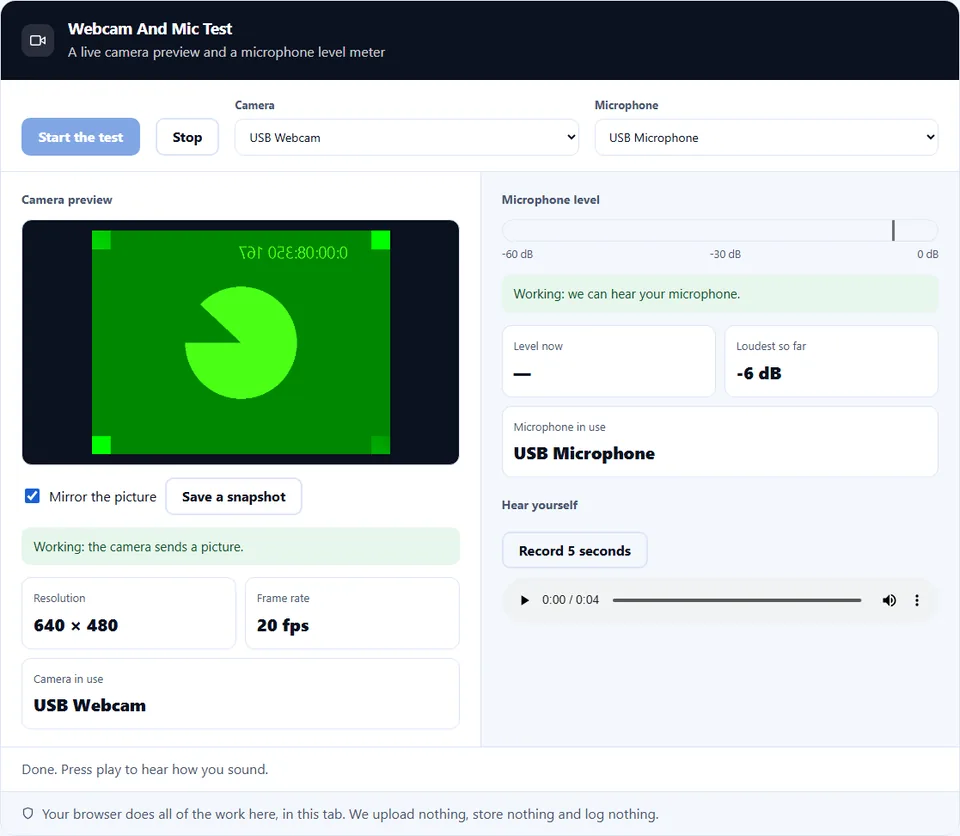
Beside the meter, the tool keeps the loudest level so far. Normal speech lands around -30 to -15 dB. If you never pass -45 dB, move closer or raise the input level. In addition, a snapshot button saves one frame from the webcam, so you can check the light and the frame at full size.
How to Use the Webcam and Mic Test
A short video walks through every step. Then pick your language below, and turn on captions if you like.
How to test your webcam and mic
Six steps, and the video never leaves the tab.
- 1
Open the tool
Load the page in the browser you use for calls. Because the test matches that browser, you check the webcam and mic in the same place the call will run.
- 2
Allow the webcam and mic
The browser asks for permission once. Click allow, and the tool reads the devices on your own machine, so nothing is sent away.
- 3
Watch the live preview
The picture the webcam sees appears at once. Check that the frame, the focus and the light look the way you want before a call.
- 4
Pick your webcam and mic
If the device has more than one camera or microphone, choose the right one from the list, and the preview and the meter switch to it.
- 5
Check the mic level
Speak at your normal volume and watch the bar move. A meter that rises and falls as you talk means the microphone is picking up your voice.
- 6
Close when you are done
Press Stop or close the tab to release the webcam and mic. Nothing is sent anywhere, and a test clip vanishes with the tab.
Why test your webcam and mic here
Three reasons a browser check beats guessing before a call.
See the problem before the call
A black square or a silent mic in the first minute of a meeting is a bad start. Because this test shows the picture and the level in advance, you catch a wrong camera, a muted mic or a loose cable while there is still time to fix it. In practice, a ten-second check saves the awkward "can you see me?" at the top of a call.
Your video stays private
This webcam and mic test avoids any upload. Many sites that offer a camera check still run analytics or send a frame away. Here the preview is drawn on your own device, and the sound is measured in the page, so nothing about you leaves the browser. Therefore you can test in a private room without a second thought.
It works on any device
The output matters as much as the check. Because the tool uses the browser camera and microphone, it runs on a laptop, a phone or a tablet with no app to install. As a result, you test the exact camera and mic your call will use, in the exact browser, with nothing extra to set up.
How camera and mic access works
Three things decide the result, and each one is worth knowing before you test.
- Permission is per site and you control it The browser asks each site on its own before it opens the webcam or the mic. Because the choice is yours, you can allow this page, block it, or change your mind later in the site settings. In addition, a secure page is required, so the address must start with https. In short, if you see no preview, check that you allowed access and that the page is secure.
- One app holds the webcam at a time A camera usually serves a single app at once. Because a meeting app, a recorder or another tab may already hold it, this test can show a black frame while that other app is open. Therefore close the app that has the webcam, then reload the test, and the preview appears.
- The test checks the device, not the network This tool confirms that the webcam and the mic work on your machine. However, it does not measure your internet speed or how you will look to the other side of a call, since that depends on the meeting app and the connection. As a result, a clean test means the hardware is fine, and a laggy call is a separate, network question.
Common webcam and mic test mistakes to avoid
Each of these looks like a broken device when the fix is quick.
Testing the wrong device
A laptop may have an inside camera and a plug-in webcam. In practice, pick the right camera and mic from the list, since the tool may start on the one you did not mean to use.
Another app already has the webcam
A meeting app or a recorder can hold the webcam and leave the test blank. Because only one app gets it at a time, close the other one and reload the page.
Blocking the permission by habit
A quick click on block hides the preview for good on that site. Instead, open the site settings, allow the webcam and mic, then reload and try again.
Forgetting the hardware mute
Many headsets and laptops have a physical mute switch or a camera cover. Because the browser cannot override it, check the switch and the cover when the meter stays flat or the frame is dark.
Expecting it to test the call quality
A clean preview does not promise a smooth call. Because the meeting and the network decide how you look to others, treat this as a device check, not a connection test.
Ignoring the light and the frame
A working camera in a dark room still looks poor. In practice, face a window or a lamp and centre yourself in the frame, so the picture is as good as the webcam allows.
Webcam and mic test frequently asked questions
Does the webcam and mic test record me?
Only when you ask. The preview and the meter run live and save nothing. The five-second check records a short clip, but it stays in this tab and is gone when you close it. Your video and sound never reach a server.
Why does the browser ask for permission?
Because a page cannot open your webcam or microphone without your say-so. The browser asks once so you stay in control, and you can allow this test, block it, or change the choice later in the site settings.
My preview is black. What is wrong?
Usually another app holds the webcam. Because only one app gets the webcam at a time, close your meeting app or recorder, then reload this page. In addition, check that a camera cover or privacy shutter is not closed.
The mic meter does not move. How do I fix it?
First, speak at a normal volume and watch the bar. If it stays flat, check a hardware mute switch on the headset or laptop, pick the right microphone from the list, and make sure you allowed mic access.
Can I choose which camera or mic to test?
Yes. Because many devices have more than one camera or microphone, the tool lists them and lets you switch. After you pick one, the preview and the meter follow that device.
Does the test work on a phone?
Yes. Because the page adapts to a small screen, you can test the front or back camera and the mic on a phone or tablet. In practice, this is handy to check a phone before a mobile call.
Is the webcam and mic test free?
Yes, completely. In fact, there is no account, no trial and no watermark. Because the check runs in your browser, there is no server cost, so every part of it stays free.
Which browsers does it support?
It works in any modern browser that can open a camera and a mic, such as Chrome, Edge, Firefox and Safari. However, the page must be secure, so the address needs to start with https for access to work.
Why does it need a secure page?
Because browsers only open the webcam and the mic on a secure address, to protect your privacy. As a result, the test runs over https, and a plain http page will not get access to the devices.
Does the tool upload a photo or clip?
No. Nothing is uploaded or stored on a server. A snapshot saves only to your own downloads, and a test clip lives in the tab until you close it. Then the webcam and mic are released and no copy remains.
Can I test my headset microphone?
Yes. Because the tool lists every microphone it finds, you pick the headset from the list and speak to see the meter move. In practice, this tells you the headset mic is the one in use, not the built-in one.
Will this test my speakers too?
Partly. When you play back the five-second clip, you hear it through your speakers or headphones, so silence there points at the output. However, this tool is built for the webcam and the mic, so a full left and right speaker check is a separate job.
Does a good test mean my call will look fine?
Not always. Because a call also depends on the meeting app and your internet, a clean device test only proves the webcam and mic work. Therefore treat a laggy call as a network question, not a broken camera.
How do I pick the right camera for a call?
Open the webcam list and switch between the options while you watch the preview. Because the picture changes at once, you can see which camera gives the best frame and light, then use that one in your meeting app.
Why is my picture dark or grainy?
It is usually the light, not the webcam. Because a webcam needs light to make a clean image, face a window or a lamp. In addition, a cheap camera looks worse in low light, so more light helps the most.
Can two apps use the webcam at once?
Rarely. Because most systems give the webcam to one app at a time, a second app often gets a black frame. In practice, close the apps you are not using before you test or join a call.
I allowed access by mistake. Can I undo it?
Yes. Because the permission lives in your browser, you can open the site settings for this page and set the webcam and mic back to block or ask. After that, the browser will prompt you again next time.
Does the test drain my battery or slow my device?
Only a little, while it runs. Because a live camera uses some power, close the tab when you finish the check. As a result, the webcam stops and the small drain ends right away.
Can I use it before a Zoom, Meet or Teams call?
Yes. Because it checks the same camera and mic those apps use, a quick test here rules out a hardware problem first. However, pick the matching device in the meeting app too, since each app keeps its own choice.
What resolution is my webcam sending?
The tool shows the size of the picture the webcam streams, such as 1280 by 720. Because that number is the frame the webcam gives the browser, it tells you how sharp your call can look at best.
Does the tool track me or read my video?
No. In fact, your video and sound are never sent anywhere, and no analytics script reads them. The check therefore happens on your device, because nothing about the webcam or the mic leaves the page.
More tools for your device and calls
A few pages the same job usually leads to.
See your screen size, pixel ratio and viewport.
Open tool →Turn a snapshot into a data URI for a page.
Open tool →Build a tidy palette for a call background.
Open tool →Export a vector badge as a fixed-size image.
Open tool →Convert between PNG, JPG, WebP and more.
Open tool →
Test your webcam and mic now
Open the webcam and mic test, allow access, and watch the live preview and the level meter. When both react, you are ready for the call. Nothing leaves your device.