Speaker Test
Check Your Speakers And Headphones
Play a tone and hear the left and right channels on their own with this speaker test. Then pick the right output before a call. No account, no upload, nothing saved on a server.
- FreePrice
- StereoChannels
- PickOutput
- NoneUploads
Speaker Test
Play a tone on the left, the right or both, at a volume you set
Ready. Start with a low volume, then press Left or Right.
What A Speaker Test Does
This speaker test plays sound through your speakers or headphones right in your browser. You press a button, and the tool sends a clear tone to the left channel, then the right. So you can hear that both sides work. Because everything runs on your device, the tool records nothing and nothing leaves the page.
The test works in a few simple steps. First, pick the output you want to check, such as the laptop speakers or a headset. Next, play the test tone and listen as it moves from left to right. In addition, you can play a steady tone or a sweep. You can also set the volume to a level that feels comfortable.
You need no account and there is no upload step, so the check is ready at once. Everything plays live, which means you hear each channel the moment you press the button. When the left and the right both sound clear, your speakers or headphones are ready for a call, a video or a song.
This speaker test suits anyone who needs to trust their sound. For example, callers check a headset before a meeting, listeners try a new pair of earbuds, and support staff rule out a dead speaker in a moment. Because the whole thing runs locally, the quick check costs nothing and shares nothing.
Left And Right, One At A Time
The picture below shows the play control on the left. On the right are the two channels, with the sound sent to each speaker in turn.

Playing the left channel on its own, then the right, is the quickest way to catch a dead side or a swapped cable. In fact, the Web Audio API is the part of the browser that makes the test tone and sends it to each channel.
Pick A Side, A Pitch And A Volume
Each pad plays the tone on one side: Left, Right or Both. Press the lit pad again to stop it. Also, the Play left, then right button moves one tone across, which quickly shows swapped cables.
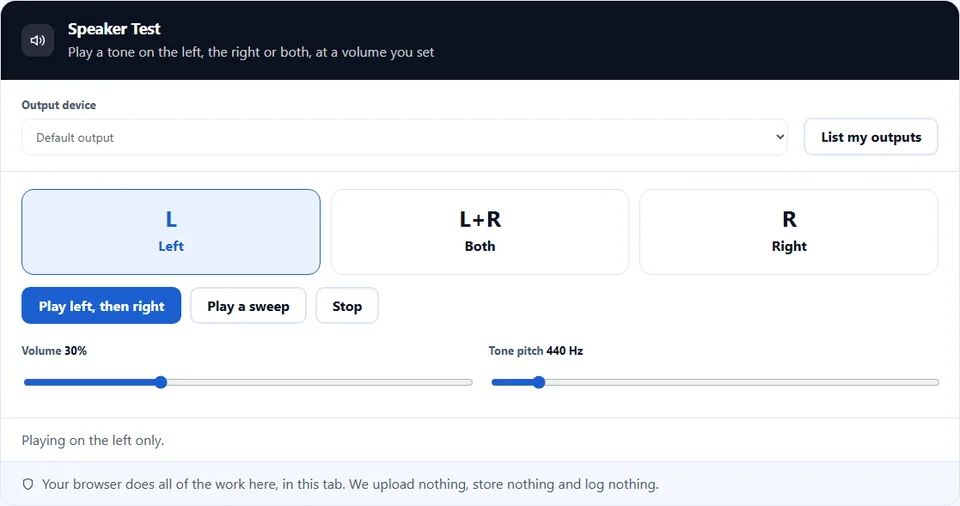
The sweep glides from a deep 60 Hz up to 12,000 Hz in six seconds. Small laptop speakers often stay quiet at the low end, and that is normal. In addition, the pitch slider sets the steady tone anywhere from 60 Hz to 4,000 Hz.
How to Use the Speaker Test
A short video walks through every step. Then pick your language below, and turn on captions if you like.
How to test your speakers
Six steps, and the tool records and sends nothing.
- 1
Open the tool
Load the page in the browser you use for calls or video. Because the test plays through that browser, you check the exact output your apps will use.
- 2
Pick your output device
Press List my outputs, then choose the speakers or headphones you want to test. When a computer has more than one output, this makes sure you hear the right one.
- 3
Play the test tone
Press Left to send a clear tone to that side. The browser needs a tap before it plays any sound, so this click also unlocks the audio.
- 4
Check the left channel
Listen as the tone plays on the left only. A clear sound on the left means that speaker or earbud works.
- 5
Check the right channel
Now press Right and listen to that side on its own. If one side is silent or quiet, you have found the problem before it ruins a call.
- 6
Set a comfortable volume
Move the volume slider until the tone sits well in your ears. Start low, since a tone can sound sharper than music at the same setting.
Why test your speakers here
Three reasons a browser check beats guessing before a call.
Hear the problem before the call
A dead speaker or a silent earbud in the first minute of a meeting is a bad start. This test plays each channel on its own. So you catch a quiet side, a muted output or the wrong device while there is still time to fix it. In practice, a ten-second check saves the awkward “can you hear the audio?” at the top of a call.
Nothing leaves your device
This speaker test plays sound locally and records none of it. Many sites that offer a sound check still run analytics or load a tracker. Here, however, the tone is made in the page and sent straight to your output. As a result, nothing about your session leaves the browser, and you can test without a second thought.
It works on any device
The result matters as much as the check. Because the tool uses the browser to make the tone, it runs on a laptop, a phone or a tablet with no app to install. So you test the exact speakers or headphones your call will use, in the exact browser, with nothing extra to set up.
How sound playback works
Three things decide the result. Each one is worth knowing before you test.
- The browser needs a tap before it plays A page cannot blast sound the moment it loads, which is why the first tone needs a click. Browsers block audio until you act, so that tap is what unlocks the tone. After that, later tones need no extra step. In short, if you hear nothing at first, press a pad once and the sound starts.
- The volume lives in a few places Sound passes through more than one volume control. The tool, the browser, the system and the device each have their own level. So a silent test often means one of them is down or muted. Therefore, raise the tool volume, the system volume and the device dial together, and unmute any that are off.
- The test checks output, not recording This tool confirms that your speakers or headphones play sound. However, it does not test your microphone or how you sound to others, since that is a separate job. In short, a clean test means you can hear. A mic check is where you confirm that others can hear you.
Common speaker test mistakes to avoid
Each of these sounds like a dead speaker, yet the fix is quick.
Leaving the volume down or muted
A test with the volume at zero sounds broken. So check the tool, the system and the device volume, and unmute any control that is off.
Playing to the wrong output
A laptop may still send sound to its own speakers while you wear a headset. Because the output can be set elsewhere, pick the right device before you decide a speaker is dead.
One earbud not seated
A loose or dead earbud reads as a silent channel. The test plays each side on its own, so seat both buds and check the left and the right before you blame the sound.
Forgetting the Bluetooth lag
A wireless headset can drop out or lag while it connects. So wait for the pairing to settle, then play the tone again until the sound is steady.
Expecting it to test the mic
A clear tone proves you can hear, not that others can hear you. Because output and input are separate, use a mic test when you need to check your voice.
Judging music by a bare tone
A single tone can sound thin even on good speakers. A tone is not music, so treat it as a yes-or-no check that each side works, not a measure of sound quality.
Speaker test frequently asked questions
Does the speaker test record anything?
No. The tool only plays a tone to your output and records none of it. So nothing reaches a server, because your own device makes the sound and plays it.
Why do I have to press play first?
Browsers block sound until you act, to stop pages playing audio on their own. So the first tap unlocks the audio. After that, the test plays each tone with no extra step.
I hear nothing. What is wrong?
Usually a volume is down somewhere. The tool, the browser, the system and the device each have a level, so raise them all and unmute any control that is off. In addition, make sure you picked the right output device.
Can I test the left and right channels on their own?
Yes. The tool can send the tone to one side at a time, so you hear the left alone, then the right. In practice, this is the quickest way to find a dead speaker or a swapped cable.
Can I choose which speakers to test?
Yes, where the browser allows it. Many setups have more than one output, so press List my outputs and the tool shows the devices it can reach. After you choose one, the tone plays through that output.
Does the test work with headphones?
Yes. Headphones are just another output, so the test plays through them the same way. In practice, this is handy for a new pair of earbuds or a headset before a call.
Is the speaker test free?
Yes, completely. There is no account, no trial and no watermark. Also, the check runs in your browser, so there is no server cost to pass on. Every part of it stays free.
Which browsers does it support?
It works in any modern browser that can play sound, such as Chrome, Edge, Firefox and Safari. However, picking a specific output device works best in Chrome and Edge. Elsewhere, the device list may be shorter or missing.
Does it work on a phone?
Yes. The page adapts to a small screen, so you can test the phone speaker or a connected headset. First, raise the media volume, since a phone has its own set of levels.
Can I test Bluetooth speakers?
Yes. A paired speaker shows up as an output, so the test plays through it like any other. However, give the connection a moment to settle. Then play the tone again if the first sound drops out.
Will this test my microphone too?
No. This tool checks what you can hear, and the microphone is a separate job. Instead, use a mic test when you want to confirm that others can hear your voice on a call.
How does a tone differ from a sweep?
A tone holds one steady pitch, while a sweep slides from low to high. Because a sweep moves across the range, it can reveal a buzz or a drop that a single tone would miss. So it is a fuller check.
Why does one side sound quieter?
It is often a balance setting, not a broken speaker. The system can shift sound toward one side, so check the balance in your sound settings and set it back to the middle.
Does the tone damage my speakers?
No, at a sensible volume. The test starts at a gentle level, so it is safe. However, start low and raise it slowly, since a steady tone can feel sharper than music at the same setting.
Can I set the volume in the tool?
Yes. The tool has its own level, so you can raise or lower the tone without touching the system volume. Keep it low to start, then adjust until it sits well in your ears.
Why can I not pick my output device?
It depends on the browser. Choosing an output does not work everywhere, so some browsers play through the system default instead. In that case, change the default in your system settings and reload the page.
Does a clean test mean my call audio will be fine?
It means your output works. However, a call also depends on the meeting app and the connection, so pick the same speakers in that app too. As a result, a clean test rules out the hardware as the problem.
Does the test store or send my settings?
No. No server keeps anything, so no copy of your choices survives the session. When you close the tab, the test is over and nothing about it remains.
Can I use it before a Zoom, Meet or Teams call?
Yes. It plays through the same output those apps use, so a quick test here rules out a sound problem first. However, pick the matching device in the meeting app too, since each app keeps its own choice.
My sound lags. Why?
A delay usually comes from a wireless link. Bluetooth adds a small lag, while a wired output removes it. So the delay does not mean a fault, but a cable gives the tightest timing.
Does the tool track me or listen to me?
No. The tool only plays sound and never opens your microphone. Also, no analytics script runs on the check. So the test stays on your device, because nothing about it leaves the page.
More tools for your device and calls
A few pages the same job usually leads to.
Check your camera and microphone before a call.
Open tool →See your screen size, pixel ratio and viewport.
Open tool →Record your voice and play it back.
Open tool →Read how loud the room is.
Open tool →Turn a short sound into a data URI.
Open tool →
Test your speakers now
Open the speaker test, pick your output and press Left. Then listen to the right side and set a comfortable volume. When both sides sound clear, you are ready. Nothing leaves your device.