Voice Recorder
Record Audio In Your Browser
Press record and speak. This voice recorder then plays it back and lets you download the clip. It stays on your device: no account, no upload, nothing kept on a server.
- FreePrice
- AudioRecords
- DownloadSave
- NoneUploads
Voice Recorder
Record, pause, play back and download, all in this tab
No clip yet. Press Record, speak, then press Stop.
- Clip length
- —
- File size
- —
- File format
- —
Ready. Press Record and allow the microphone.
What A Voice Recorder Does
This voice recorder captures sound from your microphone right in your browser. You press record and speak, and the tool keeps the audio as a clip you can play back. Because everything runs on your device, the recording is never sent anywhere. It is saved only if you choose to download it.
The tool works in a few simple steps. First, the browser asks to use your microphone. Next, you record, pause and resume as you go. Meanwhile, the length counts up and a waveform shows the sound. After that, you can play the clip back, start over, or keep the one you have.
You need no account and there is no upload step, so you can record at once. While you work, the clip is held in the page until you save it. When you are happy, one click downloads the audio as a file. Then you can keep it, share it or add it to a video.
This voice recorder suits anyone who needs to catch a bit of sound fast. For example, you can leave a voice memo, record a quick note, practise a speech, or record narration for a clip. Because the whole thing runs locally, the recording stays yours. However, closing the tab clears it unless you downloaded it first.
Record, Then Keep It Or Not
The picture below shows the record control on the left. On the right, you see the clip with its waveform and the play and download buttons.

The waveform fills in as you talk. Then the clip waits in the page until you save or discard it. In fact, the MediaRecorder is the part of the browser that captures the mic and builds the audio file.
Pause, Resume And Save The Take
Press Pause when you need a breath, then Resume. The new words join the same clip. Also, the timer only counts the time you spent recording, so the length you see is the length you get.
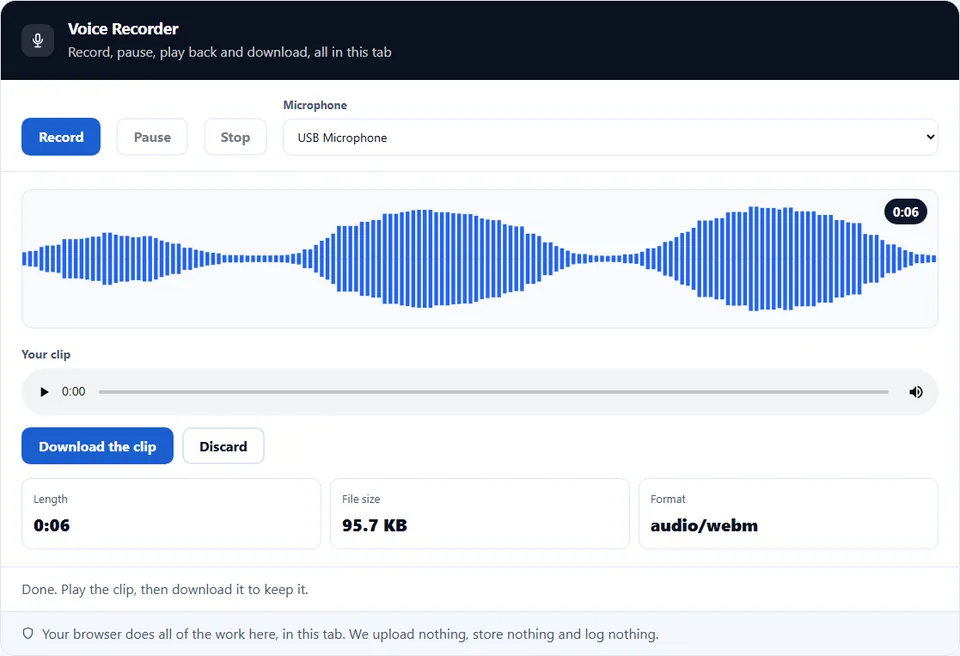
When you press Stop, the tool shows the length, the file size and the format of the clip. Chrome and Edge save WebM audio, Firefox saves Ogg, and Safari saves an MP4 audio file. In addition, Discard throws the take away, so you can start clean.
How to Use the Voice Recorder
A short video walks through every step. Then pick your language below, and turn on captions if you like.
How to record your voice
Six steps, and the clip never leaves your device.
- 1
Open the tool
Load the page in your browser. Because the recorder uses your own microphone, there is nothing to install.
- 2
Allow the microphone
The browser asks once. Click allow, and the tool reads the mic on your own device. So nothing is sent away.
- 3
Press record
Hit the record button and start talking. The timer counts up and the waveform moves. That way, you can see the mic is picking you up.
- 4
Pause and resume as you go
Need a break? Pause the recording and gather your thoughts. Then resume into the same clip, and the parts join together smoothly.
- 5
Play it back
Stop, then press play to hear the clip. If it is not right, start over. After all, a fresh take is quicker than trying to fix one.
- 6
Download or discard
Keep it by downloading the file to your device. Or close the tab to throw it away. Either way, no server keeps a copy.
Why record in the browser
Three reasons a browser recorder beats a separate app.
Catch the sound in seconds
Sometimes you just need to grab a thought before it goes. This recorder opens in a tab and records as soon as you allow the mic. So there is no app to find and no sign-up to clear. In practice, that speed is the point, because a voice memo only helps if it is ready before the idea slips away.
The clip stays private
This voice recorder keeps the audio on your device. Many online recorders upload the clip to a server and hand back a link. Here, however, the recording is built in the page. As a result, a private note or a draft narration never leaves the browser. You keep full control, and the file exists only if you download it.
It works on any device
The result matters as much as the recording. Because the tool uses the browser microphone, it runs on a laptop, a phone or a tablet with no app to install. As a result, you can record audio anywhere, on any device, and save a file you can use right away.
Where the recording lives
Three things decide the result. Each one is worth knowing before you record.
- The clip lives in the page until you save it Your recording is held in the browser while you work, not on a server. Because it is only in the page, closing the tab or reloading clears it for good. Therefore, download the file as soon as you have a take you like. Once the page is gone, there is no copy to recover.
- The format depends on the browser Each browser saves audio in the format it supports best, often a web format rather than MP3. Because the browser picks the container, the file may end in webm or ogg. Still, the recording works as it is. If a tool needs a different type, you can convert it later.
- It needs a secure page and your permission The browser only opens the mic on a secure (https) address, and only after you allow it. The choice is yours: you can allow this page, block it, or change your mind later in the site settings. So if you cannot record, check that you allowed the mic and that the page is secure.
Common voice recorder mistakes to avoid
Each of these loses a take or spoils the sound.
Forgetting to download the clip
A recording left in the page vanishes when you close the tab. So download the file as soon as the take is good. There is no server copy to fall back on.
Recording from the wrong mic
A laptop may use its built-in mic while you speak into a headset. Because the input can be set in more than one place, pick the right microphone before you start a long take.
Sitting too far from the mic
A distant voice records thin and quiet. In practice, speak close to the mic. Then keep the same distance, so the level stays even through the clip.
Ignoring the background noise
A fan, a street or a busy room bleeds into the recording. Because the mic hears all of it, record in a quiet spot. Close a window where you can.
Expecting an MP3 every time
The browser often saves a web format, not an MP3. Because the container is the browser’s choice, convert the file afterwards if a tool needs a specific type.
Not checking the level first
A take that is too quiet, or one that clips, is no use. To avoid that, record a short test and play it back. Then move closer or further away before the real one.
Voice recorder frequently asked questions
Does the voice recorder upload my clip?
No. The recording is built and kept in your browser. Nothing reaches a server, because the clip stays on your device. It becomes a file only when you download it.
Where does my recording live?
In the page, while you work. The clip lives in the browser, not on a server, so it is held in memory until you download it. That is why closing the tab clears it. So save any take you want to keep.
What format is the file?
It depends on the browser. Each browser saves audio in the format it supports best, so the file often ends in webm or ogg rather than mp3. In practice, the recording plays as it is. Also, you can convert it later if needed.
Can I record an MP3?
Not directly in most browsers. Because the browser picks the container, you usually get a web format. However, you can convert the downloaded file to MP3 afterwards when a tool asks for one.
Can I pause and resume a recording?
Yes. The tool can pause and then carry on into the same clip, so you can take a break mid-recording. After you resume, the parts join together and the clip plays as one.
Why do I need to allow the microphone?
A page cannot record without permission, so the browser asks first. That way, you stay in control. You can allow this recorder, block it, or change the choice later in the site settings.
Is the voice recorder free?
Yes, completely. There is no account, no trial and no watermark. Also, the recording runs in your browser, so there is no server cost to pass on. Every part of it stays free.
Does it work offline?
Yes. Once the page has loaded, the recorder uses your mic locally. So you can turn off the connection and the tool keeps working, because it never contacts a server.
How long can a recording be?
It depends on your device. The clip is held in memory, so a very long take uses more of it. For that reason, a shorter clip is safest. In practice, record what you need and download it, rather than letting one take run for hours.
Can I record on my phone?
Yes. The page adapts to a small screen, so you can record on a phone or tablet. In practice, hold the phone close and record in a quiet spot, since a phone mic picks up the room easily.
Can I choose which microphone to use?
Yes, where the browser allows it. Many setups have more than one input, so the tool lists the mics it can reach and lets you pick one before you record. After that, the recording uses that mic.
Can I play the clip before I save it?
Yes. The clip stays in the page, so you can play it back right away. Listen first. Then, if it is not right, record a fresh take rather than keeping a poor one.
Does the recorder keep a copy after I close the tab?
No. The clip is only in the page, so closing the tab clears it. The only copy that survives is the file you downloaded. That is why saving a good take matters.
Why is my recording so quiet?
Usually the distance or the input level. A far mic records thin, so move closer and keep steady. In addition, check that you picked the right mic and that its system level is up.
Can I use the clip in a video?
Yes. The download is a normal audio file, so you can drop it into a video editor as narration or a voice-over. First, convert it if the editor wants a particular format.
Does background noise get recorded?
Yes, the mic hears everything. A fan or a street bleeds into the take, so record in a quiet room and close a window where you can. As a result, your voice stands out more in the clip.
Which browsers does it support?
It works in any modern browser that can record audio, such as Chrome, Edge, Firefox and Safari. However, the page must be secure, so the address needs to start with https for the mic to work.
Can I trim or edit the recording here?
This tool records, plays and saves. It does not edit. So when you need to cut or clean a clip, download it and open it in an audio editor.
Is the recording good enough for a podcast?
It is fine for a note or a rough take. However, a podcast usually needs a better mic and a quiet room. So treat this as a quick capture, and use proper gear for a polished show.
Can I record system or call audio?
No, only the microphone. The tool records what the mic hears, so it does not capture sound playing on your device. If you must, point the mic at the source, though the result will be rough.
Does the tool track me or keep my audio?
No. Your audio is never sent anywhere, and no analytics script reads it. The recording stays on your device, because nothing about the clip leaves the page unless you download it.
More tools for sound and your device
A few pages the same job usually leads to.
Check your camera and microphone before you record.
Open tool →Read the noise level of the room first.
Open tool →Play a tone and check your left and right output.
Open tool →Turn the saved clip into a data URI for a page.
Open tool →See your screen size, pixel ratio and viewport.
Open tool →
Record your first clip now
Open the voice recorder, allow the mic and press record. Then play it back. When it sounds right, download the file to keep it. Nothing leaves your device.