Why the Microphone Is Not Working
You press record, and nothing happens. Often the page says the browser was told not to share the microphone. When the microphone is not working on a website, the cause is usually one of three things.

First, the browser may block the microphone for this site. Second, Windows or macOS may block the browser. Third, the browser may be listening to the wrong device, or the microphone may be muted. So check them in that order.
Step 1: Allow the Microphone for the Site
Click the icon at the left of the address bar, then open the site settings. Look at the Microphone row. If it says Block, the page cannot hear you.
Change it to Allow and reload the page. That is the whole fix for the most common cause.
Like the camera, the microphone only works on secure https:// pages.
Step 2: Check the System Privacy Settings
Still nothing? Then the system itself may block your browser. On Windows, open Settings, Privacy and security, Microphone, and turn on access for apps and for your browser.
On a Mac, open System Settings, Privacy and Security, Microphone, and switch on your browser. Then quit and reopen the browser so the change applies.
Step 3: Pick the Right Input Device
If you have a headset, a webcam and a laptop microphone, the browser may pick the wrong one. In the same site settings, or in the system sound settings, choose the input you are speaking into.
Also check the mute switch on the headset, and the input level in the system sound settings. If the level is at zero, the page records silence.
How to Test Your Microphone
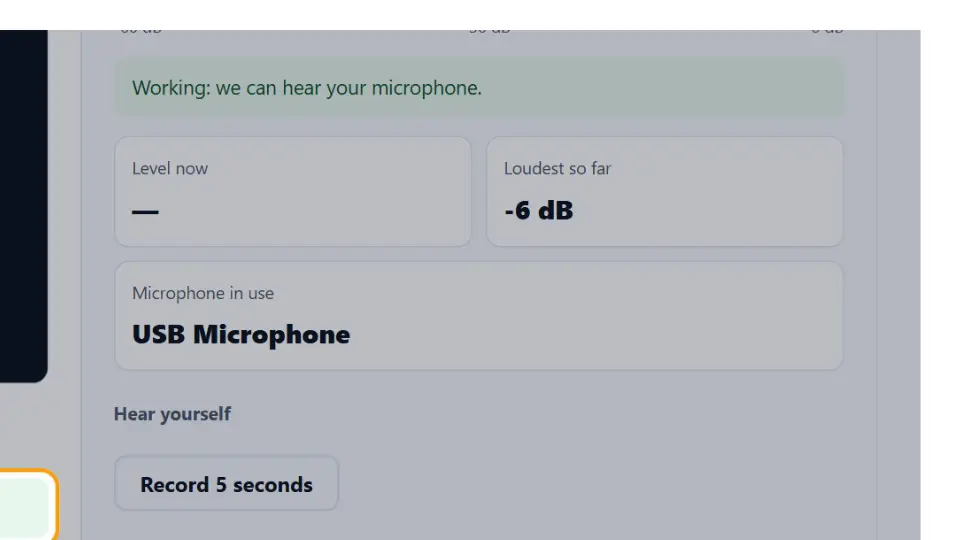
Our free Voice Recorder shows live level bars while you speak. Stop, then play the clip back. If you can hear yourself, the microphone works.
To check the camera and the microphone together, use the Webcam and Mic Test. Both run in your browser, and nothing is uploaded.
Microphone Settings in Other Browsers
Every browser has the same site permission, only in a different menu. So find the one you use below.
Microsoft Edge
Click the lock icon in the address bar, then Permissions for this site, and set Microphone to Allow. The full list sits under Settings, Cookies and site permissions, Microphone.
Firefox
Click the microphone or lock icon in the address bar and remove the block. Alternatively, open Settings, Privacy and Security, Permissions, Microphone, Settings.
Safari on a Mac
Open Safari, Settings for This Website, and set Microphone to Allow. Also, macOS must allow Safari under Privacy and Security, Microphone.
Pick the input inside the browser
Chrome and Edge let you choose the input per site. In the site settings, the Microphone row has a device list. Choose the headset or USB microphone you actually speak into.
Microphone Not Working on a Phone
On a phone, the browser app needs microphone access from the system first. Then the site needs it from the browser.
- Android: open Settings, Apps, your browser, Permissions, and allow Microphone. Then allow it for the site in the browser's site settings.
- iPhone and iPad: open Settings, find your browser in the app list, and turn on Microphone. For Safari, also check Settings, Safari, Microphone.
In addition, a Bluetooth headset may take over the microphone as soon as it connects. If the page records silence, disconnect the headset and try the phone's own microphone.
When the Microphone Works but Sounds Bad
Sometimes the level bars move, yet the recording sounds too quiet, too loud or full of noise. That is a setting problem, not a block.
- Too quiet: raise the input level in the system sound settings, and speak closer to the microphone.
- Distorted: lower the input level until the loudest words stay below the top of the level bars.
- Echo or hum: use a headset, so the speakers do not feed back into the microphone.
- Background noise: turn on noise suppression in the call app, or record in a quieter room.
To compare, record a short clip with our Voice Recorder after each change. Then you hear exactly what others hear.
Other Causes to Check
- Another app, such as Zoom or Discord, holds the microphone in exclusive mode.
- A Bluetooth headset in music mode, which on some systems has no microphone.
- An outdated audio driver. On Windows, check the device in Device Manager.
- A browser extension that blocks media access. Test in a private window.
- The microphone is plugged into the headphone jack instead of the mic jack.
In short: site permission, system privacy, then the right device. For the official steps, see Chrome's camera and microphone help.
Questions and Answers
Why is my microphone not working in Chrome?
Most often the site's microphone permission is set to Block. Click the icon left of the address bar, set Microphone to Allow, and reload.
How do I allow microphone access on Windows?
Open Settings, Privacy and security, Microphone. Turn on microphone access and access for apps, and allow your browser.
How do I allow microphone access on a Mac?
Open System Settings, Privacy and Security, Microphone, switch on your browser, then quit and reopen it.
Why does the page record only silence?
The browser is probably listening to the wrong input, or the input level is at zero. Pick the right device and raise the level.
How can I test my microphone online?
Use our free Voice Recorder. Speak, watch the level bars, then play the clip back to hear yourself.
Why does my Bluetooth headset microphone not work?
Some systems switch a Bluetooth headset to a music mode without a microphone. Choose the headset's hands-free or headset input instead.
Does the microphone work on http pages?
No. Browsers only allow the microphone on secure https pages and on localhost.
Is my voice uploaded when I test the microphone?
Not with our tools. The recording stays in your browser unless you download it yourself.
How do I allow the microphone in Microsoft Edge?
Click the lock icon in the address bar, open Permissions for this site, and set Microphone to Allow. Then reload the page.
How do I allow the microphone in Firefox?
Click the microphone or lock icon in the address bar and remove the block, or open Settings, Privacy and Security, Permissions, Microphone.
Why is my microphone not working on Android?
The browser app may not have microphone access. Open Settings, Apps, your browser, Permissions, and allow Microphone, then allow it for the site.
Why is my microphone not working on an iPhone?
Open Settings, find your browser in the app list, and turn on Microphone. For Safari, also check Settings, Safari, Microphone.
Why is my recording too quiet?
The input level is low or you are too far away. Raise the level in the system sound settings and speak closer to the microphone.
Why does my recording sound distorted?
The input level is too high. Lower it until the loudest words stay below the top of the level bars.
Why do others hear an echo?
Your speakers feed back into the microphone. Use a headset, or lower the speaker volume.
Can a browser extension block my microphone?
Yes. Some privacy extensions block media access. Test in a private window, where most extensions are off.
How do I choose a different microphone in Chrome?
Open the site settings from the icon left of the address bar. The Microphone row lets you pick the input device.
Why is my USB microphone not detected?
Plug it straight into the computer, try another port, and check that it shows in the system's sound input list.
Does my microphone work without internet?
Yes. Recording happens on your device. Our Voice Recorder only needs the page to load once.
Is it safe to allow the microphone for a website?
Allow it only for sites you trust. You can always set it back to Block in the site settings.