About this QR code with logo tutorial
This QR code with logo tutorial shows every step on screen. First you see why error correction lets a code scan with a logo in the middle, and how wide that logo can safely be.
Then the free Denwix QR Code Generator builds a real code: a link, an uploaded logo, the logo size slider, darker colors, a transparent background and the PNG or SVG download. The video ends with color pairs, placement rules, a café example and the mistakes to avoid.
Read the written guide: QR code with logo, with tables, the café example and 20 answers.
Try it yourself in the free QR Code Generator. Your link and logo never leave your browser.
QR code with logo tutorial: full transcript
0:00 What this video covers
In this video you will learn how to make a QR code with logo for free. We cover why the code still scans with a logo in the middle, how big the logo can be, which colors work, when a transparent background helps, and how to test the code before you print it.
0:14 Why add a logo
Why add a logo at all? People recognise your brand at a glance, they trust the code more before they scan it, and the code finally matches your menus, packaging and business cards instead of looking like a sticker added at the last minute.
0:28 Error correction levels L, M, Q and H
A QR code still scans with a logo because of error correction. The code stores spare data, so a phone can rebuild a damaged or hidden part. Level L recovers about seven percent, M fifteen, Q twenty five and H about thirty percent. For a logo, always pick level H.
0:46 How big the logo can be
Thirty percent is not a licence to cover a third of the code. Start with a logo about twenty percent of the code's width. Twelve to fifteen percent scans even more easily, and above twenty five percent many phones start to fail.

1:00 Open the free generator and add a link
Now let us make one with the free Denwix QR Code Generator. Everything runs inside your browser, so your link and your logo never leave this tab.
First, type or paste the link the code should open. Keep it short, because every extra character adds more modules and makes the code denser. The preview updates as you type.
1:20 Upload the logo
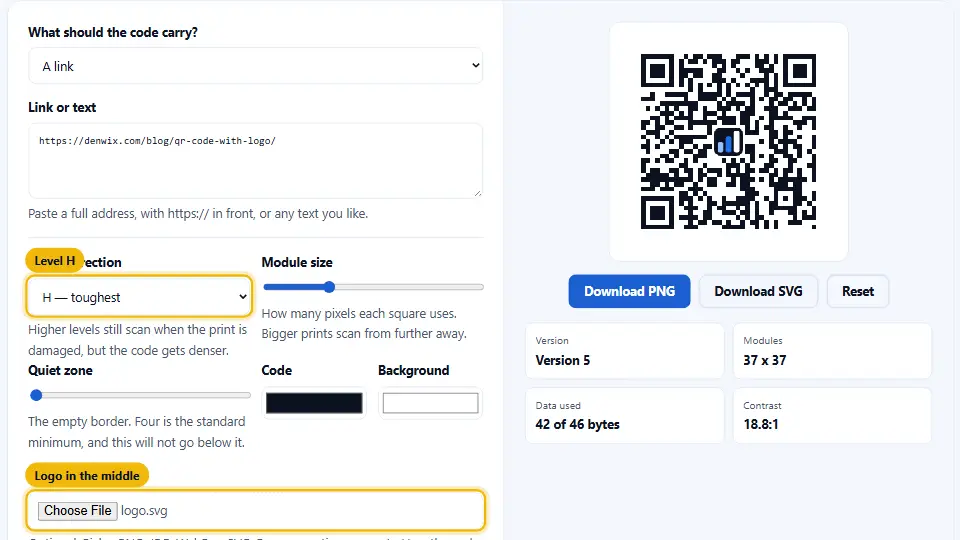
Next, choose your logo in the field called Logo in the middle. PNG, JPG, WebP and SVG files work. Notice that error correction jumps to H on its own, so the code can rebuild the part the logo hides.
1:35 Set the logo size
Use the Logo size slider to set the share of the code width. Around twenty percent is safe for most phones. If a test scan fails later, come back here and make the logo smaller.
1:47 Colors and the contrast warning
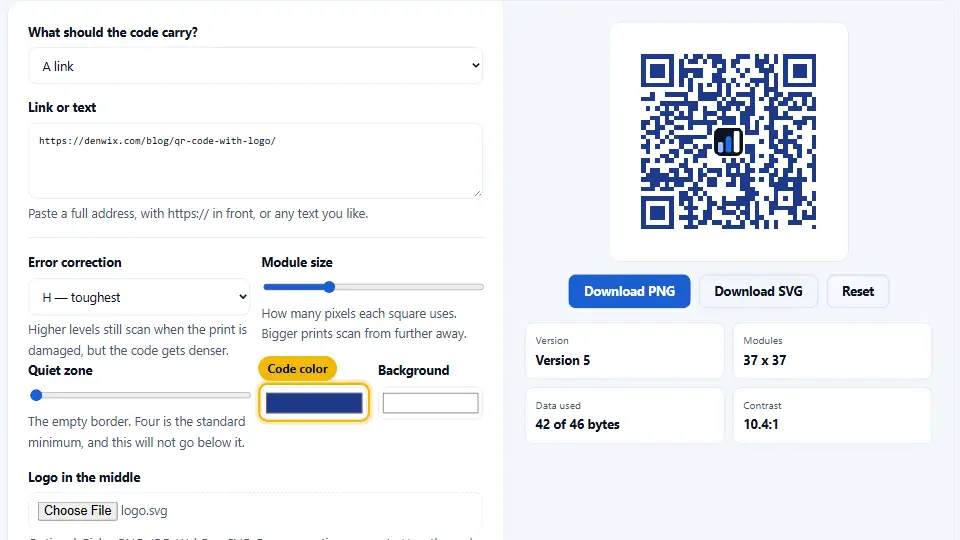
You can also change the colors. Keep the modules dark and the background light. If the contrast drops too low, the tool shows a warning, so you know before you print.
1:57 Transparent background
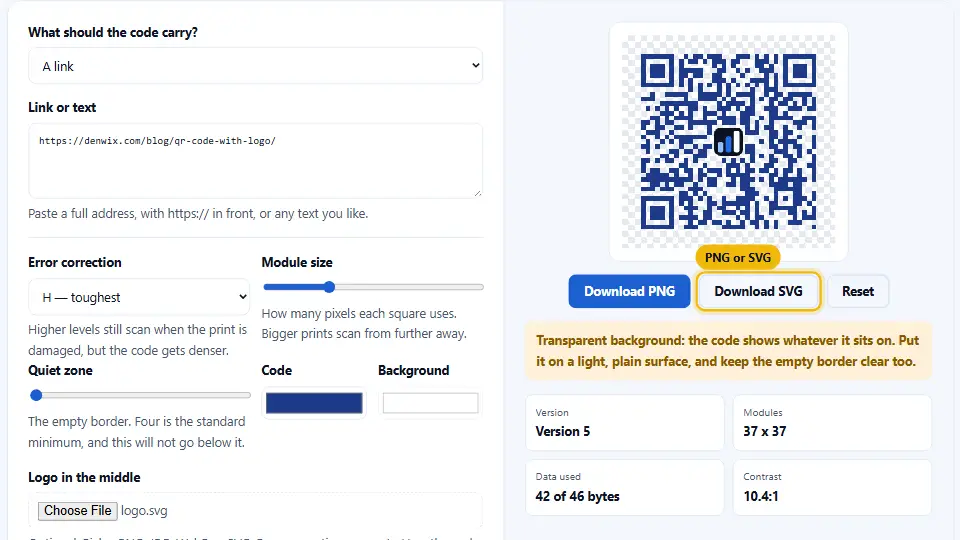
Tick Transparent background when the code will sit on a colored package or a pale photo. The background becomes see-through in both PNG and SVG, so there is no white square around the code.
2:08 Download PNG or SVG
Finally, download the code. PNG is perfect for websites, chats and email. SVG stays sharp at any size, so it is the better choice for print, posters and packaging.
2:19 Color pairs that scan
Color pairs matter more than color names. Black, navy or dark green on white scan very well. Light grey, yellow or light blue on white are risky, and white on black, which is an inverted code, fails on some readers.
2:33 Where to put the logo
Where should the logo go? Put it in the center. Never cover the three big squares in the corners, because phones use them to find the code. Keep the quiet zone around the edge empty, and give the logo a thin white padding.
2:46 PNG or SVG?
PNG or SVG? PNG is a pixel image: easy to share, but it blurs when you scale it up. SVG is a vector: it stays sharp at any size. Both support a transparent background.
3:01 Café example: before and after
Here is a real style example. A café made a code with a logo at thirty five percent of the width and light grey modules. Only about sixty percent of test scans worked. With a twenty percent logo, black modules, a white background and a slightly bigger print, almost every scan worked.
3:19 Test before you print
Before you print, test the code on an iPhone and an Android phone, at the real print size, from the real distance and in dim light. Then open the link to the end and make sure it lands on the right page.
3:32 Common mistakes
The most common mistakes are a logo that is too big, a logo over a corner square, light modules, a busy background, no quiet zone, a low error correction level, and printing without a test.
That is everything you need to make a QR code with logo that really scans. Try the free Denwix QR Code Generator now, and read the full guide on our blog.