Why a QR Code with Logo in the Middle Still Scans on Phones
QR codes are made up of black and white boxes which are read by a scanner to identify the site to which the code is linked. Covering any of these boxes with a logo would render the code useless, right?
Not necessarily.
QR codes, as do bar codes, have a feature known as error correction. This allows the scanner to restore the information in the code even with some of the boxes covered.
QR codes can decode information even with damage to the code. Part of the code is used to restore information that was distorted during scanning.
QR codes use four levels of error correction to perform this function. The levels are called L, M, Q and H. The higher the level, the greater the likelihood of restoring distorted code.
| L - 7% | Use this level to create codes with no graphics to represent the data. |
|---|---|
| M - 15% | Use this level when the data to be encoded isn’t too big. |
| Q - 25% | Use this level to encode data along with minor design changes to the code. |
| H - 30% | Use this level when the design of the code incorporates a graphic in the center. |
When you add a logo, set the error correction to level H. However, large logos in the code can make it unreadable regardless of error correction level used.
Make a QR Code with Logo for Free, Right in Your Browser
Creating a QR code with a logo embedded in it can easily be done on the internet with no previous coding knowledge. Anyone who can copy a link and pick a file can finish this in about two minutes.
Follow the steps below to create a QR code using Denwix’s online QR code generator.
Step 1: Type in the Link or Word
Think of the website, online document, or file that you would like people to access when they scan the QR code.
Examples:
Website of your business
Menu of the product you are selling
Address to which you would like the person to be directed to on Google Maps
Online contact information
Online registration form
Once you have determined the site to which you would like to direct users, copy the site’s URL and paste it in the generator.
Check to see that the link is correct and takes the user to the site you want them to see before you print many copies of the QR code.
To simplify the design of the QR code to make it easier for users to read, use a shorter URL.
Step 2: Set Error Correction to H
Raise the error correction to ‘H’ so the code can rebuild the part the logo hides. Some generators set the level to ‘L’ or ‘M’ by default. The Denwix generator switches to ‘H’ on its own when you add a logo.
If you have the choice to set the error correction level to ‘H’, use that setting so the code still scans with your logo in the center.
Step 3: Logo Placement
Next, upload your logo in the ‘Logo in the middle’ field.
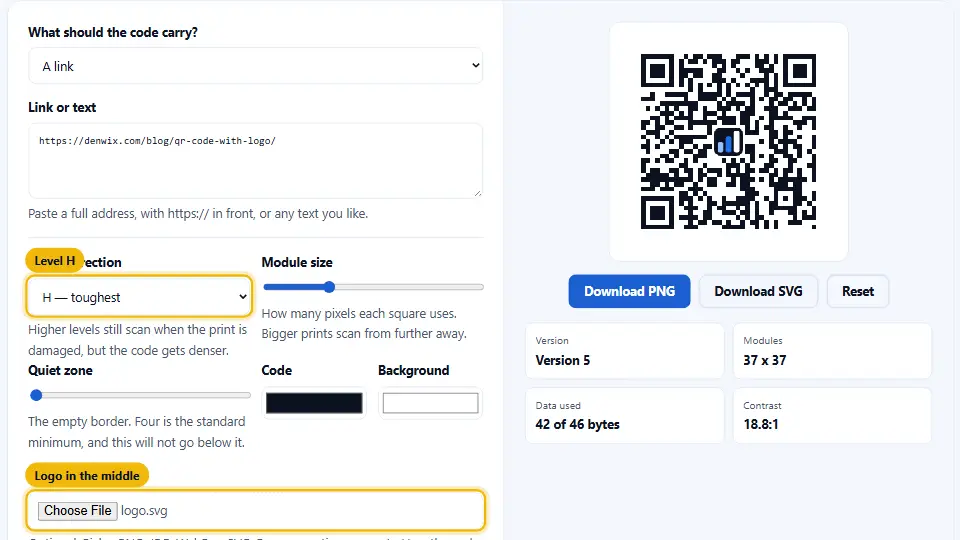
Logos in PNG or SVG format work best, because they can keep a transparent background. The tool also takes JPG and WebP, though those keep a solid box behind the mark.
Pick a crisp, high-resolution copy of the logo, since soft edges look worse once it shrinks into the code.
- Logos should be easily recognizable when small. Long, thin or very detailed logos shouldn’t be used.
- Using a ‘logo variant’ that is already provided by the company is preferred.
- Logos should also have a plain background. Transparent logos are preferable.
Some examples of good logos are simple designs made up of a few letters of a word, or a single icon.
Step 4: Keep Logo Small
- Logos should generally be less than 20% the size of the QR code.
Use the ‘Logo size’ slider to set the size before you print. Around 20% is safe for most phones.
The logo should not be placed in the corners of the QR code.
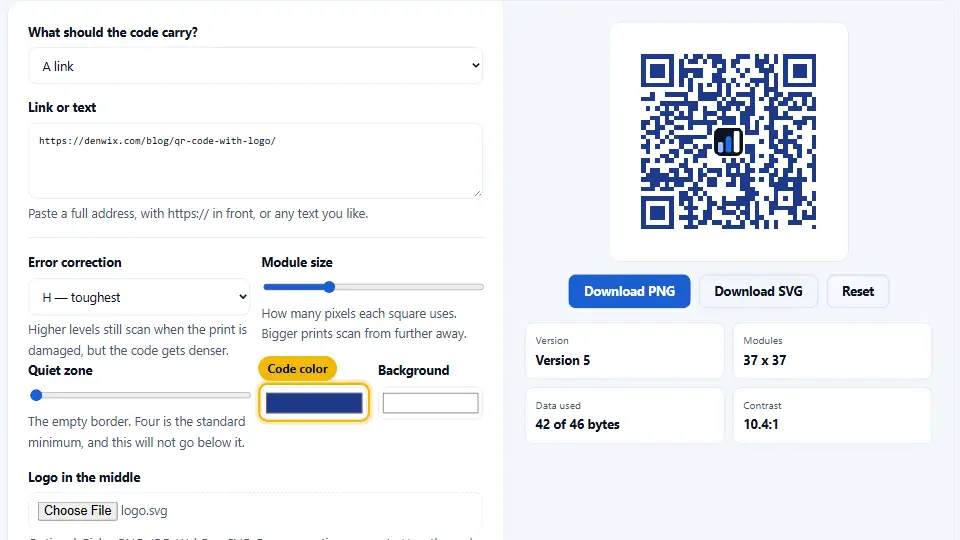
Step 5: Specify Code Color
- To further customize the QR code to match the color scheme of your brand, choose dark colors for the foreground of the code and light colors for the background.
Black is a good color choice to use for the foreground of the code.
- Before printing out the QR code to give to customers check to see if the colors will print out the way you expected them to.
Step 6: Use Transparent Background
- If the code will sit on a colored package or a pale photo, a transparent background can look cleaner than a white square.
To correctly size your logo and QR code, you may need to modify your design to fit your space constraints.
In the Denwix generator, tick ‘Transparent background’ to remove it. Just keep in mind that the surface behind the code must still contrast with the code.
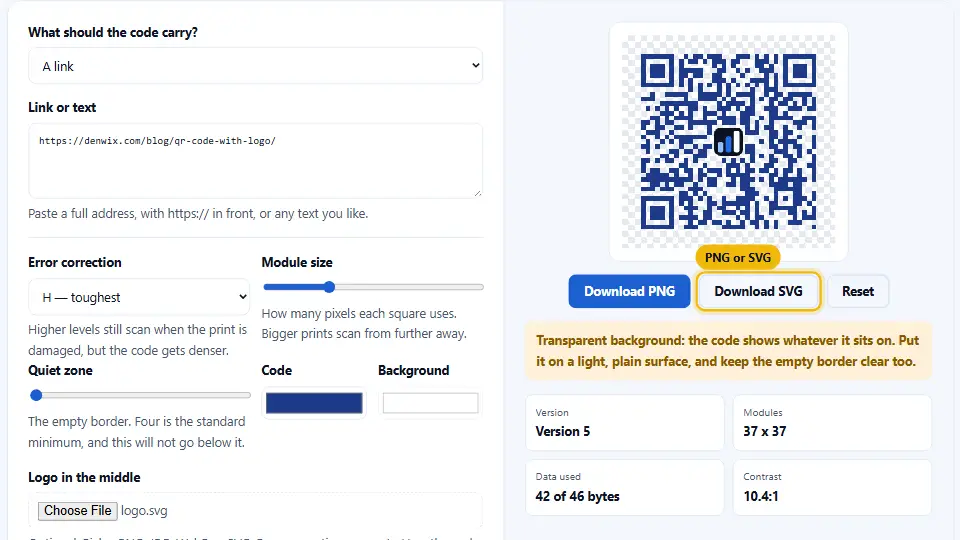
Removing the background does not remove the need for an empty margin around the code.
Download the QR code to save your design. For an image to post on the web, use a PNG file. Use an SVG file to print the QR code to any size you'd like.
Keep the original file to use the next time you need to update your codes.
To test your design, have people ‘scan’ the image on their phone to ensure it takes them to the correct webpage.
For best results, don’t rely on your computer monitor to verify the design of the QR code.
The Denwix QR Code Generator builds the code in your browser, so your link and your logo are never uploaded to a server.
The location of your logo affects the effectiveness of the QR code.
Branded QR codes place their logo in the center to avoid finder patterns. Finder patterns are the large squares in the corners of QR codes. To properly scan a QR code, these patterns must be clear. If any portion of a finder pattern is blocked the QR code may be unreadable.
There are other areas of a QR code that must be unobstructed as well.
Always avoid finder patterns as described in the previous point.
QR codes also contain ‘timing’ patterns that assist the scanner in interpreting the data. Logos should not cover these patterns as well.
The empty space around a QR code is called the ‘quiet’ zone. It is important that this space is free of logos or design elements. The quiet zone should be a minimum of 4 modules wide on each side of the QR code.
As a starting point, make the logo about 20% of the QR code’s width. Smaller logos, around 12-15%, scan even more easily.
- 20% width: Typical width of a good logo design.
- 25% width: Can still work with level H, but test it carefully.
- 30% width: Avoid.
Keep the logo and its padding well under 10% of the code’s total area.
Adding a thin padding in between the logo and code will further enhance the appearance of the QR code.
With a 500 pixel wide QR code, a good starting width for the logo would be around 100 pixels.
What is the Best Color Combo to Use for a QR Code?
The background of the QR code should be significantly lighter than the color of the code to increase the chances of the code being successfully scanned.
To ensure ease of scanning the contrast between the color of the QR code and the background should be at least 3:1.
Examples of Good Color Combinations to Use with a Light Background
- Black or navy blue.
- Olive green.
- Eggplant purple.
- Brown.
- Charcoal gray.
- Burgundy.
Using the colors stated above with a light background should work well with your QR code design.
These pairs of colors create good foreground and background contrast.
Color Combinations that Don’t Work
Pale colors like yellow on white or light blue on cream can be difficult for phone cameras to decode. Same is true for very light shades of pink on white.
Similarly, if the background of the QR code is dark and the foreground is light, many phone cameras will again have a hard time interpreting the code.
Some scanners may be able to decode both types of codes, but it is better to be safe and use the standard dark foreground and light background of a QR code.
The following color combinations will help to provide good contrast for most users to decode the QR code.
| Color Pair | Approx. Contrast | Scans Well? |
|---|---|---|
| Black on White | 21:1 | Yes |
| Dark navy on White | 15:1 | Yes |
| Dark green on Cream | 6:1 | Yes |
| Dark purple on Light Gray | 5:1 | Yes |
| Medium Blue on White | 3.5:1 | Test first |
| Light Pink on White | 1.5:1 | No |
| Yellow on White | 1.1:1 | No |
| White on Black | 21:1 | Not always |
| Light Gray on Beige | 1.3:1 | No |
There are many variables that will ultimately affect the contrast of the colors printed. As a general rule to create a QR code with good contrast use colors to make the code as easy to differentiate from the background as possible.
When to use Transparent QR Codes
A transparent QR code has no background fill, so the surface behind the code shows through.
These codes are not harder to create, but they can be harder to scan. This is because the code takes on whatever color sits behind it.
This can be used to add QR codes to your designs.
QR codes with transparent backgrounds are particularly easy to incorporate into the following:
- Packaging
- Sticker prints
- Promotional materials
- Presentations
- Posters
- Business cards
There are some things to watch out for when using QR codes with transparent backgrounds. Depending on the color of the background and other design elements, certain modules of the code may not be distinguishable to the scanner.
Also, if you were to place a transparent QR code over a picture, it may create the same issue.
For print, use an SVG file rather than a PNG, because it stays sharp at any size.
Transparency can be implemented in both PNG and SVG files.
PNG files consist of pixels and are therefore raster images. These work well for use on the web and for digital images.
SVG files consist of paths and are therefore vector images. Like other vector images SVG files can be resized without loss of quality.
When the software being used for print has the capability of interpreting SVG files it should be used over other raster image formats.
Keep the Area Behind the Code Free of Obstructions
Removing the background of the QR code does not mean it can be placed on any background surface. The background behind the code should be of a light color to improve the chances of successful scanning.
For example, if a black QR code is placed on a light cream background it would be easy to scan. If the same code is placed on a dark background it may be nearly impossible to read.
There should also be a clear margin, or quiet zone, around the code to ensure nothing obstructs the code during scanning.
PNG or SVG for Logo QR Code?
When exporting your design you may have the option to export as either a PNG or SVG file.
PNG and SVG each have advantages and disadvantages for different uses.
| Feature | PNG | SVG |
|---|---|---|
| File Type | Raster Image | Vector Image |
| Best For | Website use | Professional Printing |
| Appearance After Resizing | Blurry | Sharp |
| File Size | Grows with resolution | Usually small |
| Transparency | Yes | Yes |
| Ease of Editing | Limited | Easy |
When to Use PNG
Use a PNG QR code to generate a code to be embedded on a website or in an email.
PNG files are easy to work with and can be added to almost any format easily.
If you need the code for a print job ensure the resolution is high enough for the full size of the QR code to prevent it from looking pixelated.
When to Use SVG
Use an SVG file to create a QR code to be printed onto a variety of surfaces of different sizes.
An SVG file is particularly useful when a designer needs to modify the layout to fit within other vector elements in the design.
Note that a PNG or JPG logo stays a raster image inside the SVG. Upload an SVG logo if you want every part to stay sharp.
Some of the designs I’ve seen on a computer look great. When printed on menus or product labels, however, they sometimes don’t work. In most failed scans we checked, the pattern was fine and the logo or colors broke it. Logos can be printed too big to fit on the code, or the code can be printed too small to be scanned.
Scan a printed proof with two phones before you send the final file to the printer.
Test on iPhones and Androids.
Get one person to use an iPhone and another to use an Android phone to check the code. Each person should open the camera application and point it at the code to see if a pop up appears to take them to the destination site.
If the code doesn’t work on one of the phones check if the logo is too large to fit on the code.
Test at Printed Size
The size of a QR code on your screen may not accurately reflect its printed size. To check the actual size of the code you’re planning to use, print a sample at full size and test it where it will be used.
Most users will be able to scan a 2 x 2 cm code. For codes to be scanned easily by users at greater distances, they should be printed at 3 x 3 cm or larger.
Test from Proper Scanning Distance
How far away will users be from the code when scanning? Codes printed on large posters will require larger codes to be scanned from further away compared to codes on a business card.
Users will interact with the code from varying distances, so perform tests from different distances.
Test with Different Types of Light
Dim bars, glossy tables and curved bottles all make a code harder for a phone to read. Don't perform tests in just average office lighting.
Go to environments with:
- Very bright light.
- Normal, indoor light.
- Low light conditions.
- Light reflective surfaces.
Reflections off of glossy or smooth surfaces can make QR codes very difficult to interpret.
Check the Destination
Users need to be able to access the website the code is intended to link to without needing to enter additional website information or completing any other actions.
To confirm the link is correct, have someone with you to scan the code.
Example with 500 Menus
Let’s say a small café prints 500 table menus and adds a QR code with logo in middle of each one. The ideal design would have customers scanning the code to pull up an electronic menu.
The design team decides to add their logo to the QR code to maintain brand consistency on other printed materials.
In the test to determine if the code is properly designed and functioning, many participants were unable to interpret the code at all with the logo in the center.
What Went Wrong?
The designer used a very light green color to create the QR pattern which blended in with the background making it very difficult to interpret.
There are too many elements of the logo across several modules. In addition, the pastel colors don’t offer enough differentiation from the background.
The café conducts a spot check with 2 phones to evaluate the performance of the QR code under common indoor lighting conditions.
Logo width: 35%
Approximate contrast ratio: 2:1
Level M Error correction
Successful scans: 6 out of 10
Scan success rate: 60%
Users would have a lot of trouble accessing the code as it is currently designed. Printing 500 menus with this design would negatively impact customers as they would have to decipher the QR code to gain access to the menu.
How the Designer Improved it
The designer decreased the width of the logo from 35% to 20%, changed error correction level from M to H, and changed the code color to a darker green. Lastly, she added a thin white padding around the logo to keep it apart from the modules.

She then printed a few test copies before the full run.
Results of the Changes
With the changes implemented, the contrast ratio increased to 7:1, the number of successful scans increased to 20 out of 20, and the scan success rate increased to 100%.
The Café implemented this change to the menus to be used by the public.
Although these improvements don’t guarantee success in all situations, they should increase the overall usability of the menu.
A simple logo and strong contrast are enough to make an effective branded QR code.
Errors When using Logo QR Codes
There are a few things that can negatively impact the scannability of a logo QR code.
The table below lists the slip-ups we see most with logo codes, and the quick fix for each one.
QR codes require a high level of precision when creating them. The minimum design unit of a QR code must be distinct and free from imperfections. When using logos, if the pixels have flaws or gaps it can cause issues with scanning.
Any distraction to the QR code should be avoided. This includes colors and designs that are not part of the logo itself. The code should be on a plain background that has high contrast with the code.
Mistake Common problems Solution
| Logo is too big | Reduces number of functional modules Keep at 20% of width of code |
|---|---|
| Low error correction | Increases the chance of failure to decode Use level H |
| Logo obstructs a corner module Code may not be decoded at all | Keep all 3 corners clear. |
Poor color contrast Increase chances of misread Use dark code on light background
| Insufficient quiet zone | Code will not be properly read | Increase quiet zone to 4 modules |
|---|---|---|
| Blurry JPG | Logo edges look soft and noisy | Use a PNG or SVG instead |
| Code printed on dark background | Modules blend into the surface | Print the code on a lighter background |
| Busy background | Obstructs scanning of code Place the code on a plain, light area | |
| Long URL | Increases density of code Use a shorter URL to reduce density | |
| Code too small Increases chance of misread | Increase size of the code | |
| Glossy surface | Reflective surface obstructs some of the pattern | Use a less reflective surface |
| Decorative designs | Obstruct modules to be read | Keep decorations simple |
Final Thoughts
Adding a logo to the center of a QR code isn’t difficult, but to create an effective branded QR code takes a little more effort. Use level H error correction to ensure the code will be readable. Remove, or decrease the size of, the logo to further reduce the likelihood of the code being misread. Finally, keep the logo away from the finder patterns and use strong color contrast. Always check the QR code on the device it will be used on to ensure it’s the correct size and can be scanned by the user.
Questions and Answers
Will including a logo obstruct the use of the QR code?
A small logo near 20% width, plus level H, leaves the scan rate almost untouched. A logo will not affect a QR code’s scanability as long as the logo doesn’t cover too much of the code. QR codes contain a mechanism for error correction to allow the code to still be read if some of the data is damaged or missing. If a logo covers too much of the code, the scanner will not be able to interpret that data.
What are the steps to make a QR code with logo for my shop?
You can use an online generator to add your logo to the code. Set error correction to level H so the code can recover the part the logo hides. Test the QR code to make sure it’s scannable before using it.
What logo width still keeps the code readable on older phones?
A good estimation to determine the maximum width of a logo to include in a QR code would be 20% of the width of the total code.
Is a QR code with logo in middle the best layout?
Yes, including a logo in the center of the code would be appropriate to avoid covering the finder patterns at the corners.
Which error correction level is best for a logo?
Level H error correction would be the best choice to use to incorporate a logo in a QR code.
What color can a QR code be?
Foreground and background colors should have good contrast for scanning. Some good foreground colors include dark green, blue, or purple on a light background. Don’t use light colors as foreground since they won’t be distinguishable.
Can any company logo go inside a QR code, or only simple ones?
Yes. You can include your logo by providing an image of it in the QR code generator. The best effect is gained by using a simple design and a logo that is easily recognizable to users.
How do I make a transparent QR code for a colored package?
Some QR code generators allow you to set the background to ‘no color’ or ‘transparent’. Use these settings to remove the background and then export the code as a PNG or SVG. The surface on which you place the QR code should be light colored for best scannability.
Which format should I use, PNG or SVG, when a QR code includes a logo?
Use SVG for large, professional quality prints, since it won’t lose definition like a PNG would when scaled up. Use PNG for smaller, more ‘everyday’ prints.
Is it a good idea to include a branded QR code on my business card?
Yes. Use a large image of the QR code on the business card with good contrast. Conduct a spot check to see if it scans properly before placing a large order.
What is the minimum dimension for generating a valid QR code?
A good starting point to generate a QR code is 2cm by 2cm (0.8in by 0.8in). Larger codes are easier to read at greater distances and are better suited for longer URLs. Always check a sample print out of the code to check quality.
Does adding a logo make a QR code stop working after a while?
QR codes do not expire; however, the webpage to which the code is linked may expire. To make a code ‘self expiring’ you would need to use a dynamic QR code service.
Can I update the logo once I create a QR code?
Yes. To update the logo you must create a new QR code with the updated logo. The internal encoding of the QR code remains the same as long as the destination remains the same.
Does a logo PNG with its own see-through background work in the generator?
Yes. A PNG or SVG logo with a transparent background sits cleanly in the middle of the code.
Why can’t users scan the QR code with the logo?
The logo may cover too many modules. Choose level H, use a dark code on a light background, and also decrease the size of the logo to minimize the coverage of the QR code elements.
Can I print QR codes on my product packages with my company logo?
Yes. QR codes can be printed on product packages to display product info, instructions, warranties and promotional offers. Select a printing material to ensure the code doesn’t get damaged during the packaging process.
Can I print a QR code on top of an image?
You can print a QR code on top of an image but it may negatively impact a user’s ability to scan it. To get around this, you can print the QR code on top of a light colored image to improve scannability.
Will users of different smartphone models be able to scan a QR code with a logo?
The majority of users will be able to scan a logo-inclusive QR code with the default camera app on their device. Variability in camera quality and surrounding environment can influence scanning success. To be safe, perform a sample scan test on both Android and iOS devices.
Where can I generate a logo inclusive QR code for free?
You can make one for free with the Denwix QR Code Generator. Everything happens inside your browser tab, there is no account to create, and you can save the result as PNG or SVG. Several other websites also let you create custom QR codes for free. Take some time to familiarize yourself with different platforms to determine which offers the export formats and level of control most appropriate for your needs.
What’s the difference between using a dynamic and a static QR code with a logo?
Use a static QR code to direct users to the same location with each scan. To change the location to which the QR code directs users to, or to track the number of times the code has been scanned, use a dynamic code. With either type of code, the user has the option of including a logo to further customize the code.