Why the Camera Is Not Working
You press start, and the camera stays black. Often the page says the browser was told not to share the camera. When the camera is not working on a website, the cause is almost always one of three blocks.

First, the browser may block the camera for this one site. Second, Windows or macOS may block the browser itself. Third, another app may already be using the camera. So work through them in that order.
Step 1: Allow the Camera for the Site
Click the icon at the left of the address bar, then open the site settings. Look at the Camera row. If it says Block, the page cannot see your camera, whatever else you do.
Change it to Allow, then reload the page. For most people, that is the whole fix.
Also note that browsers only share the camera with secure pages. If the address starts with http:// instead of https://, the camera will not work there at all.
Step 2: Check the System Privacy Settings
Still black? Then the system may block your browser. On Windows, open Settings, Privacy and security, Camera. Turn on camera access, turn on access for apps, and make sure the list allows your browser.
On a Mac, open System Settings, Privacy and Security, Camera, and switch on your browser. After that, quit and reopen the browser, because macOS only applies the change on restart.
Step 3: Close Apps That Use the Camera
On many computers, only one app can use the camera at a time. Zoom, Teams, Skype, OBS or another browser tab may hold it. As a result, the page gets an error or a black frame.
Close those apps and tabs completely, including from the system tray. Then reload the page and try again.
How to Test Your Camera
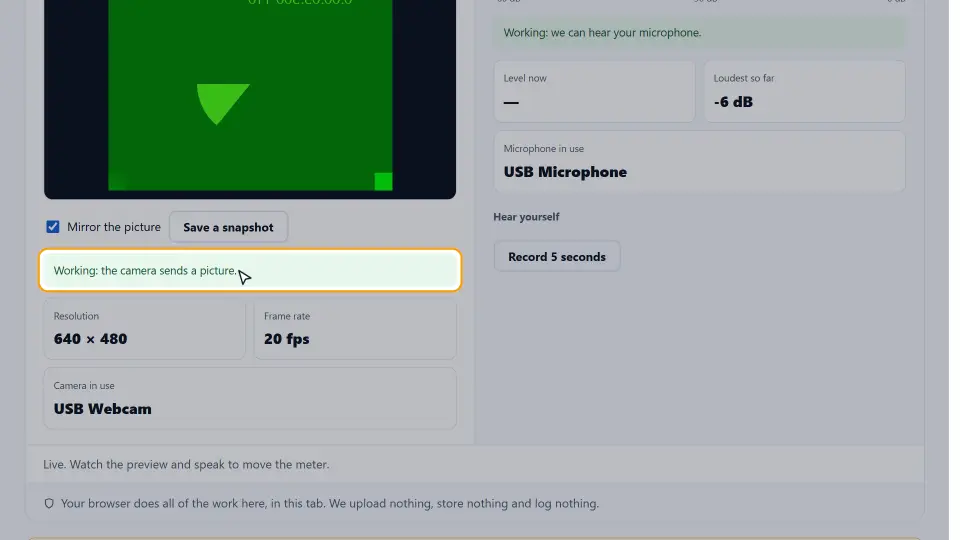
Our free Webcam and Mic Test checks the camera and the microphone in one click. It uploads nothing; the picture stays in your browser.
When it works, it also shows the real resolution and frame rate, so you know what others will see in a call. If it still fails, it tells you why: blocked, not found or in use.
Camera Settings in Other Browsers
The steps above use Chrome, but every browser has the same three blocks. Only the menus differ.
Microsoft Edge
Click the lock icon in the address bar, then Permissions for this site. Set Camera to Allow. Edge also has a global list under Settings, Cookies and site permissions, Camera.
Firefox
Click the camera icon or the lock in the address bar and remove the block. For a full list, open Settings, Privacy and Security, Permissions, Camera, Settings.
Safari on a Mac
Open Safari, Settings for This Website, and set Camera to Allow. In addition, macOS itself must allow Safari under Privacy and Security.
Reset all site permissions
If you have blocked many sites over time, reset them in one go. In Chrome, open the site settings and choose Reset permissions. Then the page asks again on the next visit.
Camera Not Working on a Phone
On a phone, the browser app needs camera access from the system first. So check the system, then the site.
- Android: open Settings, Apps, your browser, Permissions, and allow Camera. Then, in the browser, open the site settings and allow Camera for the page.
- iPhone and iPad: open Settings, scroll to your browser (for example Safari or Chrome), and turn on Camera. For Safari, also check Settings, Safari, Camera.
Also close apps that may hold the camera in the background, such as a video call or the camera app itself. Then reload the page.
Camera Not Working in Video Calls
In a browser call, such as Google Meet or a web version of Teams or Zoom, the same blocks apply. However, there is one more place to check: the call's own device menu.
Open the call settings and choose the right camera from the list. A laptop with a webcam and a phone link, or a virtual camera from OBS, may show several entries. If the call picks the wrong one, the picture stays black.
Before an important call, test with our Webcam and Mic Test. If it works there, the camera and the browser are fine, and the problem is in the call app's settings.
Other Causes to Check
- A physical privacy shutter or a camera key (often F8 or F10 on laptops) that turns the camera off.
- An outdated or disabled driver. On Windows, check the camera in Device Manager.
- Antivirus webcam protection that blocks the browser.
- A browser extension that blocks media access. Test in a private window without extensions.
- A USB camera on a weak hub. Plug it straight into the computer.
In short: site permission, system privacy, other apps, then hardware. For the official steps, see Chrome's camera and microphone help.
Questions and Answers
Why is my camera not working in Chrome?
Most often the site's camera permission is set to Block. Click the icon left of the address bar, set Camera to Allow, and reload.
Why does my camera show a black screen?
The browser got access but no picture. Another app may be using the camera, a privacy shutter may be closed, or the driver may need an update.
How do I allow camera access on Windows?
Open Settings, Privacy and security, Camera. Turn on camera access and access for apps, and allow your browser.
How do I allow camera access on a Mac?
Open System Settings, Privacy and Security, Camera, switch on your browser, then quit and reopen it.
How can I test my webcam online?
Use our free Webcam and Mic Test. It checks the camera and microphone in your browser and shows the resolution and frame rate.
Why does the camera work in one app but not the browser?
Either the system privacy settings block the browser, or the site permission blocks the page. Check both.
Does the camera work on http pages?
No. Browsers only allow the camera on secure https pages and on localhost.
Is my video uploaded when I test the camera?
Not with our test. Your browser handles the picture on its own, and it never leaves your device.
How do I allow the camera in Microsoft Edge?
Click the lock icon in the address bar, open Permissions for this site, and set Camera to Allow. Then reload the page.
How do I allow the camera in Firefox?
Click the camera or lock icon in the address bar and remove the block, or open Settings, Privacy and Security, Permissions, Camera.
Why is my camera not working on Android?
The browser app may not have camera access. Open Settings, Apps, your browser, Permissions, and allow Camera, then allow it for the site.
Why is my camera not working on an iPhone?
Open Settings, find your browser in the app list, and turn on Camera. For Safari, also check Settings, Safari, Camera.
Why does my camera work in the test but not in a call?
The call app may use a different device. Open its settings and pick the right camera from the list.
What is a virtual camera?
Software such as OBS that creates an extra camera entry. If a call picks it by mistake, you may see a black or still picture.
Can a browser extension block my camera?
Yes. Some privacy and ad-block extensions block media access. Test in a private window, where most extensions are off.
How do I reset camera permissions for all sites?
In Chrome, open Settings, Privacy and security, Site settings, Camera, and remove sites from the blocked list. The page then asks again.
Why is my external webcam not detected?
Plug it straight into the computer, not a hub, and try another USB port. Then check that it shows up in the system's device list.
Why is my camera image dark or blurry?
That is usually light or focus, not a block. Face a window or lamp, clean the lens, and check the resolution in our test.
Does a VPN affect my camera?
No. A VPN changes your network path, not camera access. A slow VPN can still make video calls choppy.
Is it safe to allow the camera for a website?
Allow it only for sites you trust. You can always set it back to Block in the site settings.