Moodboard Maker
Many Pictures, One Board
Drop in your images, and this moodboard maker arranges them on one moodboard you can download as a single picture. No account, no upload, nothing saved on a server.
- FreePrice
- ThreeLayouts
- One imageOutput
- NoneUploads
Moodboard Maker
Drop in pictures, arrange them, and save one board image
Drop pictures here, or press Add images. They stay in this tab.
Free canvas: drag a picture to move it, and drag its corner dot to resize it.
Ready. Add a few pictures to start your board.
What A Moodboard Maker Does
This moodboard maker turns a handful of images into one tidy board. You drop your pictures in, arrange them, and export the whole thing as a single file. Because the moodboard is drawn on a canvas in your browser, the pictures never leave your device. Also, no copy is kept anywhere else.
You shape the moodboard in a few ways. First, pick a layout: a grid, a masonry set or a free canvas. Next, on the free canvas, drag and resize each image until the balance feels right. In addition, you can set a background color, add a title and a caption, and round the corners for a soft look. At any point you can remove a tile, and the moodboard reflows around the change.
You need no account and there is no upload step, so the moodboard is ready in a moment. Everything updates as you work, which means the preview is the final board. When it looks right, one click downloads the whole thing as a single image file.
This moodboard maker suits anyone who collects visuals. For example, designers gather ideas for a brand, photographers plan a shoot, and makers set the tone of a room. Because the moodboard is one picture, it reads the same on every screen, from a phone to a large monitor. So it goes to a client or a channel without a folder of loose files.
Loose Pictures In, One Board Out
The picture below shows a handful of loose photos on the left. On the right, the same photos sit in one moodboard.

The top board uses a grid, so every tile gets an equal slot. The lower board uses a free canvas, so each picture keeps its own size and spot. Both save as a single image.
Three Layouts, One Download
Grid crops each picture to an equal tile. Masonry keeps every picture at its own shape and fills the columns from the shortest one. Free canvas lets you drag a picture anywhere and pull its corner dot to resize it.
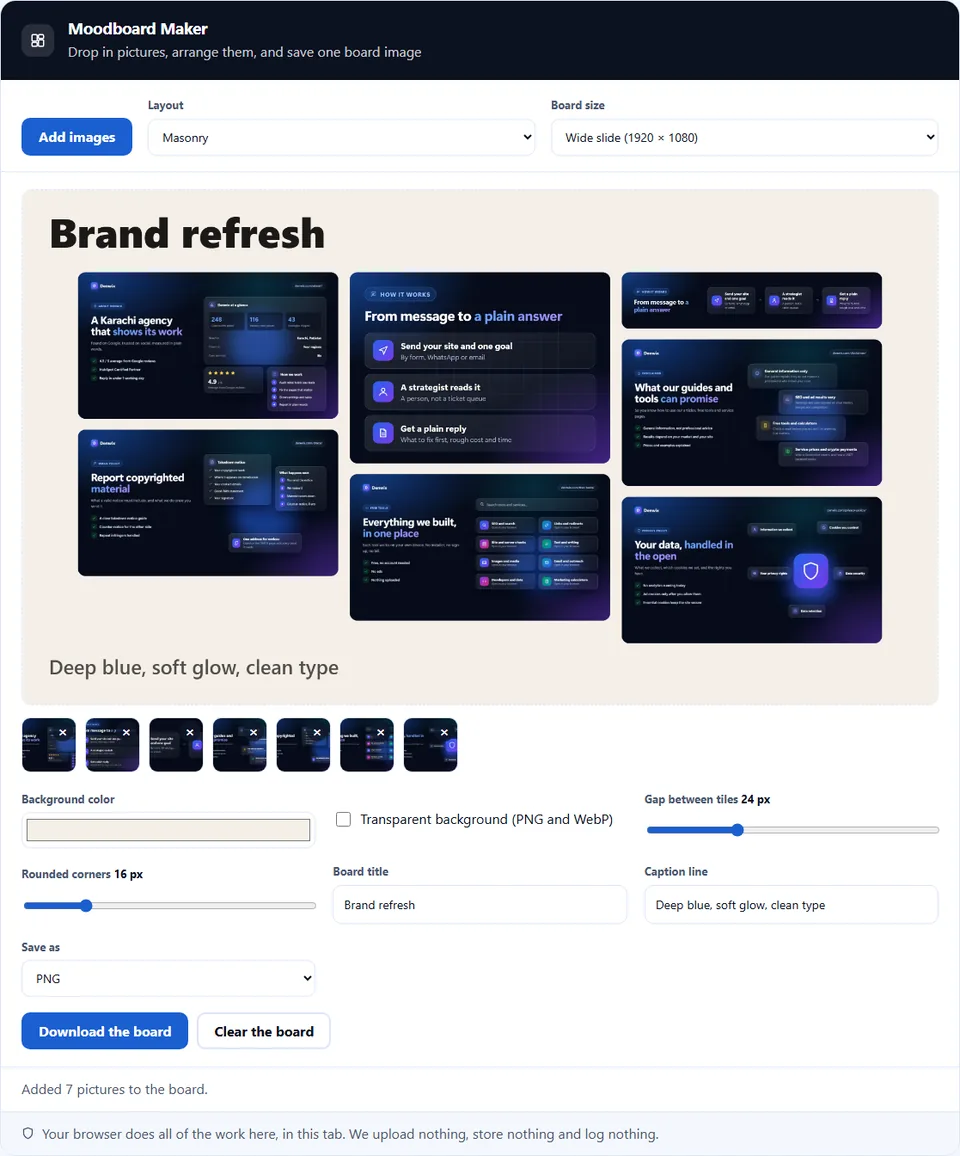
The board size sets the export: a square post, a portrait post, a wide slide, a link preview or an A4 print. In addition, you can pick PNG, JPG or WebP, and PNG or WebP can keep a clear background.
How to Use the Moodboard Maker
A short video walks through every step. Then pick your language below, and turn on captions if you like.
How to make a moodboard
Six steps, and the pictures never leave the tab.
- 1
Add your images
Drag a set of files onto the moodboard, or press Add images to browse. The tool reads common formats such as JPEG, PNG and WebP.
- 2
Pick a layout
Choose a grid for even rows, a masonry set for mixed shapes, or a free canvas to place each picture by hand.
- 3
Drag and resize each image
On the free canvas, drag a picture to move it, and pull its corner dot to change its size. The picture you touch moves to the front.
- 4
Set the style
Choose a background color, a gap between tiles and rounded corners. Then add a title or a caption line when the moodboard needs a name.
- 5
Check the preview
The canvas shows the final result, so you can judge the balance before you save. Then fix any crowded spot.
- 6
Download the moodboard
Pick PNG, JPG or WebP and press Download the moodboard. Nothing is sent to a server, so the files stay private.
Why build a moodboard in the browser
Three reasons a browser board beats a folder of loose files.
One board beats a folder of files
A moodboard pulls scattered images into one clear idea. Because a designer, a client and a maker all read the same board, the look is easier to agree on. In practice, one moodboard says more than a folder of loose files and a long message. It can settle a debate about a color or a mood in seconds.
The set stays private
This moodboard maker skips the usual upload step. Many collage tools send your pictures to a server and hand back a link. Here, however, the canvas draws the moodboard on your own device. As a result, a private set of photos stays private, and a client draft can be arranged without risk.
The export is a single image
The export matters as much as the moodboard. Because the result is a single image, it drops into a message, a deck or a post without a zip file. So you share one picture instead of a folder, and everyone sees the same thing. Also, the file keeps its layout on any device.
How the moodboard is built
Three things decide the result. Each one is worth knowing before you save.
- One layout per board The tool draws every image onto one canvas at your chosen board size. In grid mode, the tiles share equal slots, so the spacing stays even. In masonry mode, each picture keeps its shape and the columns fill evenly. In free mode, each image keeps its own position and size, so the balance is yours to set. However, a board uses one mode at a time, so pick the one that fits the idea.
- The board size sets the export shape The board size sets the shape of the export. A square board suits a social post, while a wide board fits a slide. Because the canvas works at that size, the pictures land in the right spot however large the originals were. In addition, a larger board keeps more detail, while a smaller one makes a lighter file.
- Exporting flattens the moodboard into one image Exporting flattens the moodboard into one image. The tiles are drawn, not linked, so the file holds every picture and needs nothing else to open. Also, the export keeps the layout exactly as you see it, so the moodboard looks the same on any device.
Common moodboard mistakes to avoid
Each of these leaves the moodboard busy or flat, and that is easy to miss.
Packing too many images
A crowded board hides every idea. In practice, eight to twelve strong pictures read better than thirty busy ones.
Mixing random sizes
A messy set of shapes feels accidental. So choose a grid or a masonry layout when you want an even, calm board.
Ignoring the theme
A board that jumps between styles is hard to read. Pick a shared tone first, then add one contrast piece to guide the eye.
Forgetting the text
A title helps a client read the idea. So add a short caption, and the moodboard explains itself without you.
Using low-quality photos
A blurry picture stands out on a clean board. Choose sharp images, because the export shows every detail.
Leaving no breathing room
Tiles that touch feel heavy and stuck. Set a small gap between pictures, so each one has its own space.
Moodboard maker frequently asked questions
Does the moodboard maker upload my images?
No. The whole board is drawn on a canvas in your browser. So your pictures never reach a server, because the tool does not need one to build the moodboard.
What is a moodboard?
A moodboard is a set of images that sets a style or a feeling for a project. It gathers colors, textures and shapes in one place, so a team can agree on the look without a long talk. A moodboard often guides a brand, a room or a photo shoot. It is a starting point, not a final design.
Can I download the moodboard as one image?
Yes. The tool flattens the moodboard into a single picture, so you get one file instead of a folder. After that, you can share it in a message, a deck or a post, and it opens on any device.
Which layouts are available?
The tool offers a grid, a masonry set and a free canvas. Each layout suits a different job: the grid gives order, the masonry set gives rhythm, and the free canvas gives full control over each picture.
Can I change the moodboard size?
Yes. Pick a square post, a portrait post, a wide slide, a link preview or an A4 print. In practice, decide the moodboard size before you arrange the tiles, so the layout fits the frame. Then the export matches the final use.
Can I add a title or a caption?
Yes. The tool draws text on the canvas, so you can add a short title and a caption line. However, keep them short, since a long line shrinks to fit a small board.
How many images should a board hold?
It depends on the goal, but eight to twelve strong images usually work best. A crowded board hides every idea, so fewer sharp pictures read better than many busy ones. Start with a small set, then add a tile only when the idea has a gap.
Which formats can I add?
The tool reads common web formats such as JPEG, PNG and WebP. In addition, most browsers open GIF and BMP. However, an animated GIF shows only its first frame on the moodboard.
Is the moodboard maker free?
Yes, completely. There is no account, no trial and no watermark. Also, the work runs in your browser, so there is no server cost to pass on. Every feature stays free.
Does it work offline?
Yes. Once the page has loaded, every board is built locally. So you can turn off the connection and the tool keeps working, because it never contacts a server.
Can I move and resize each picture?
Yes, on the free canvas. Each image keeps its own position and size, so you drag it where you want and pull its corner dot to resize it. In the grid and masonry layouts, the tool places the tiles for you, so the arrangement stays even.
Does the tool keep the transparency of a PNG?
Yes. PNG and WebP support transparency, so tick the transparent background box and save as PNG or WebP. However, if the moodboard has a background color, clear parts of a picture show that color instead.
Can I set the background color?
Yes. The canvas fills the background before it draws the tiles, so you can set any color behind the pictures. A soft neutral makes the images stand out, while a bold color sets a strong mood.
Does the tool store my images?
No. Nothing is saved on a server or in local storage, so no copy survives the session. When you close the tab, the moodboard is gone. Therefore, download the export before you leave the page.
Can I make a moodboard on my phone?
Yes. The page adapts to a small screen, so you can build a board on a phone or tablet. However, a large board is easier to arrange on a desktop, so a phone suits a quick, simple board.
Can I use the moodboard for a client presentation?
Yes. The export is a normal image, so it drops into a deck or a message. Also, a single file keeps the layout fixed, so the moodboard looks the same on the client screen.
What image quality should I use?
Use sharp, well-lit pictures, because the export shows every detail. However, very large files are not needed, since the moodboard scales them down. A moderate size keeps the export light and fast.
Can I reuse a board later?
Not as an editable file, because the export is a flat image. However, you can keep the original pictures and rebuild the moodboard in the same tool. So save your source images if you plan to edit later.
Does the tool add a watermark?
No. The export is a clean copy of your board at the size you chose. Nothing is added or branded, because the tool only draws the pictures and the text you set.
Can I arrange the tiles in a pattern?
Yes. In free mode you control each position and size, so you can build a simple pattern or a balanced spread. In practice, a small gap between tiles makes any pattern feel deliberate.
Does the tool track me or read my images?
No. Your images are never sent anywhere, and no analytics script reads them. So the moodboard is built on your device, because nothing about your files leaves the page.
What is a good size for a moodboard export?
It depends on where the moodboard will live. For a social post, the 1080 square works well, while a slide or a print takes more. The canvas works at the size you set, so choose it to match the final use.
More tools for working with images
A few pages the same job usually leads to.
Turn one of the moodboard pictures into text art made of characters.
Open tool →Resize or convert a picture before you add it to the moodboard.
Open tool →Pick an exact color for the moodboard background.
Open tool →Build a palette that matches the mood of the moodboard.
Open tool →Turn a small board image into a data URI for a page.
Open tool →
Build your first moodboard now
Open the moodboard maker, drop in a set of images and pick a layout. The preview updates as you work, then one click saves the whole moodboard. Nothing leaves your device.